
Phone Preview
To see how many lines a passage of dialogue takes up on a phone, open Phone Preview beside the desktop editor. The phone view updates as you edit the draft.
Open Phone Preview
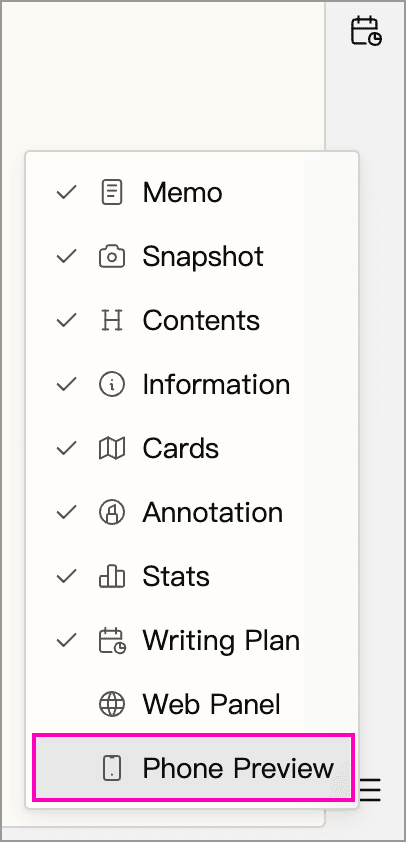
Open a document, right-click the right sidebar toolbar, and select Phone Preview. The button is hidden by default. You can also enable it in Settings → Advanced → Toolbar.
Preview as You Write
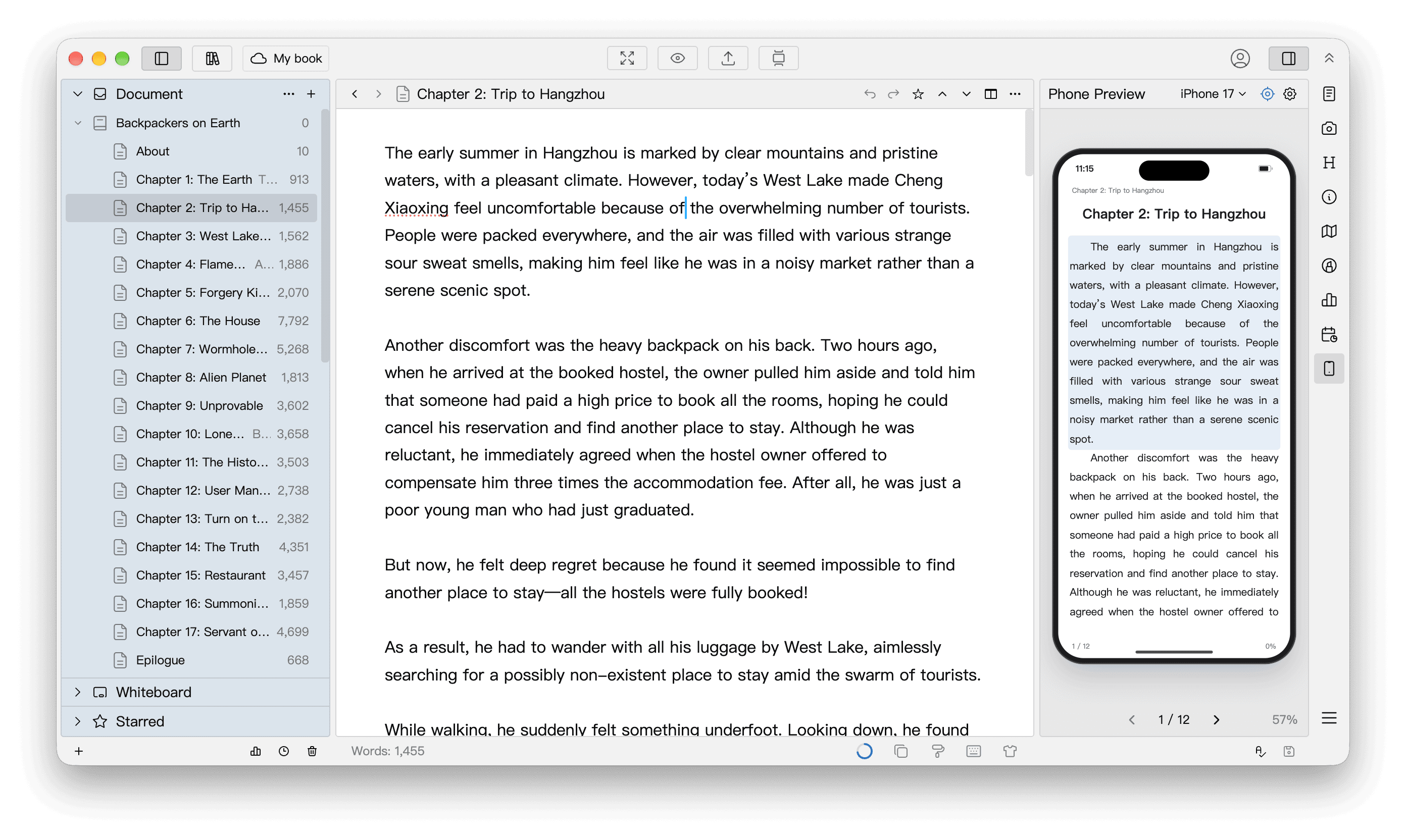
Click Phone Preview on the toolbar to open the panel. With Follow Cursor enabled at the top, click a paragraph in the editor to bring it into view and highlight it on the phone.
Turn off Follow Cursor to keep reading elsewhere in the preview. Click the sidebar button again to close the panel.
Adjust the Screen and Reading Layout
Click the device name at the top of the panel to choose a phone or tablet preset. To check line breaks at a particular screen size, enter a width and height under Custom in the same menu. Widening the sidebar enlarges the picture of the device. Switch devices to compare line breaks at different screen widths.
Open the panel settings to adjust the reading experience.
- Under Page Turning, choose Paged and click either side of the phone screen or use the navigation buttons to turn a page. Choose Scroll to read continuously.
- Under Body Text, choose Plain Text to see the text without images, or Keep Formatting to check headings, lists, and images.
- To see what a reader using larger type might see, keep the same device selected, increase the font size or margins, and check where a line of dialogue wraps.
To read a document in the full editor area or compare desktop, tablet, and mobile viewports, see Preview.