
Typing Statistics
Word Count tells you how many words a document has right now, while typing statistics record how much you actually write each day and for how long, helping you understand your writing rhythm and build a writing habit.
Typing statistics are recorded per account and cover your writing in all Libraries. When you are signed in, your typing records from different devices are synced and combined automatically.
Open typing statistics
You can open the typing statistics window in any of the following ways:
- Press F7
- Choose View → Typing Statistics from the menu
- Click the typing statistics button at the bottom of the left sidebar
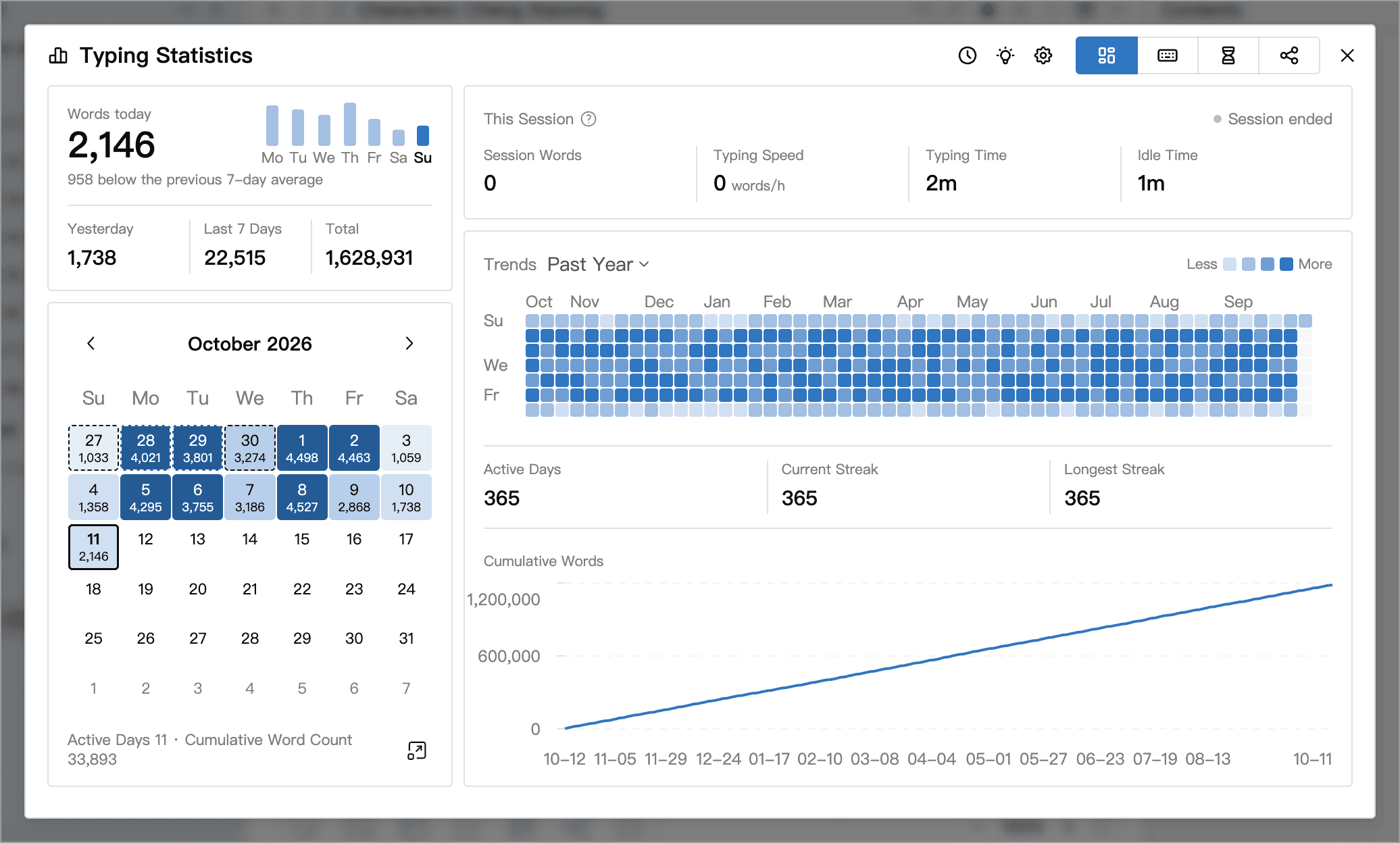
The window has four sections: Overview, Typing Statistics, Time Statistics and Share.
Overview
The overview gathers the numbers you will look at most often:
- Today card: words written today, yesterday, in the last 7 days (including today) and in total, plus how today compares with your daily average over the previous 7 days.
- This Session: session words, typing speed, typing time and idle time. A new session starts when you resume typing after a break of more than 30 minutes.
- Writing Calendar: see the words written on each day of a month; the darker the color, the more you wrote that day.
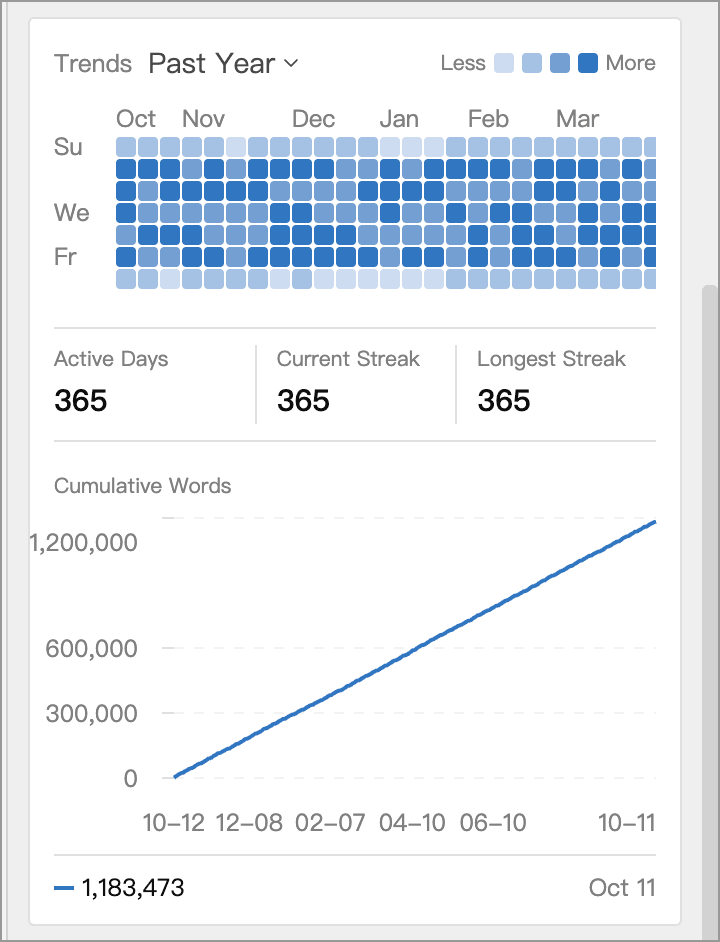
- Heatmap: small squares showing daily writing activity for the past year or a selected calendar year.
- A cumulative curve, along with Active Days, Cumulative Word Count, Longest Streak and Current Streak. These are calculated within the selected date range. The current streak counts consecutive days with typing records back from the end of that range. When viewing the past year or the current year, not having written yet today does not break the streak.
Typing statistics and time statistics
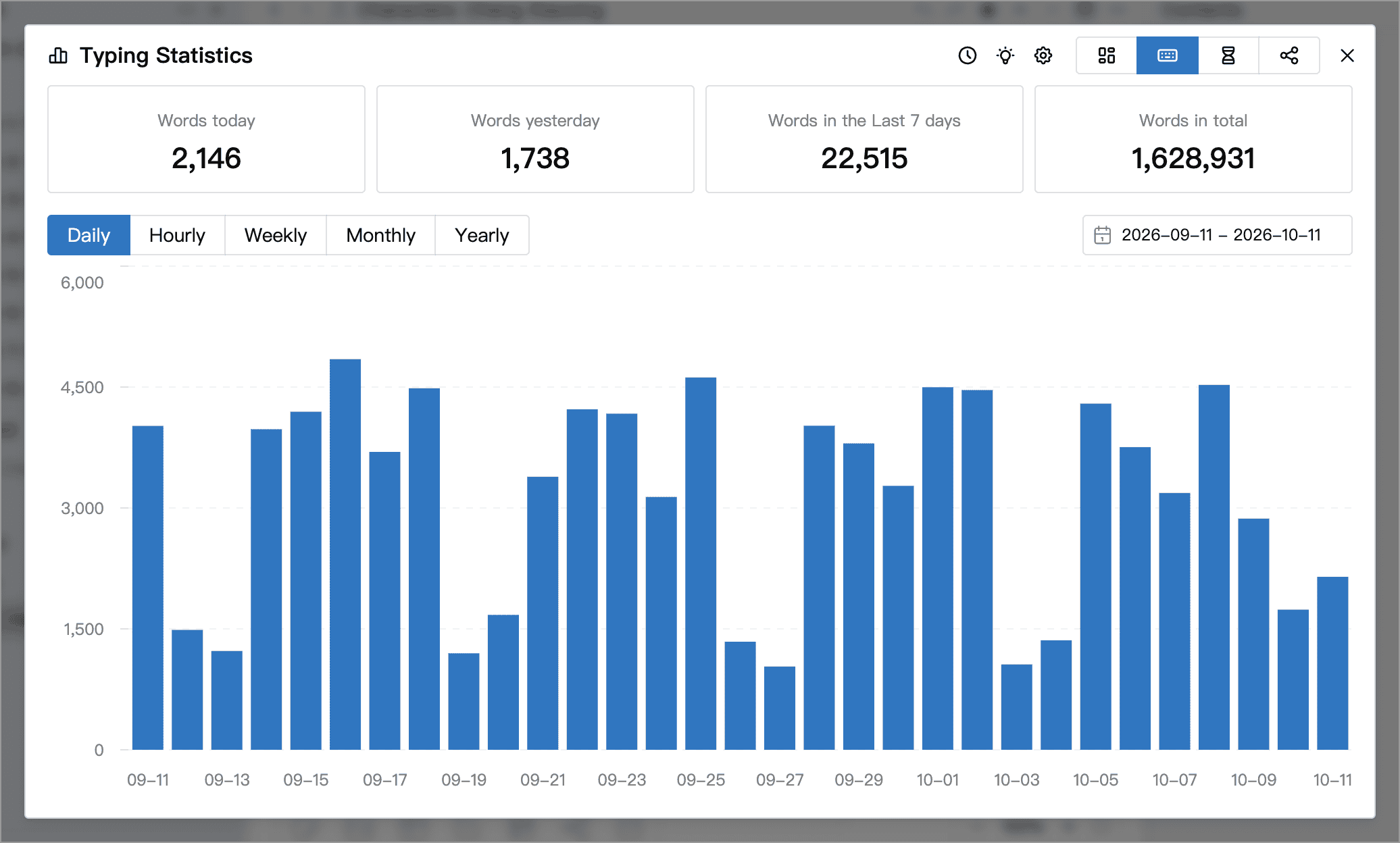
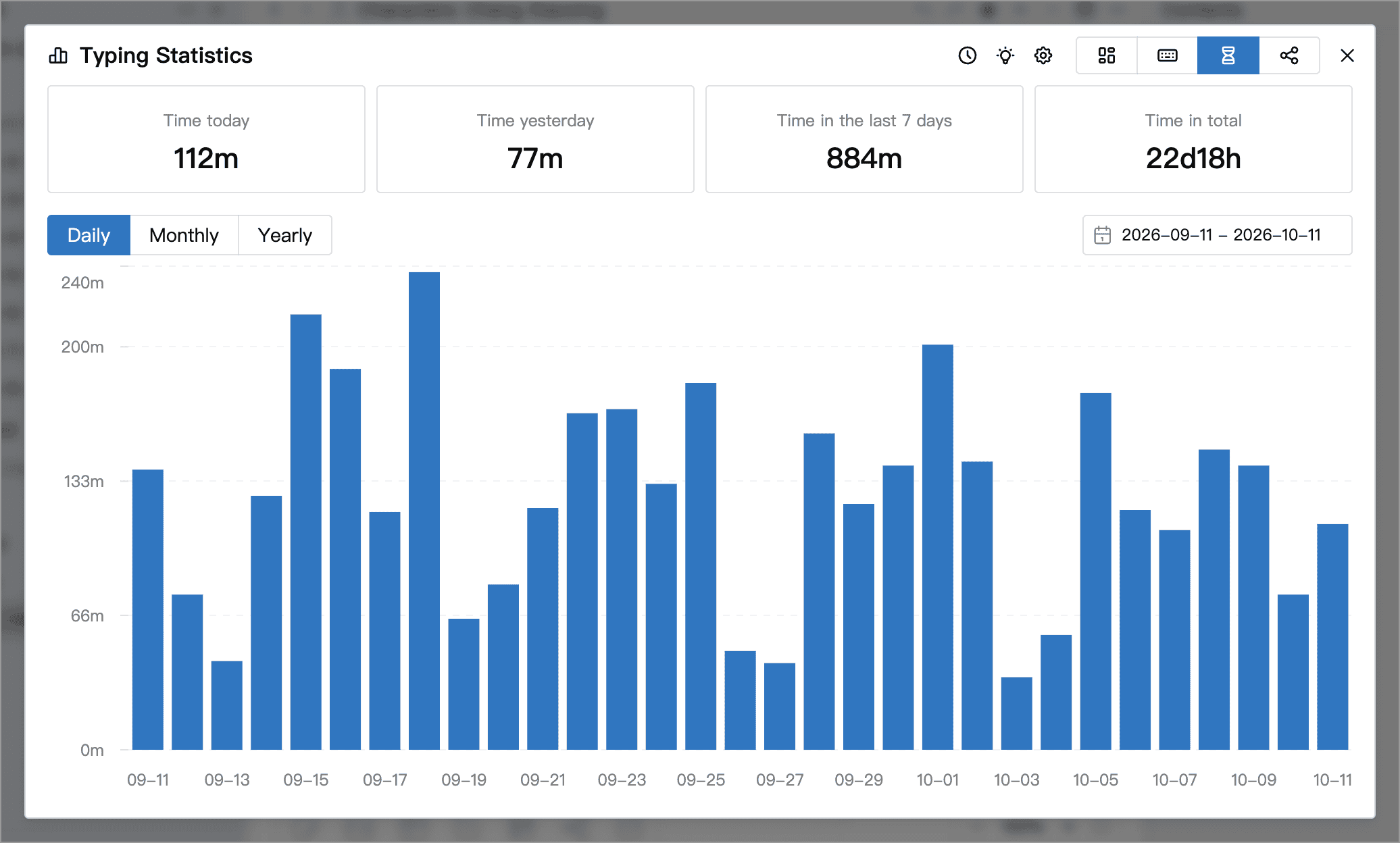
These two sections chart your word counts and typing time respectively. Both support daily, monthly, and yearly views. Typing statistics also show how your word counts are distributed across the days of the week and the hours of the day.
Above the chart you can choose a date range, such as the last 30 days, last month, year to date or the past 365 days. This filters the chart only; the summaries for today, yesterday, the last 7 days, and all time at the top remain unchanged.
Share
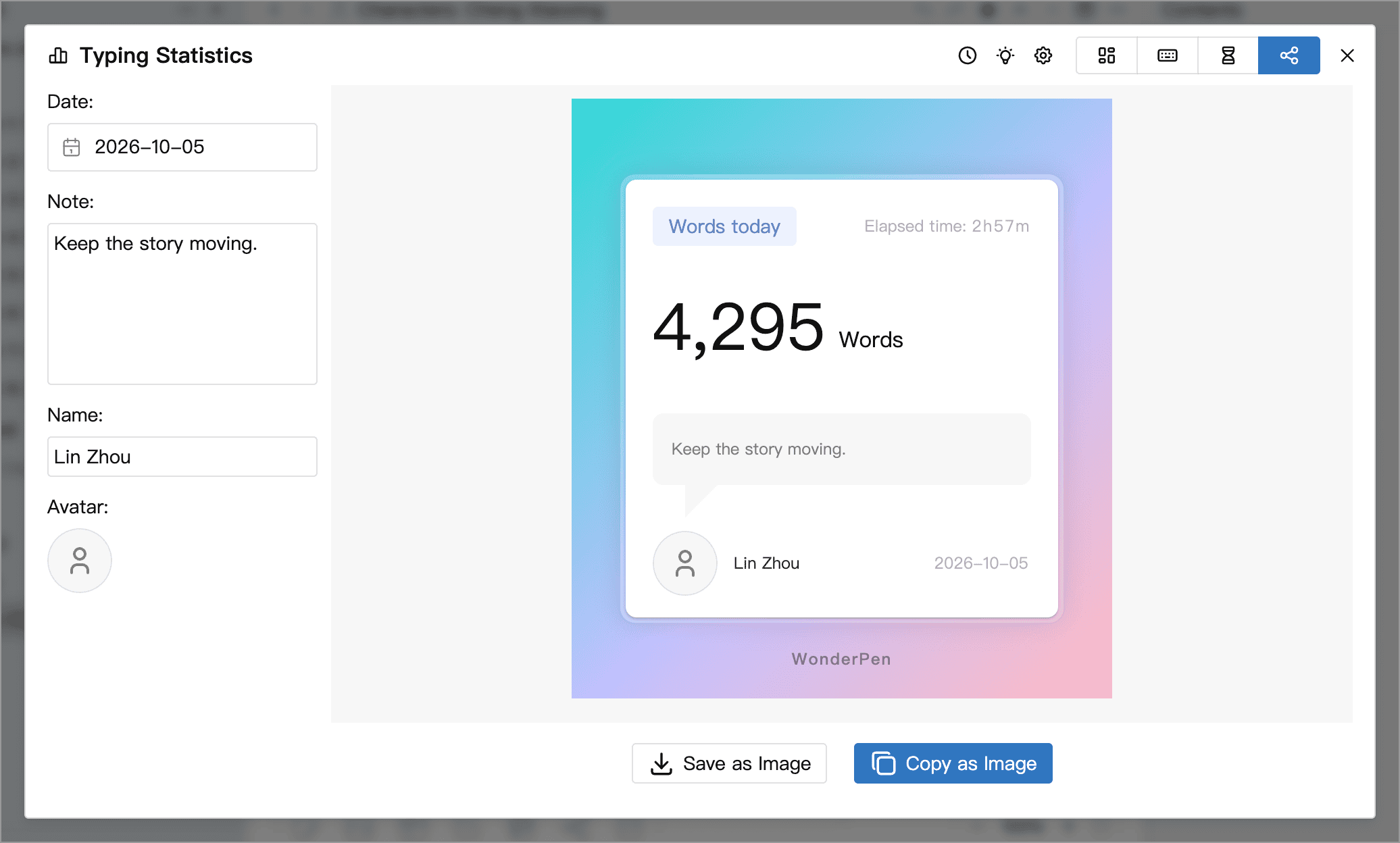
In Share, choose a date, enter your pen name and a note about your writing, and optionally click the avatar to change its image. The preview on the right shows the word count and typing time for the selected date. Click Save as Image or Copy as Image to share the card with friends.
Stats panel in the right sidebar
To keep your typing statistics in view while writing, click Stats in the toolbar on the right. The top of the panel shows today's word count and typing time, along with statistics for the current session.
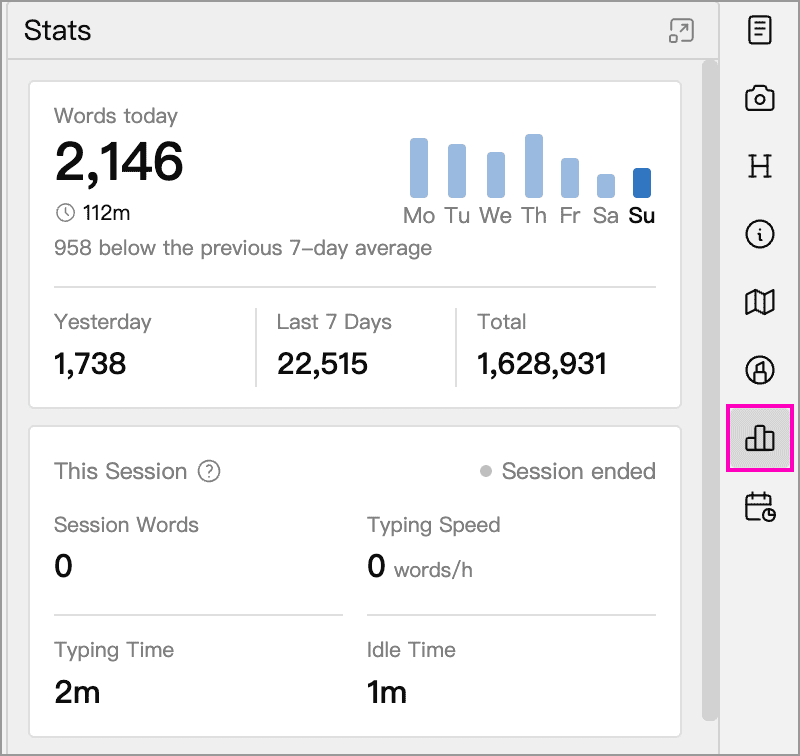
Scroll down to see the writing calendar, heatmap, and cumulative curve. The panel uses the same data as the typing statistics window. Click the button on the right of the panel header to open the full typing statistics window.
Editor status bar
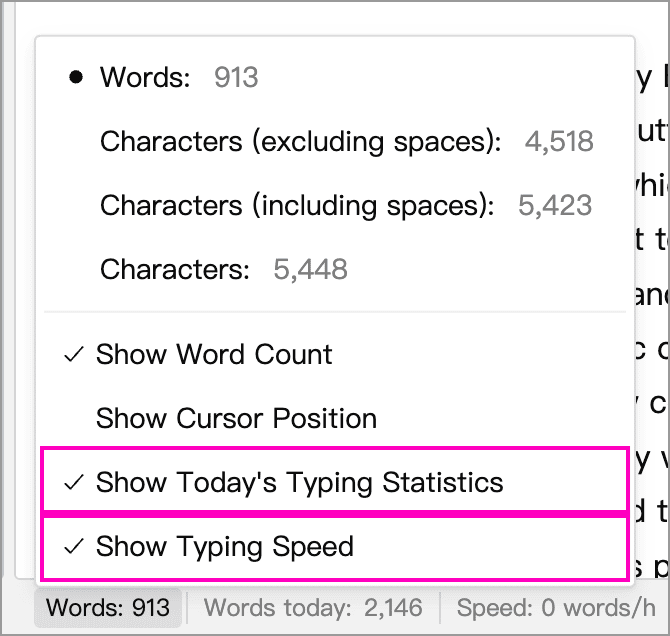
Hover over the word count at the bottom of the editor and enable Show Today’s Typing Statistics in the menu. Enable Show Typing Speed to see the current session’s input speed as well. In a top-and-bottom split, click the word count to open this menu. See Word Count for other display options.
How the numbers are counted
- Words typed: whenever document content is saved, WonderPen calculates the change in word count and adds it to the current hour. Typing statistics always use word counting: each Chinese character counts as 1, and each English word counts as 1. Switching the status bar between words and characters does not change this. Deleting text subtracts from the current hour's count, but never below 0, and never affects earlier records.
- Large pastes and deletions: if the word-count change in a single save exceeds a threshold (100 by default), it is ignored and not counted, so that pasting reference material or tidying up documents does not distort your statistics. You can adjust this value in Settings → Advanced → Document Editing; see Why is pasted content not counted in word statistics?
- Typing time: any minute in which you typed counts as one minute of writing.
- Typing speed: words typed in the current session divided by its typing time, expressed as words per hour. A dash (—) appears when typing time is less than one minute.
- Sessions: data for the current session is stored on this device only and is not synced to other devices.
Word totals count document body text only; text in memos, cards, and other reference items is not included.
Reference documents are not counted
You may keep reference material, character profiles and the like in your Library alongside your writing. Once these documents are marked as reference material, changes made while organizing them are not considered writing output and therefore do not count toward typing statistics.
Right-click a document in the directory tree and choose Mark as Reference.
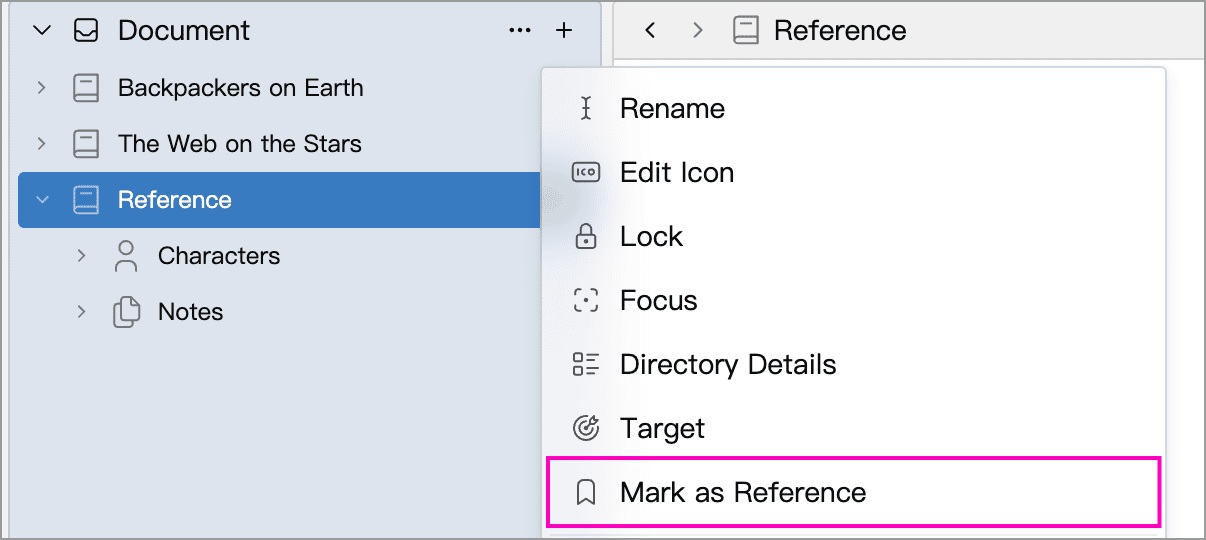
A "Reference" tag appears next to its title, and its sub-documents inherit the mark. Subsequent typing in a reference document or any of its sub-documents does not add to word or time statistics. Changes to the document body also do not count toward the Writing Plan and are not recorded for Writing Replay.
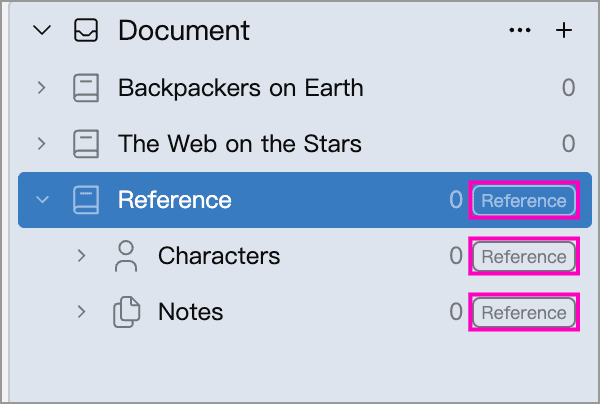
Typing statistics recorded before the mark was applied are retained; marking a document as reference does not remove past records.
Select several documents and right-click to mark or unmark them in a batch. An inherited reference mark cannot be removed from a sub-document individually.
Typing statistics settings
Click the gear button in the typing statistics window to adjust the display and manage your records:
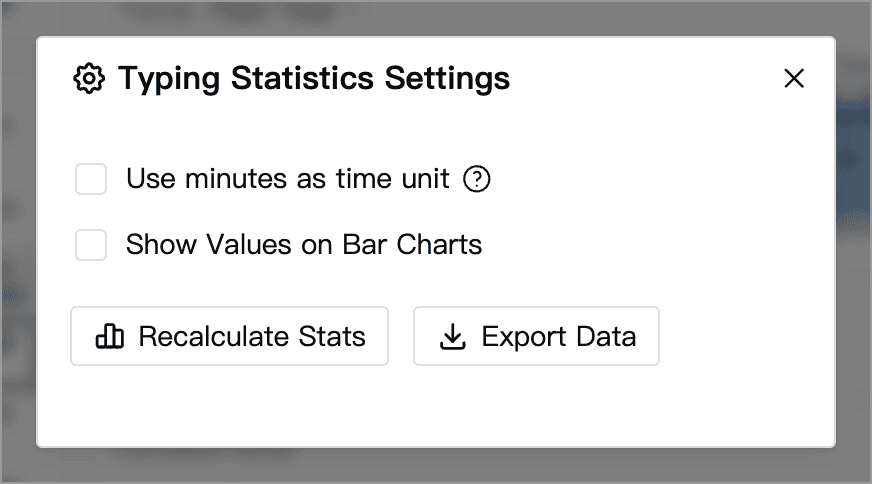
- Use minutes as time unit: show values in time statistics in minutes, for example "1500 min" for 25 hours.
- Show Values on Bar Charts: display the word count or duration directly on each bar.
- Recalculate Stats: recalculate typing statistics from the existing records. Try this if the numbers look wrong.
- Export Data: export the local typing records (including records from other devices already synced to this one) as a Zip file containing CSV tables of hourly records and daily summaries, which you can analyze further in a spreadsheet app. The export is not limited by the chart’s selected date range and contains no document content.
You can also set the First Day of the Week in Settings → Advanced → Additional; the calendar and weekly statistics follow this setting.