
Web Panel
The Web Panel opens websites inside the WonderPen desktop sidebar. Keep a dictionary or reference website beside your writing, or pin a frequently used site as its own sidebar button.
Open and Browse Websites
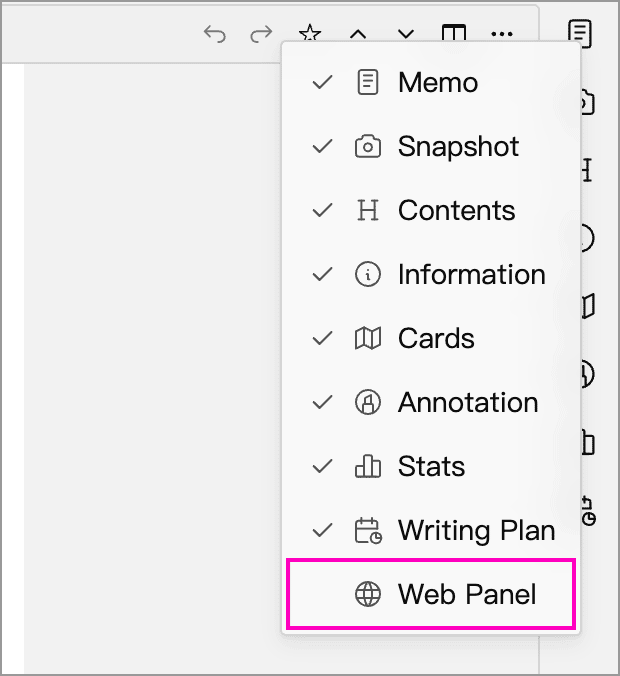
The Web Panel is hidden by default. Right-click a sidebar toolbar and enable Web Panel, or make it visible in Settings → Advanced → Toolbar. Then click Web Panel on the sidebar toolbar to open it.
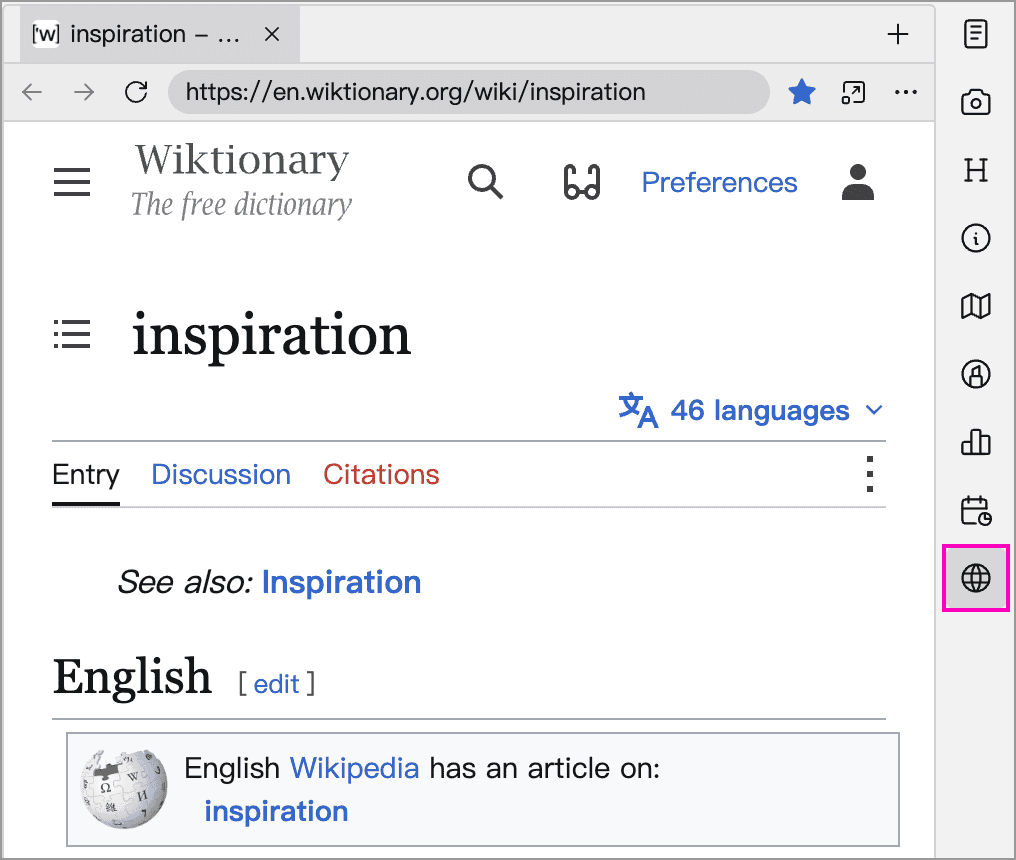
Enter a URL in the address bar and press Enter to open a webpage. The address bar accepts URLs, not search terms; to search, first open a search engine or the relevant website.
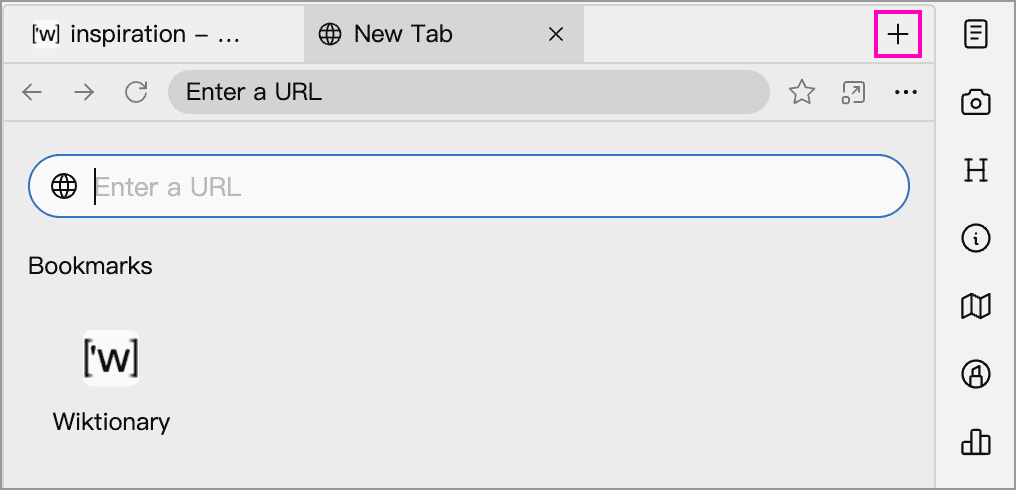
- Browse multiple pages: Click the plus button (New Tab) at the right of the tab bar to open another page. Click a tab to switch to it, or its close button to close it. The tab context menu also offers Close Other Tabs.
- Go back, forward, or refresh: Use the buttons to the left of the address bar. While a page is loading, the refresh button becomes Stop.
- Adjust page size: Click the ellipsis to the right of the address bar and use the Zoom controls in the menu to zoom in, zoom out, or reset to 100%. This changes the webpage, not the WonderPen interface font size.
Network access and sign-in requirements depend on the website. The Web Panel does not share sign-in sessions with your system browser, so you may need to sign in again even if you are already signed in there. If a site does not work correctly in the panel, choose Open in Browser from the ellipsis menu.
Bookmark Pages
Click the star in the address bar to Bookmark This Page. The star becomes filled when the page is bookmarked. Click New Tab to see your bookmarks, then click a site to open it again.
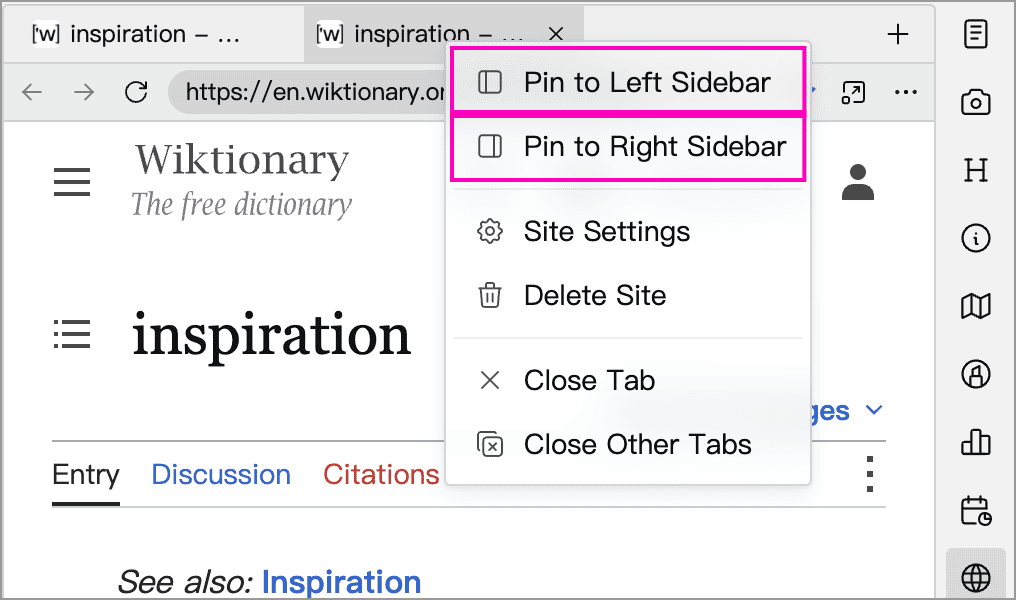
Right-click a bookmark and choose Site Settings to change its name, URL, or icon. You can also pin it to a sidebar from this menu.
Pin Frequently Used Sites
To access a website directly, like Memo or Snapshot, right-click its web tab or bookmark and choose Pin to Left Sidebar or Pin to Right Sidebar. The site becomes its own sidebar button and remains in your bookmarks.
After pinning, click the ellipsis beside the site panel's title to open Site Settings, adjust zoom, or enable Show Address Bar to enter URLs and navigate back or forward.
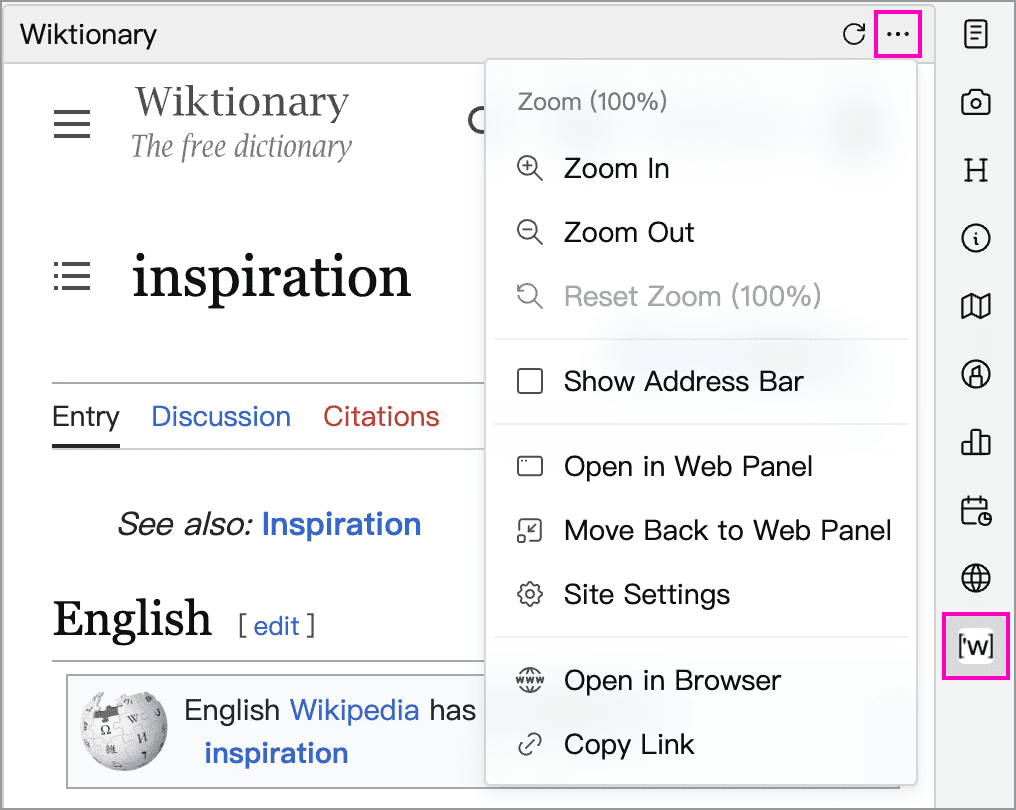
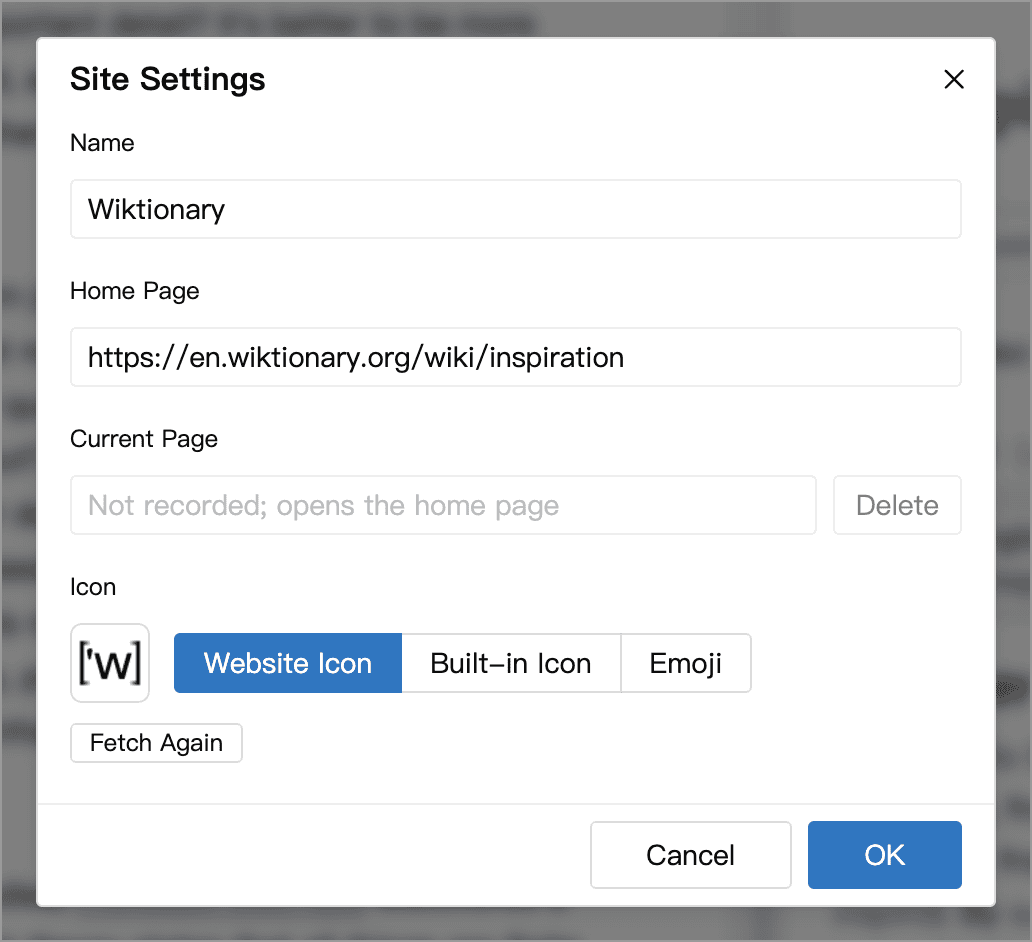
Site Settings
Site Settings provides the following options:
| Setting | Purpose |
|---|---|
| Name | Identify the site in bookmarks and the sidebar |
| Home Page | Set the pinned site's starting URL; for an unpinned bookmark, this field is labeled “URL” |
| Current Page | The pinned site's last visited page, which is restored when reopened; click “Delete” beside this field and save the settings to clear the record and return to the home page without deleting the site |
| Icon | Use the website's icon, a built-in icon, or an emoji |
After navigating elsewhere, choose Back to Home Page from the site panel's ellipsis menu to return to its configured home URL.
Unpin or Delete a Site
- Unpin a site: Choose Move Back to Web Panel from the pinned site panel's ellipsis menu. This removes the separate sidebar button and opens the current page in a Web Panel tab, keeping the bookmark.
- Delete a site: Right-click its bookmark or pinned sidebar button and choose Delete Site to remove both the bookmark and any pinned button. Choosing Remove Bookmark from the bookmark's context menu, or clicking the filled star on a bookmarked page again, has the same effect.
See the plan comparison and the app for current pinned-site allowances.
Open in a Separate Window
In the Web Panel, click Pop Out to Window to the right of the address bar to view the current page in its own window.

The page reloads when popped out, but its sign-in state is retained. Click Dock Back to Panel in the separate window, or close the window, to return the webpage to a Web Panel tab.
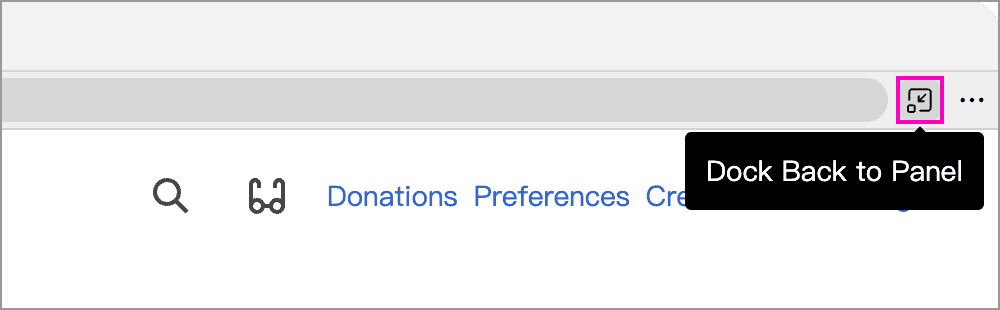
Pinned site panels do not have a pop-out button. First choose Open in Web Panel from the site's ellipsis menu, then pop out the tab. The pinned sidebar button remains available.
This window displays a website, while floating document windows display Library content.
External Links and Website Data
In Settings → Advanced → Web Panel, choose whether links that request a new tab open in the Web Panel or your system browser. This setting does not affect ordinary links that navigate within the current page. Links that open separately from a popped-out webpage window go to the system browser.
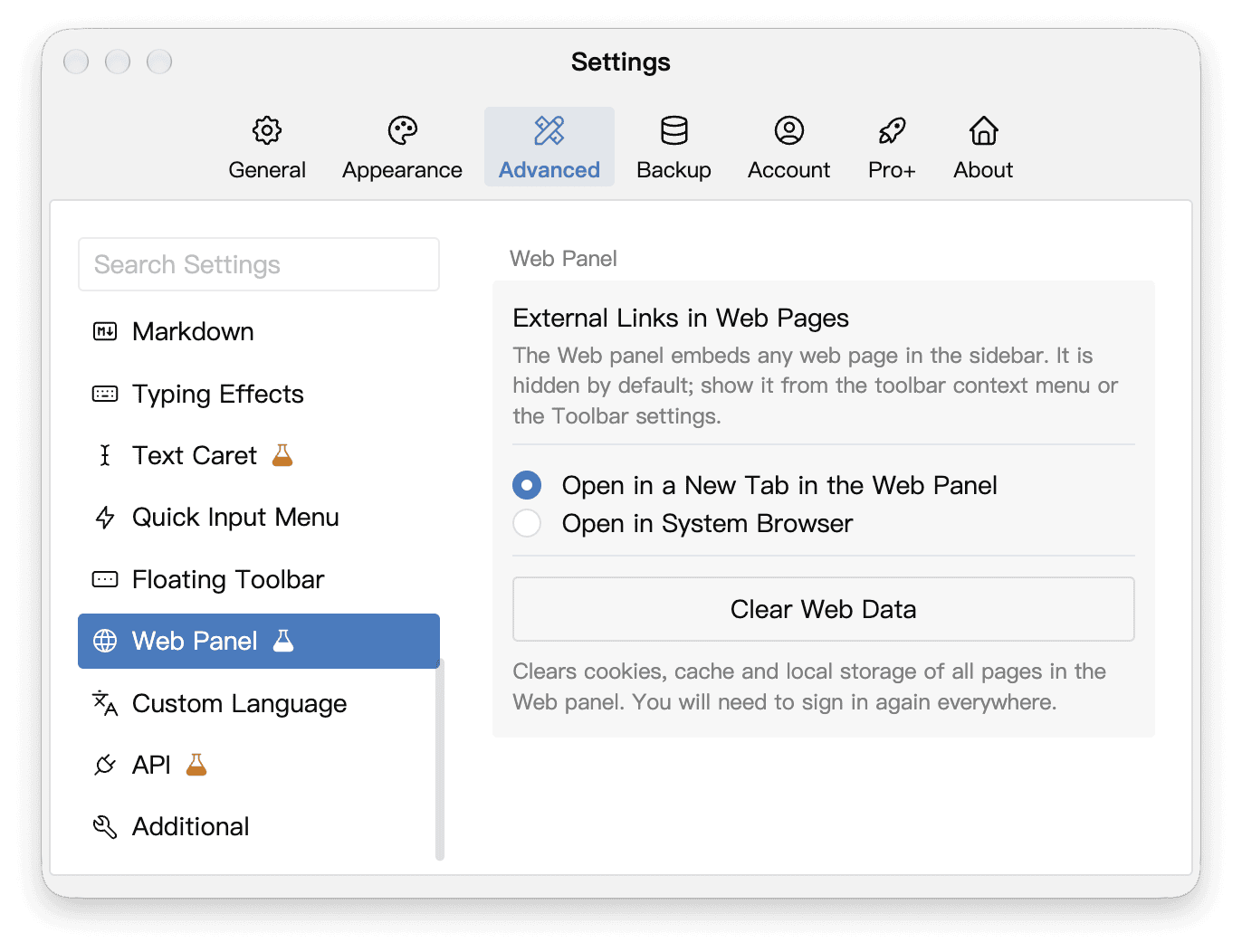
Clear Web Data clears cookies, caches, and local storage for all sites in the Web Panel, including pinned sites. You will need to sign in to those sites again. It leaves your bookmarks and system browser data intact. Signing out of your WonderPen account also clears the Web Panel's website data.
Bookmarks, pinned sites, and open web tabs are stored on the current device and do not sync to other devices with your Library. Bookmarking a URL does not save the webpage's contents in your Library either. To keep reference material, organize the relevant content in a document, memo, or card.