
Writing Replay
Writing Replay shows how a document was written and revised, including text insertion and deletion. Use it to revisit your ideas, find earlier wording, or create a video of your writing process.
Typing Statistics measures how much you wrote and how long you spent; replay shows how the text changed. Snapshots preserve versions at particular moments. Replay depends on available recordings and does not replace snapshots or backups.
Open a Replay
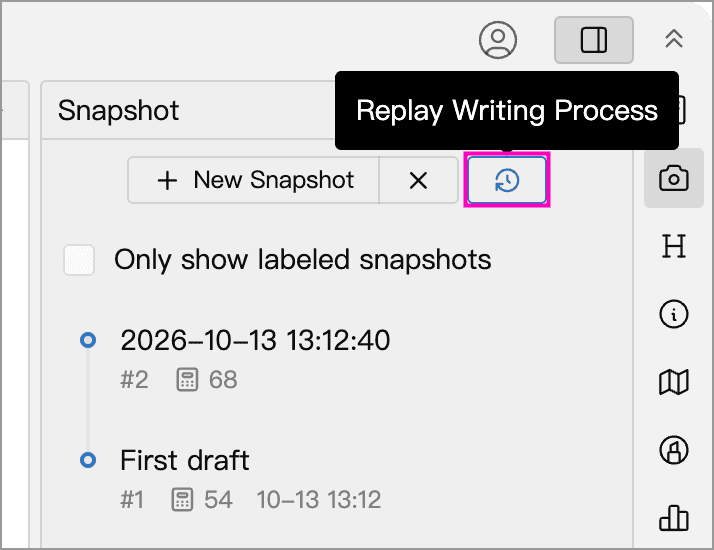
- Open the document you want to review.
- Open the Snapshot sidebar panel.
- Click Replay Writing Process.
Play and Recover Earlier Text
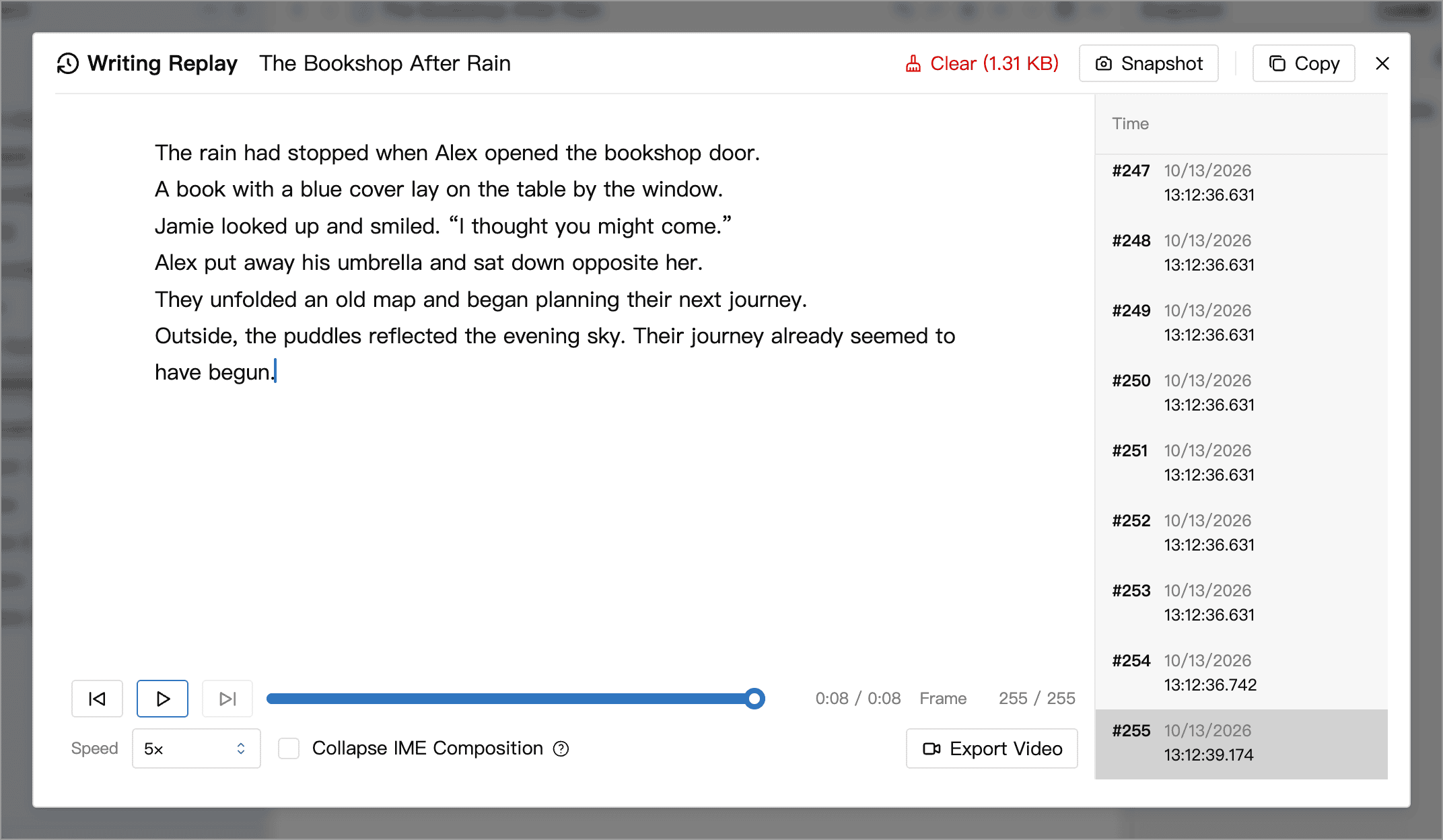
The replay is read-only and does not change the current document. Play, pause, adjust the speed, drag the progress bar, or step forward and backward through individual frames. Click an entry in the time list to jump to that change.
Collapse IME Composition shows only the text confirmed by your input method, hiding intermediate changes such as pinyin input and character selection. Turn it off to see those changes. This affects playback only and does not delete recordings. Long pauses are shortened, so playback duration differs from the time originally spent writing.
Pause playback at any time and click Copy in the upper-right corner to copy all the document text shown at that point. Paste it into a new document to review before incorporating it into your current draft.
To view or restore a saved version, click Snapshot at the top of the window to open the document's snapshot viewer. This switches views; it does not save the current replay frame as a snapshot.
What Gets Recorded
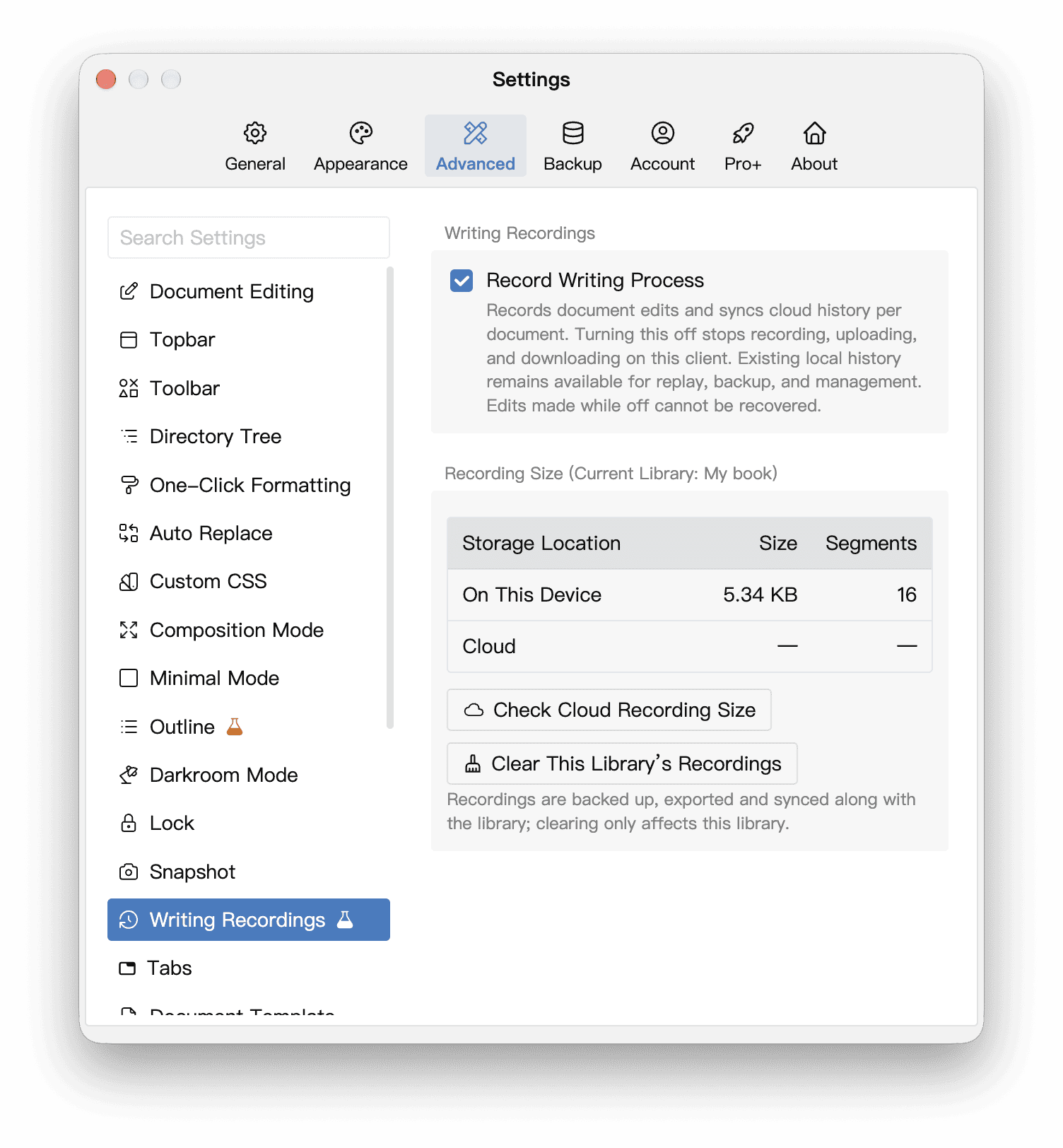
Record Writing Process is enabled by default. Find it in Settings → Advanced → Writing Recordings.
- Recordings cover document body edits, not titles, memos, or whiteboard cards.
- Documents marked as reference material, including their descendants, are neither recorded nor replayed. Removing that designation lets you view previously retained recordings again.
- Turning recording off stops recording, uploading, and downloading writing history on this client. Existing local recordings remain available for replay, backup, and cleanup. Turning it back on cannot recover edits made while it was off.
- Imports, snapshot restores, and one-click formatting may appear as a single change rather than character-by-character input. When part of a recording is missing, replay shows a message and jumps to the next available version.
If a recording was created by a newer version, update WonderPen before playing it. If there are no recordings or no usable starting version, look for earlier text in snapshots or backups instead.
Cloud Synchronization and Backups
With Record Writing Process enabled, Cloud Libraries synchronize recordings. Opening a document's replay attempts to retrieve that document's cloud history. Offline, or if retrieval fails, only recordings already on this device are available. See the plan comparison and the app for current cloud retention rules.
With Include writing process recordings in backup enabled in Settings → Backup, backups include locally available recordings without downloading the entire Library's cloud history. Recordings may be omitted if they are too large; see Backup and Restore for details. Before sharing a Library, also review the scope of Zip exports.
Export a Video
Click Export Video in the replay window to generate an MP4 video from the available recording, without recording your screen.
- Choose landscape, portrait, or square, then select the dimensions and frame rate.
- Adjust playback speed, IME composition display, and whether to show timestamps and a scrollbar.
- Review the preview and Video Duration, click Start Export, and choose a save location.
- When finished, click View File to check the video.
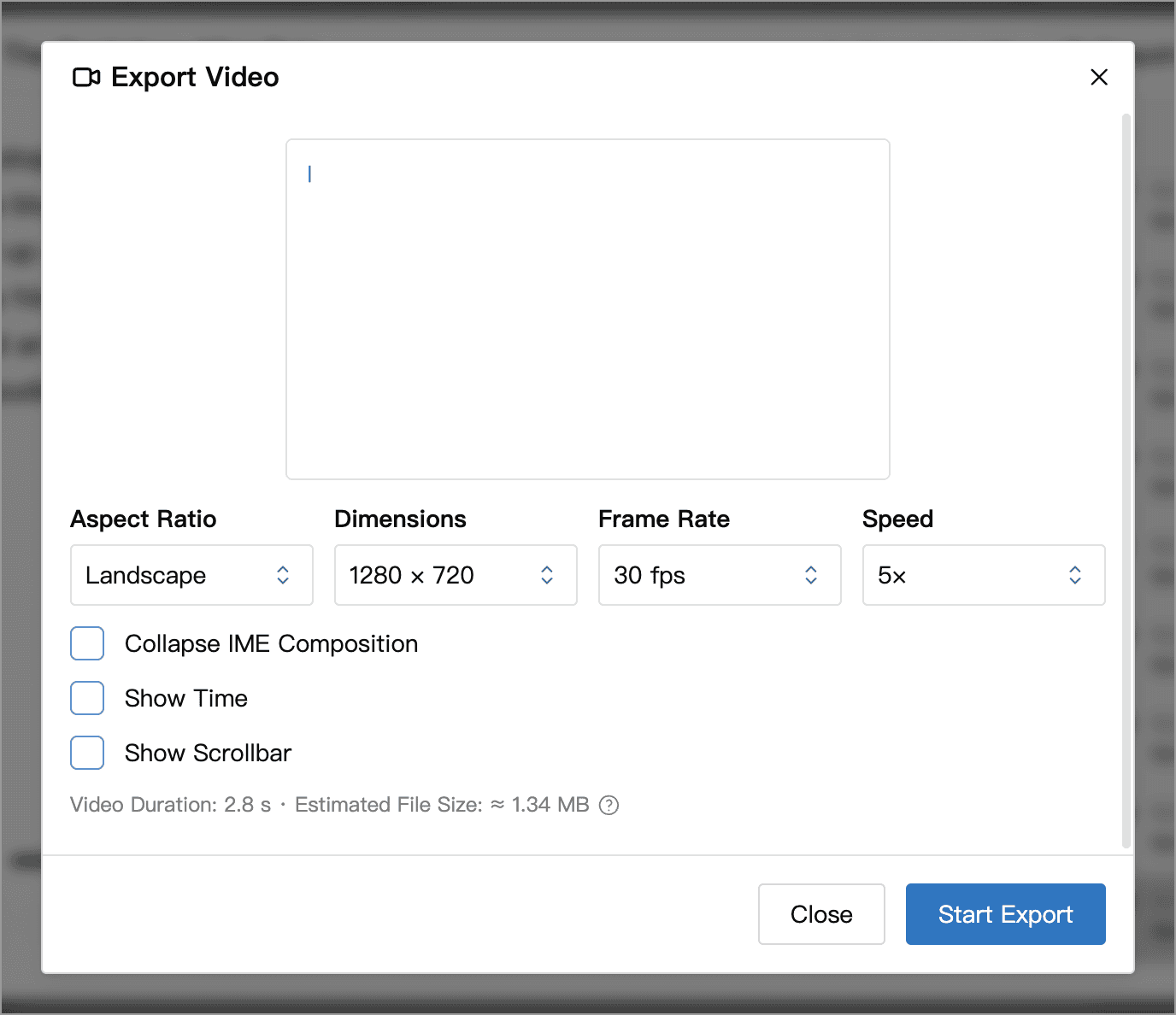
The preview shows the recording’s first frame. If recording began with an empty document, the preview is blank too. The video starts at the beginning of the available replay, not the player's current position. Range trimming is not available.
Estimated file size is a guide; the actual size may differ. If the app reports that your device does not support the selected video settings, adjust them as prompted.
Video Duration shows how long the finished video will play, not how long exporting will take. Export time depends on factors such as content length, the number of recorded changes, playback speed, video dimensions and frame rate, and device performance. Longer content, higher resolutions, or higher frame rates may take more time to export; use background export, described below, to continue writing while it runs.
Background Export
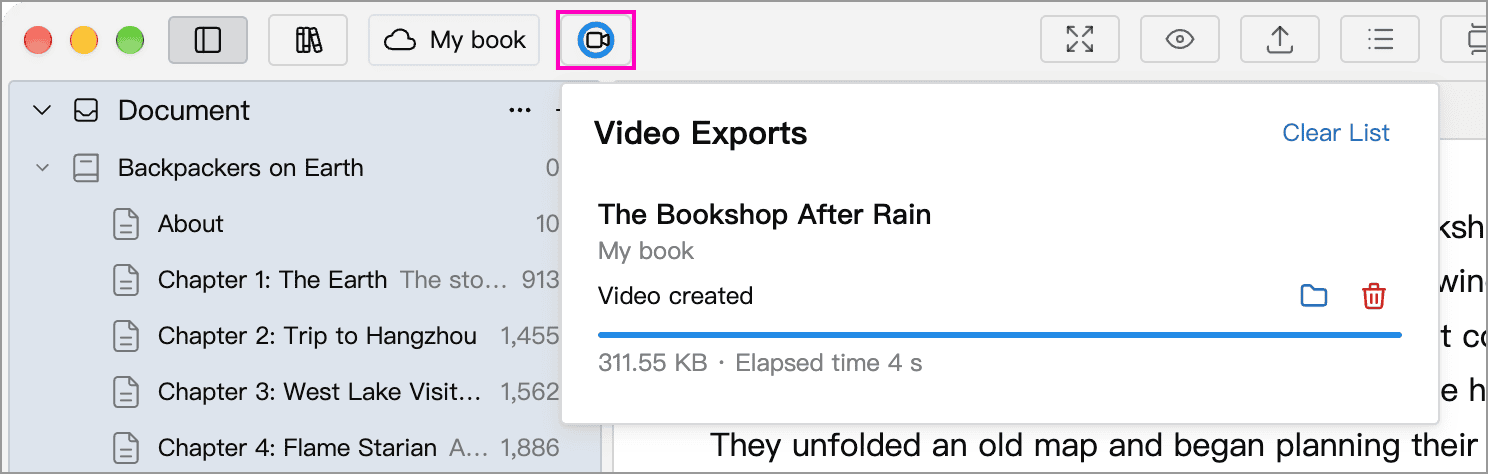
On desktop, once the task is ready, click Export in Background to continue writing. A task button appears at the top left of the main window, where you can check progress, pause, resume, or remove tasks. Multiple tasks run in a queue.
WonderPen must remain running. Quitting ends unfinished tasks, and they do not resume automatically after restarting. Removing a completed task entry does not delete its exported video file.
Check Before Sharing
Replays and exported videos may show text that was later deleted. Review the entire video before sharing to ensure it contains no drafts or information you want to keep private.
Manage and Clear Recordings
Open the Library you want to manage, then go to Settings → Advanced → Writing Recordings to view the size of recordings stored on this device. For a Cloud Library, click Check Cloud Recording Size to check cloud storage usage. A dash (—) before querying does not mean there are no recordings.
Reaching the local storage limit shown in the app pauses new recordings and cloud history downloads. Document saving is unaffected, and existing recordings remain playable. Clearing unneeded recordings frees space so subsequent edits can be recorded again.
- One document: click Clear in its replay window.
- The current Library: choose Clear This Library’s Recordings in the recording settings.
Clearing removes writing history in the selected scope and, for a Cloud Library, sends a request to clear the corresponding cloud recordings. It does not delete document text or snapshots. If cloud deletion is awaiting confirmation, local recordings have already been cleared but cloud deletion is not complete. Return to the recording settings when online, click Confirm Cloud History Deletion, and follow the prompt.
Clearing cannot be undone; if you need the history, first verify that your backup includes it.