
Settings
Many settings sit beside the feature they control, such as editor styles and word counts in the editor status bar. Open the Settings window to find and adjust options in one place.
Open Settings
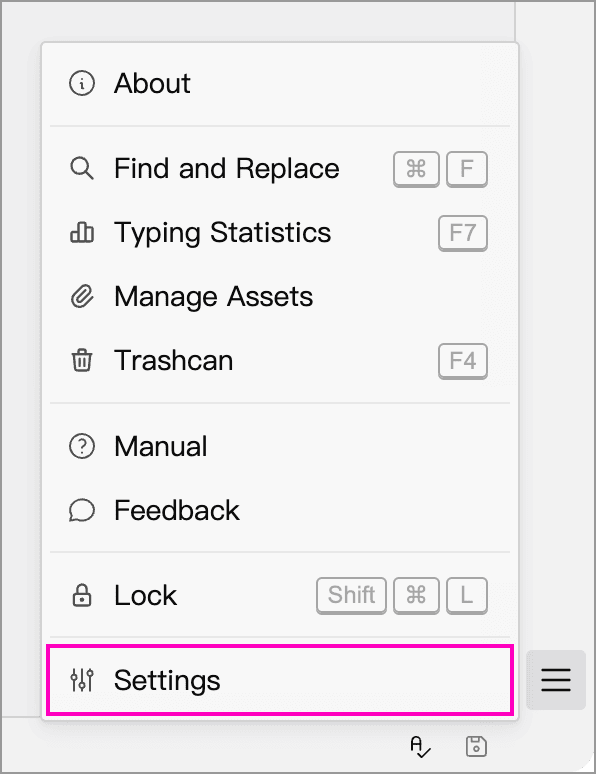
Click the menu button at the bottom right of the main window and choose Settings. The shortcut is Ctrl + Alt + S on Windows and Linux, or ⌘ + , on macOS.
General
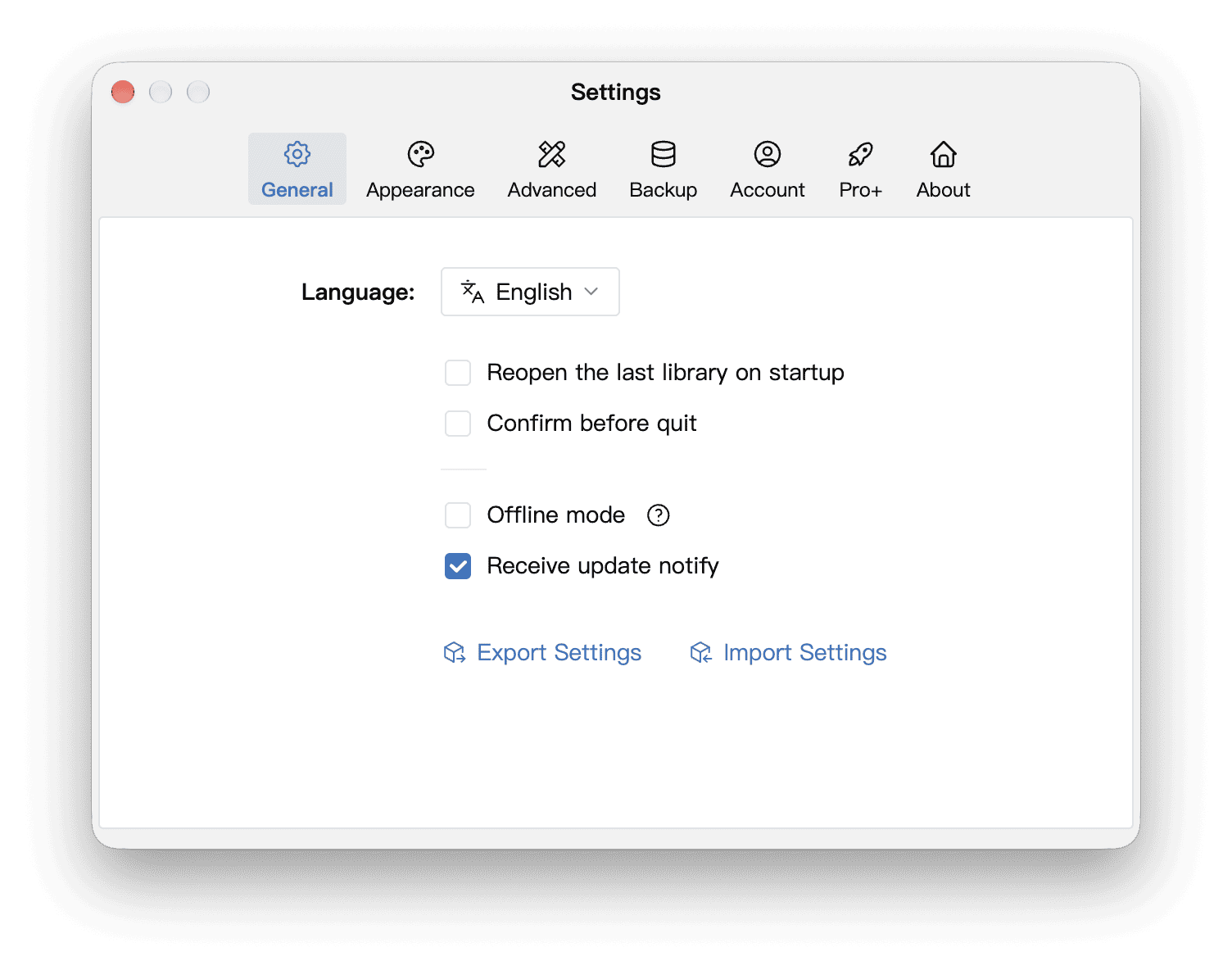
| Option | Purpose |
|---|---|
| Language | Choose an interface language, such as English, Simplified Chinese or Traditional Chinese. To change individual translations, use Advanced → Custom Language and restart when prompted |
| Reopen the last Library on startup | Return directly to the last Library. When disabled, startup shows the Library selection window |
| Minimize to system tray on close | Windows only; keep the app running in the tray after closing its window |
| Confirm before quit | Ask for confirmation before quitting to avoid accidental exits |
| Offline mode | Turn off cloud services and use only local Libraries. Restart the app after changing this option; see Standalone Mode |
| Receive update notify | Control update notifications. This option is absent in the Mac App Store and Windows portable editions |
Export and Import Settings
Settings are not synced between devices, even when you sign in to the same account. Each device can keep its own settings. To transfer your setup to another device, export the settings on the first device, then import the file on the other.
At the bottom of the General panel, Export Settings saves your configuration as a JSON file, and Import Settings restores it. The file also includes Custom CSS schemes and document templates.
Importing overwrites the corresponding options with values from the file and replaces your Custom CSS scheme and document template lists. Before importing, export the target device’s current settings so you can restore them if needed.
After transferring your settings, check that fonts, background images and local paths are available. Settings files do not contain Library documents; use Backup and Restore or Zip Export to move your writing.
Appearance
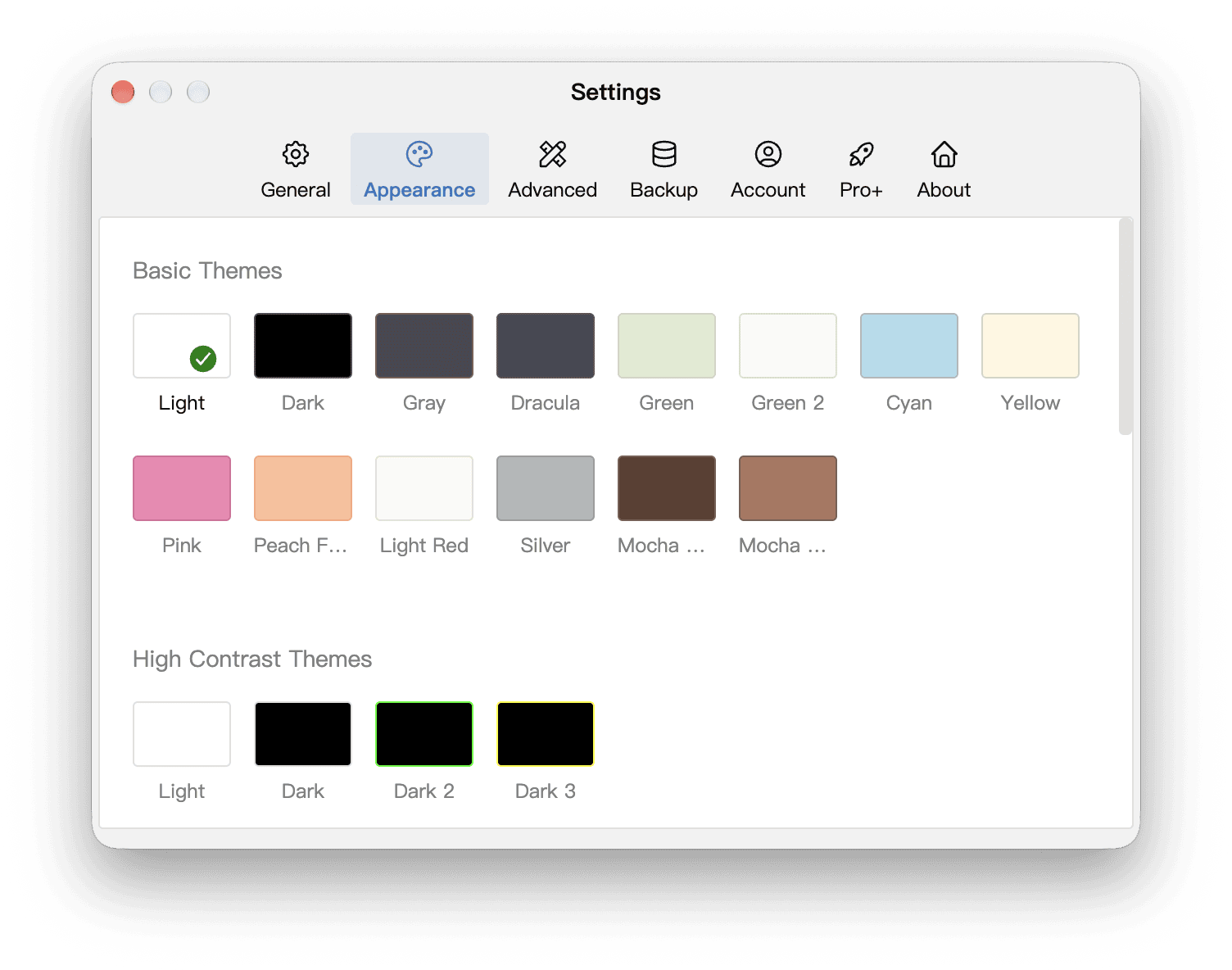
Choose a theme, configure automatic theme switching, and adjust the editor container background, editor background opacity, and interface and editor fonts. Scroll below the theme list to see the remaining options.
The background can follow the theme or use a solid color or image; see Background Image. Editor styles are saved per theme. Use Apply to Other Themes to share them between themes.
Advanced
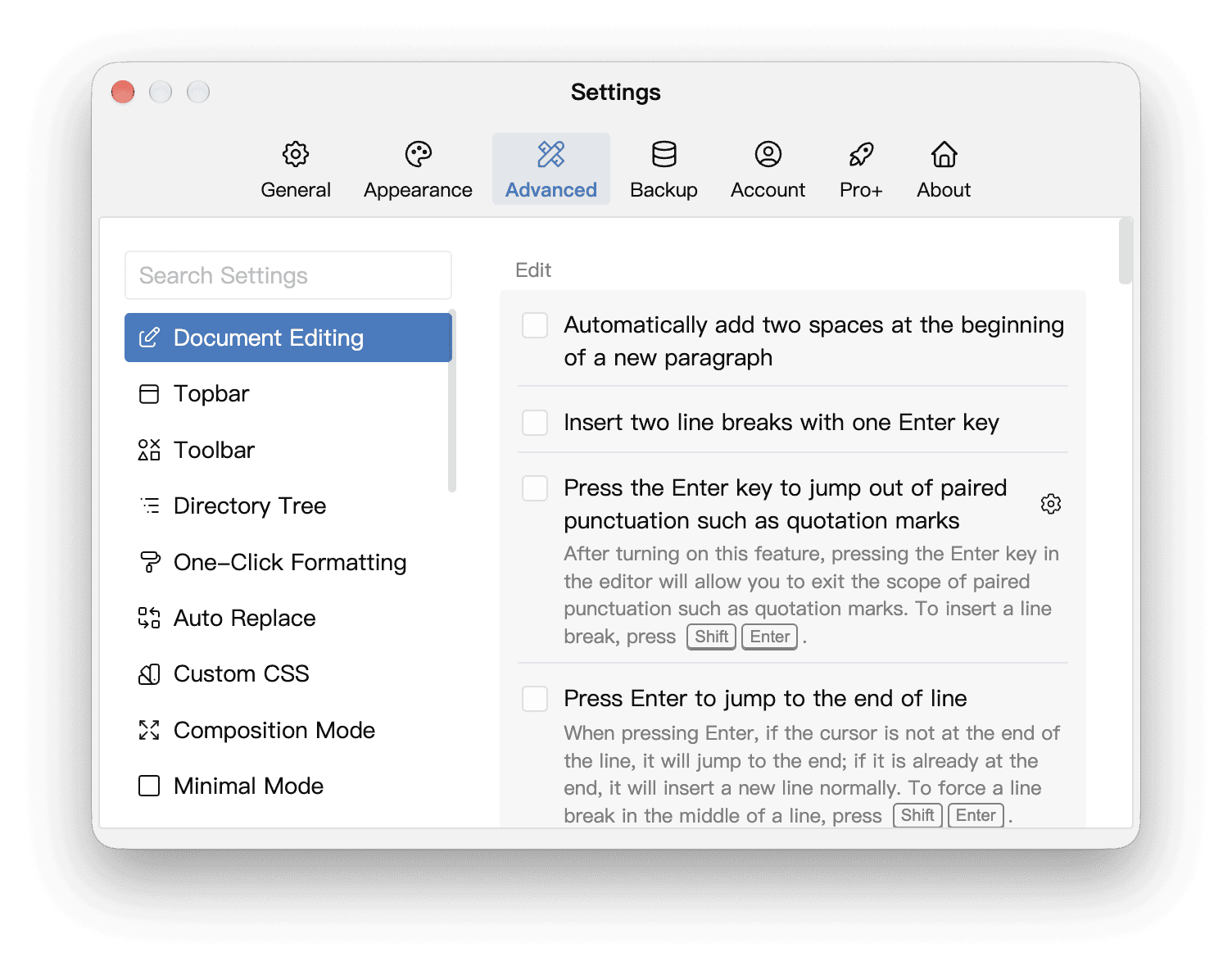
Select a category on the left, or search for a setting using the box above the category list. Common settings are grouped below by purpose:
- Writing and editing: Document Editing, One-Click Formatting, Auto Replace, Document Templates and Markdown.
- Interface and layout: Topbar, Toolbar, Directory Tree, Tabs, Outline View and writing modes.
- Security and history: Lock, Snapshots and Writing Replay.
- Extensions and customization: Custom CSS, Web Panel, API and Custom Language.
On Windows and Linux, the editor settings also offer Hide Mouse Cursor While Typing. The pointer reappears when moved. macOS uses its native system behavior.
Backup
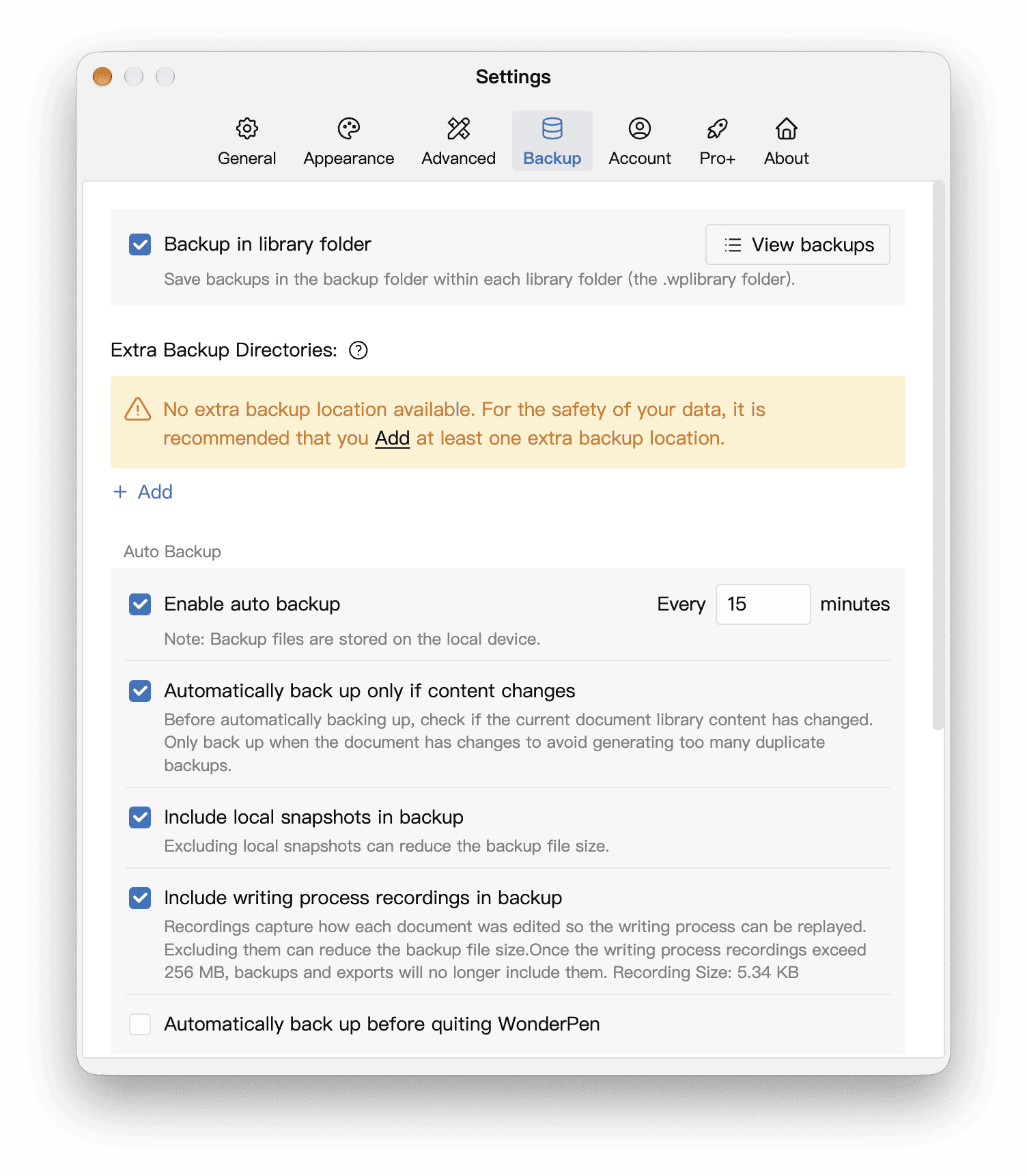
The Backup panel lets you enable automatic backups, set their interval, view backups and manage additional backup locations. See Backup and Restore. You can also limit the backup space used by each Library at each backup location; see Backup Space.
Account, Pro+ and About
The top of the window also provides Account, Pro+ and About for account management, membership information and the app version. Available features are described in the app and on the plan comparison page.