
Preview
Preview lets you step out of editing to check how text, headings, lists, images and formulas look when reading. It is a read-only view; switching to Preview does not rewrite your document.
Enter and Leave Preview
Open a document and click Preview (the eye icon) on the top toolbar, or choose View → Preview. You can also use the keyboard shortcut:
- Windows / Linux: Ctrl + Alt + P
- macOS: ⌥ + ⌘ + P

The eye icon becomes filled when Preview is on. Click the button again, choose the same menu command, or use the same shortcut to return to editing.
If the button is hidden, enable Preview under Settings → Advanced → Topbar. When using a split editor, click the pane you want to switch first; Preview toggles only the active pane.
Read the Preview
You can scroll, select text and follow links in Preview. Leave Preview when you need to edit the document.
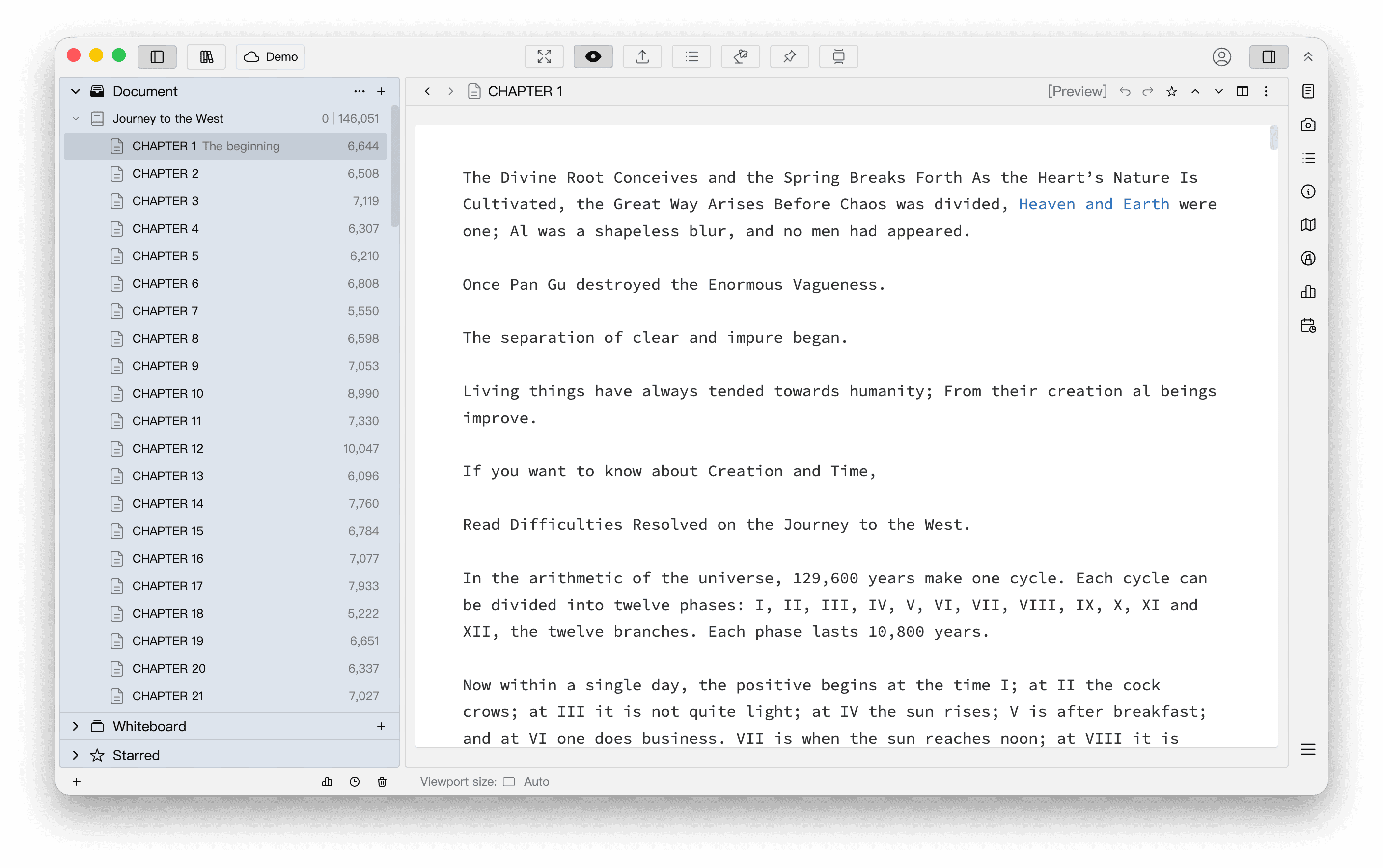
Preview helps you check rendering and readability, but does not represent the final output of every export format. PDF pagination and margins, for example, depend on export settings. Before creating a file, choose its format in the Export window and check the corresponding preview.
Change the Viewport Size
The Viewport size controls the area in which the preview is displayed. Hover over the Viewport size button at the bottom left of the preview area to choose a viewport. WonderPen includes the following default presets. All presets except Auto can be edited or deleted under Manage.
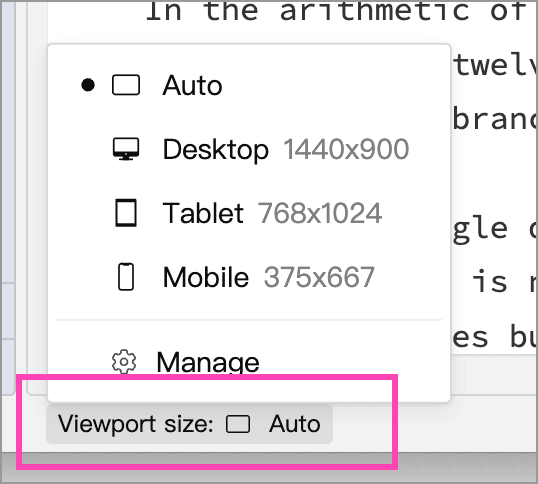
| Option | Purpose |
|---|---|
| Auto | Fits the space available in the current editor pane; suitable for everyday reading |
| Desktop (1440 × 900) | Uses a wider preset to check layout on a wide screen |
| Tablet (768 × 1024) | Shows line wrapping and layout at a medium width |
| Mobile (375 × 667) | Shows how text wraps and how images and tables fit in a narrow area |
For example, the default Mobile (375 × 667) preset displays the document in a narrower area:
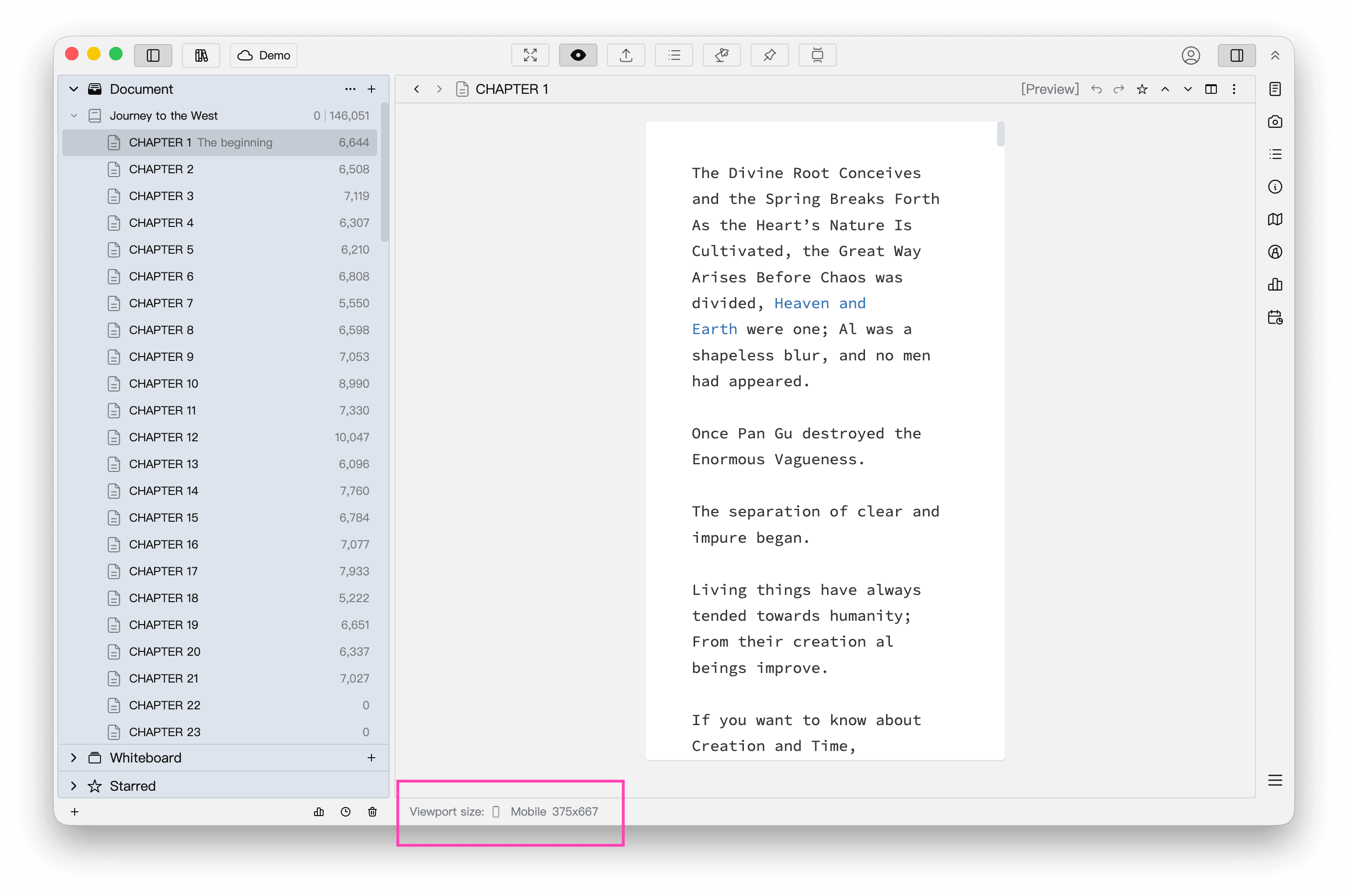
These options change only the preview area. They do not resize the application window, modify the document or set the dimensions of exported files. They help compare reading layouts at different widths and heights, rather than emulate a particular device's fonts, browser or operating system. Select Auto when finished to fit the available space again.
Customize Viewport Sizes
Choose Manage at the bottom of the viewport menu to add a size or edit and delete existing sizes. Auto is a reserved entry and cannot be edited or deleted.
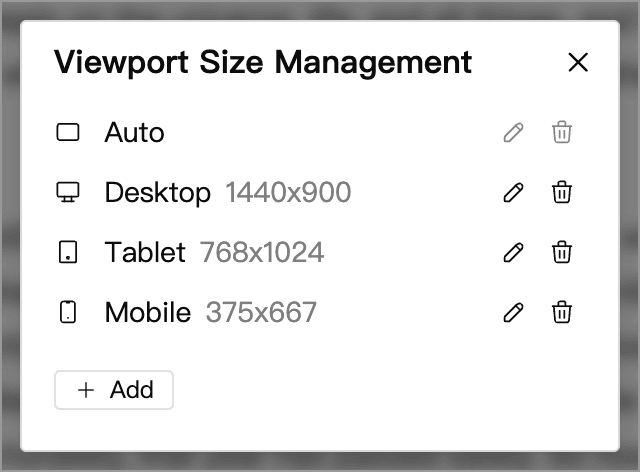
Click Add, or click the pencil button beside an existing size. Set its icon, title, width and height, then click OK to save.
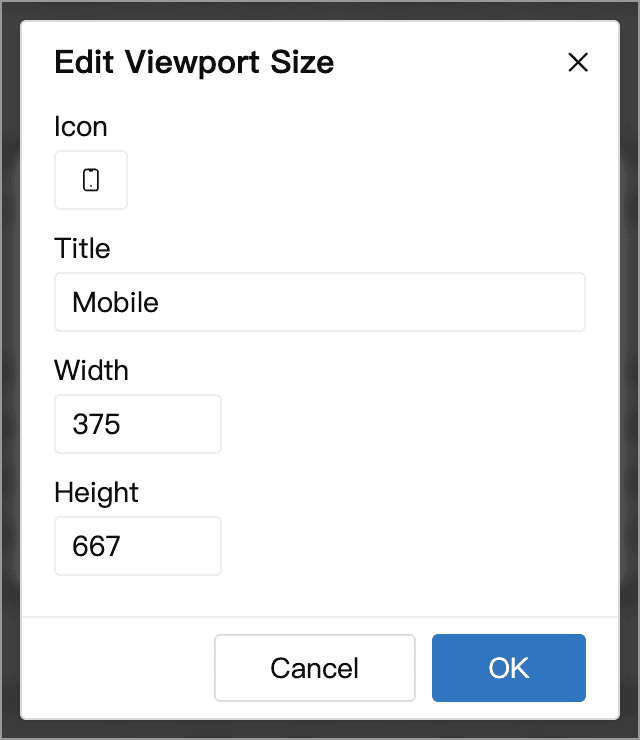
Width and height are measured in pixels. Setting either value to 0 makes that dimension fit the available space automatically. For example, a width of 390 and a height of 0 lets you check narrow-screen line wrapping while using the height of the current editor pane. The icon and title help distinguish your presets.
After saving, return to the viewport menu at the bottom left and select the size to apply it. If it exceeds the available space, scroll to see more or switch back to Auto.
Start in Preview
Under Settings → Advanced → Document Editing, enable Automatically enter preview state at startup to open documents in Preview by default when the application starts.
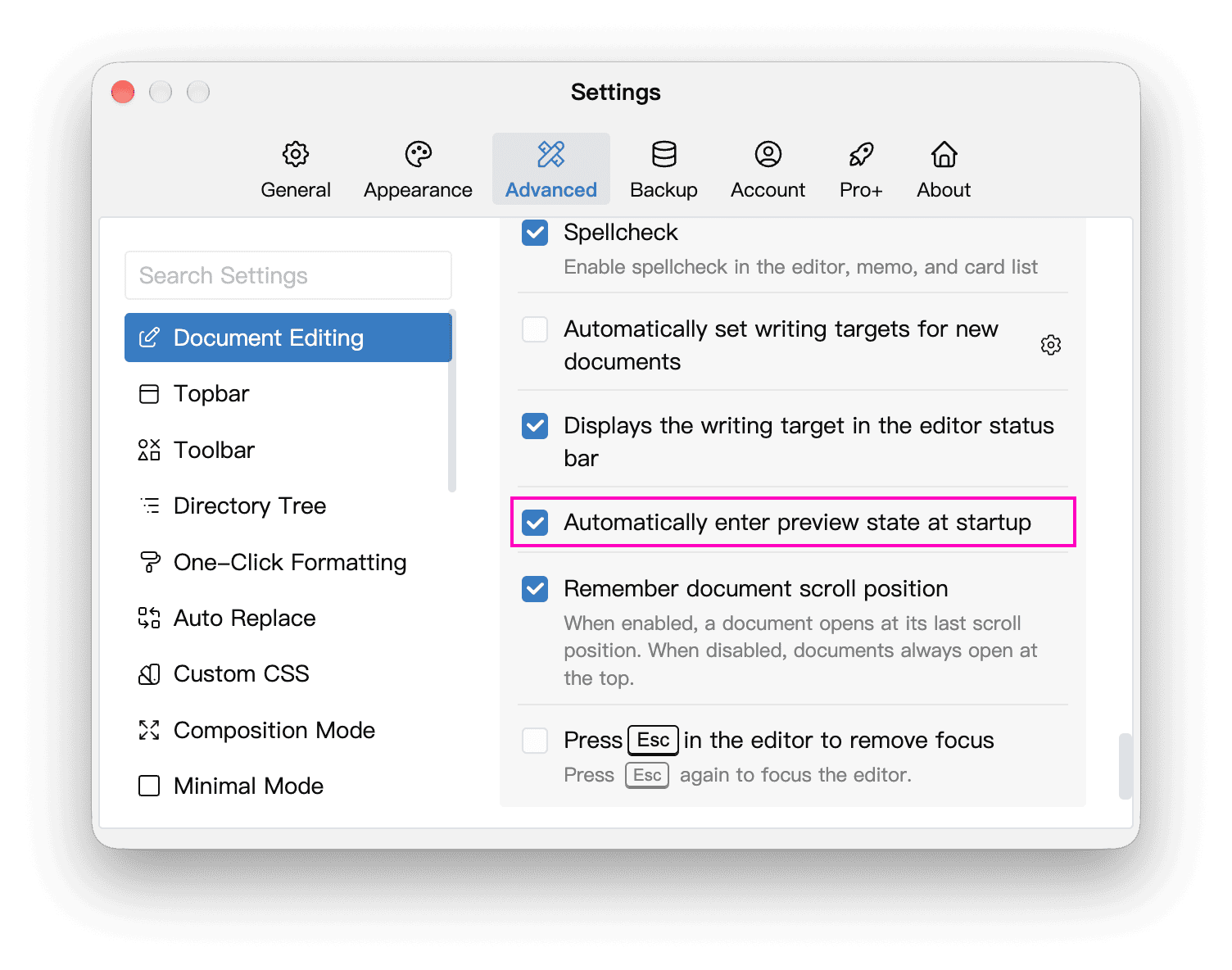
This setting only controls whether Preview opens at startup; it does not lock documents. Clear it to start in editing mode next time. To leave a preview that is already open, use the Preview button or shortcut.
To prevent accidental changes to a document's body, use Lock a Document. You can still read and copy its text while locked. Leaving Preview does not remove the lock; unlock the document before making changes.