Writing Plan
If you need to finish a work by a deadline, or want to write a certain number of words every day, you can set a writing plan for your Library. WonderPen follows how the word count of the Library changes and tells you how you are doing and how much you still need to write each day.
You can create one writing plan per Library.
Create a writing plan
- Click the Writing Plan button in the right toolbar to open the Writing Plan panel.
- Click Create Writing Plan.
- Choose a plan type, fill in your target, then click OK.
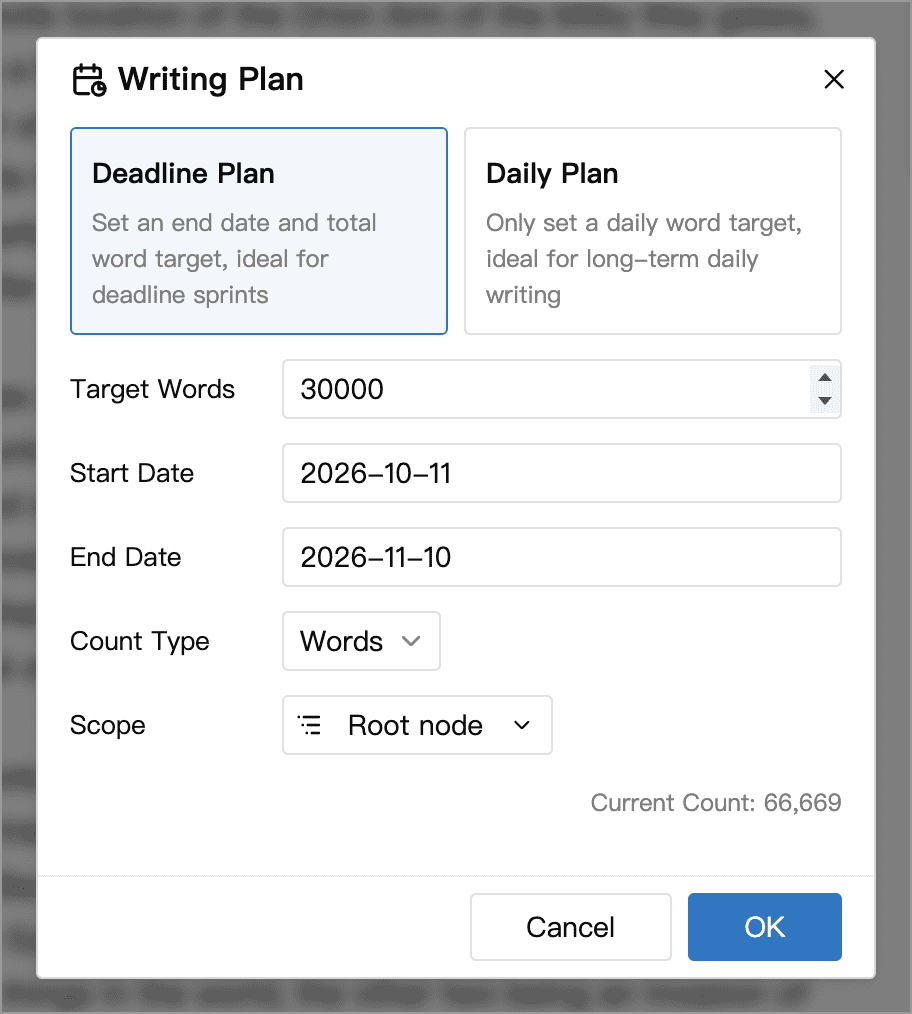
There are two types of writing plan:
- Deadline Plan: set an end date and the number of words to add during the plan, for example, another 30,000 words in a month.
- Daily Plan: set the number of words to add each day, with no end date, for example, 1,000 words a day to build a writing habit.
When creating a plan, you can also set:
- Start Date: choose today or a future date. A plan with a future start date shows Not Started until that date.
- Count Type: count by words or by characters, the same options as in Word Count.
- Scope: by default Root node is selected to count the whole Library; you can also limit it to a single document (for example, one volume) and its sub-documents.
Once created, a plan’s type, start date, count type, and scope cannot be changed. For a deadline plan, you can adjust the target and end date; for a daily plan, you can adjust the daily target. To change the type or scope, delete the plan and create a new one.
How progress is calculated
A writing plan counts the net increase in document body text within the selected scope, excluding memos, cards, and other content:
- Deadline Plan: compares the current count with the count at the start of the plan to track the total added during the plan.
- Daily Plan: tracks the increase in word count each day. Today's progress starts over the next day.
A plan starting today uses the word count at creation as its baseline; existing text does not count as progress. For example, a deadline plan created when you have 20,000 words records 3,000 words of progress when your count reaches 23,000.
Writing or pasting text increases progress; deleting text reduces it, and the net increase can be negative. Moving documents into or out of the scope, moving them to the trashcan, or changing reference marks also changes the effective count. It is best to organize the scope and reference marks before creating the plan.
Documents marked as reference are excluded, so editing their body text does not affect your plan.
TIP
A writing plan follows changes in your Library's word count, while Typing Statistics record your typing. For example, if you paste a long passage you wrote elsewhere, typing statistics ignore it by default, but your writing plan progress goes up with the word count.
Track your progress
Deadline plans
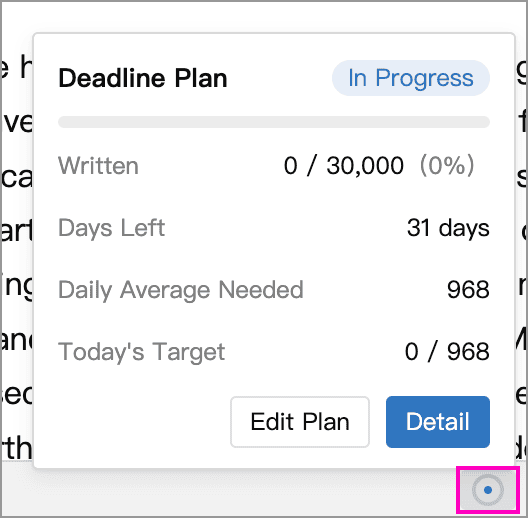
The Writing Plan panel in the right sidebar shows the total words added, the target, and a progress bar. While the plan is in progress, it also shows:
- Written Today: today's word count increase and target. Today's target is calculated from progress through yesterday and the remaining days; it does not decrease as you write today.
- Daily Average Needed: the words still needed divided by the remaining days, including today. This changes with your current progress.
For example, a 10-day plan starting today with a target of 10,000 words has a target of 1,000 for today. After you write 400 words, Written Today shows 400 / 1,000, while Daily Average Needed drops to 960.
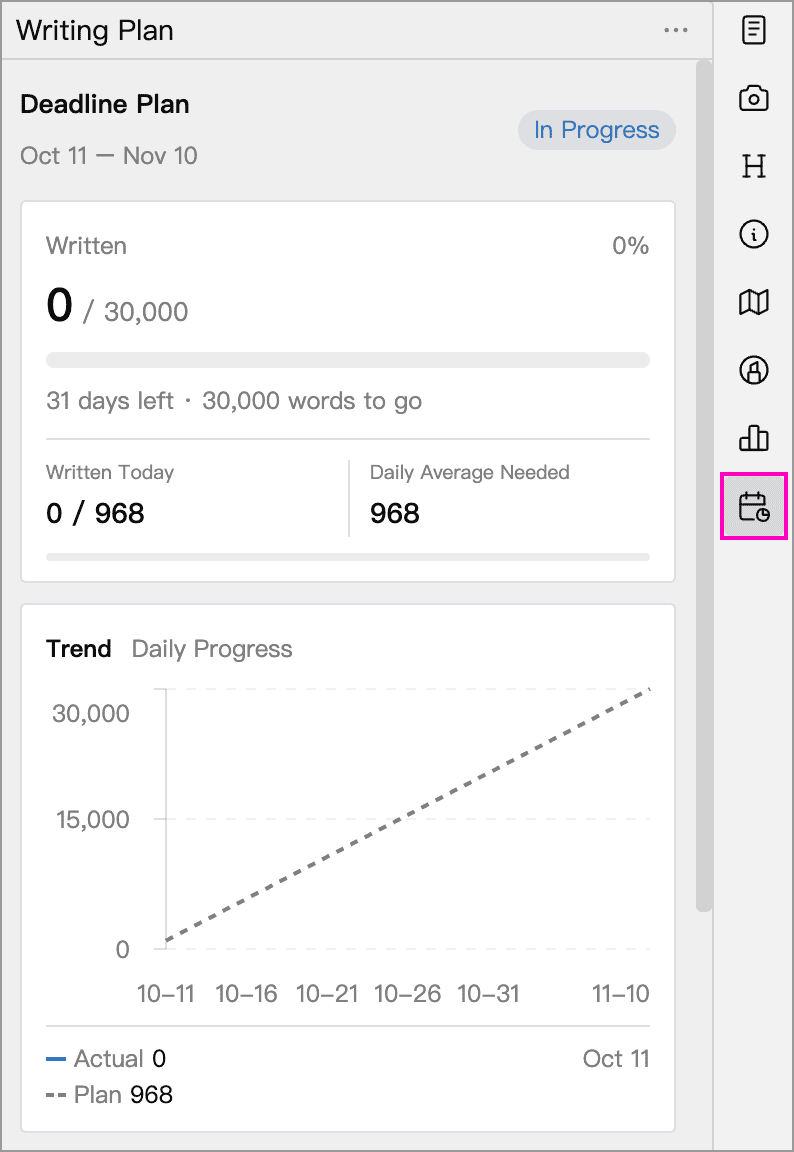
Below, switch between Trend, which compares actual cumulative progress with planned progress, and Daily Progress, which shows the net increase each day and lets you choose a date range. Scroll further down to view the monthly calendar.
The end date is included in the plan. After that date, progress is retained as recorded through the end date; later writing does not add to the plan's progress.
Daily plans
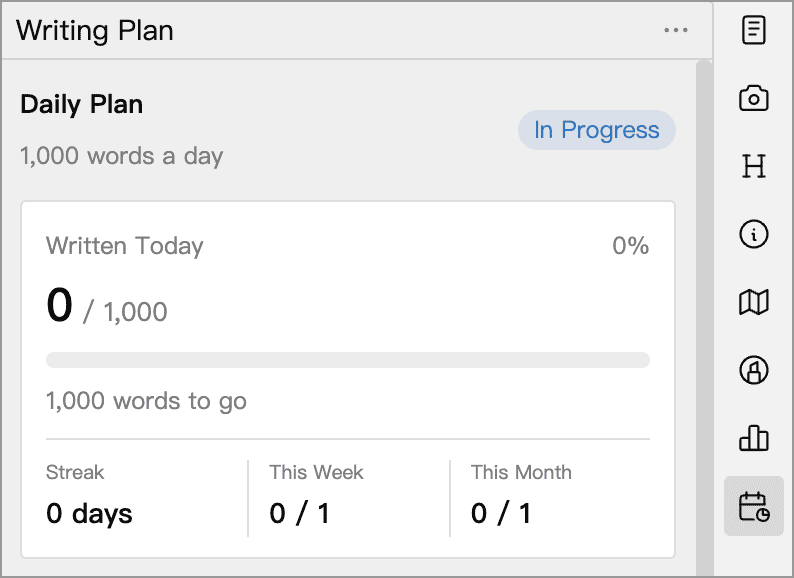
The main progress bar shows words written today against the daily target, along with Streak, This Week, and This Month. The week and month show days meeting the target out of days elapsed, including today but excluding dates before the plan started.
If you have not met today's target yet, the streak counts back from yesterday; it does not immediately reset just because today's writing is unfinished. The Daily Progress chart and calendar help you review your writing. Days that met the target have a check mark in the calendar.
Status bar
When a writing plan exists, a progress ring with a solid dot in the center appears in the editor status bar: a deadline plan shows overall progress, and a daily plan shows today's progress. Hover over the ring to see a progress summary, edit the plan, or click Detail to open the Writing Plan panel in the right sidebar. In a top-and-bottom split, click the ring to open the summary.
When a deadline plan reaches its target for the first time, WonderPen shows a message to congratulate you.
Edit or delete a plan
Click More (the three dots) on the right of the Writing Plan panel header to Edit Plan or Delete Plan.
Changing the daily target recalculates the streak, weekly and monthly achievement counts, and calendar check marks against the new target. Existing daily net-increase records stay unchanged.
Deleting a plan does not delete document content, and the Library's general daily word count records are kept. A new plan starts from a new baseline rather than inheriting the old plan's progress.
While a plan is in progress, moving the document that defines its scope to the trashcan causes the plan to report an invalid scope. Once you restore the document from the trashcan, the scope becomes valid again. A deadline plan remains subject to its original end date.
Writing targets for individual documents
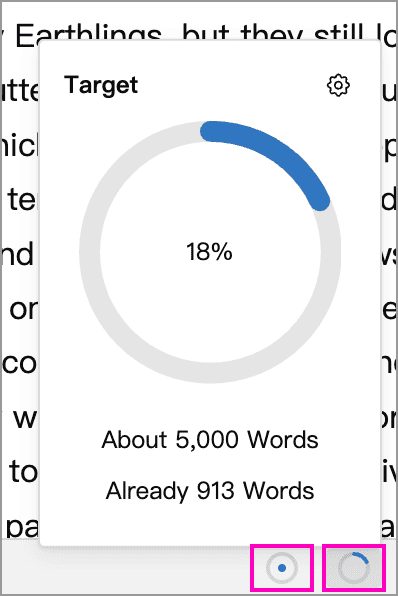
Besides a writing plan for the whole Library, you can set a writing target for a single document (including its sub-documents), such as “about 5,000 words for this chapter”. This compares the current total word count with the target, rather than counting only words added after the target was set.
Right-click a document in the directory tree and choose Target to set a writing target:
- Target type: About for an approximate length, At least for a minimum, or At most for a word limit.
- The target number and count type
- Also set as default target: when checked, documents you create later use this target automatically
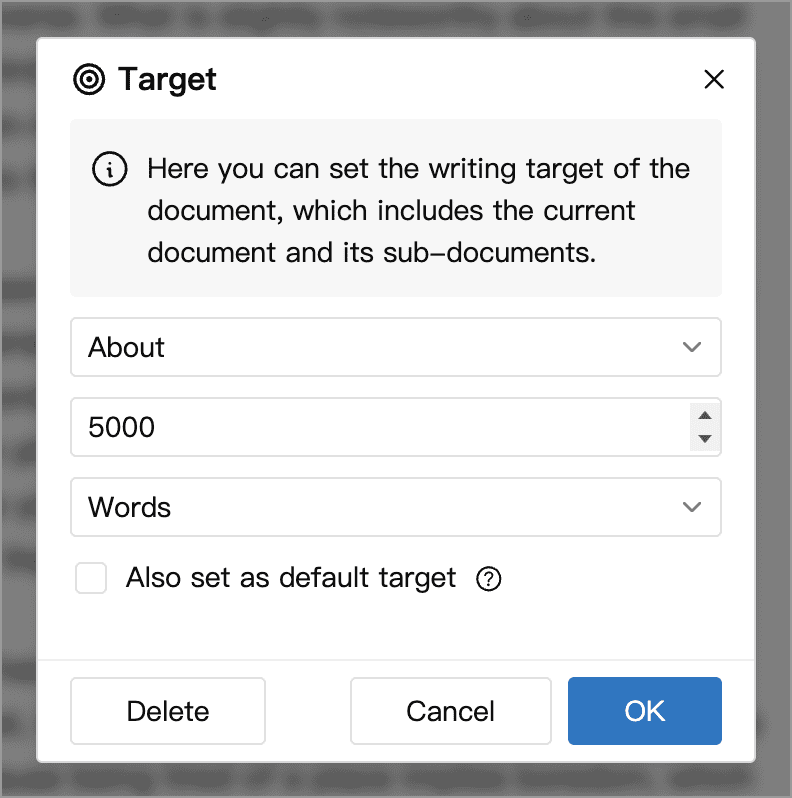
Select several documents before opening Target to apply the same target to them all. Open the target settings again to change or delete a target.
After setting a target, you can check its progress in the Information panel of the right sidebar. If you turn on Displays the writing target in the editor status bar in Settings → Advanced → Document Editing, a progress ring also appears in the status bar.
Document targets and Library writing plans are independent and can be used together. When both rings are visible:
- The left ring, with a solid center dot, is the Library's writing plan. It shows overall progress for a deadline plan or today's progress for a daily plan.
- The right, hollow ring is the current document's target. It compares the total count of the document and its sub-documents with the target.
Hover over the document target ring to see its completion percentage, target, and current count. Click the gear in the upper-right corner of the popup to change the target. In a top-and-bottom split, click the ring to open the popup.