
Mind Map
Mind maps help organize characters, story outlines, and sequences of events. Create a Mind Map card on a WonderPen Whiteboard.
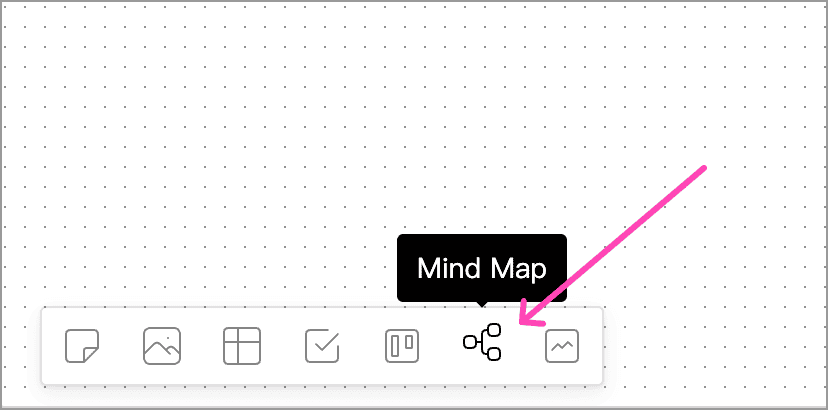
Drag the Mind Map icon from the toolbar onto the whiteboard to create a card. Click Edit on the card to open the mind map editor.
Here is a mind map used to plan a story:
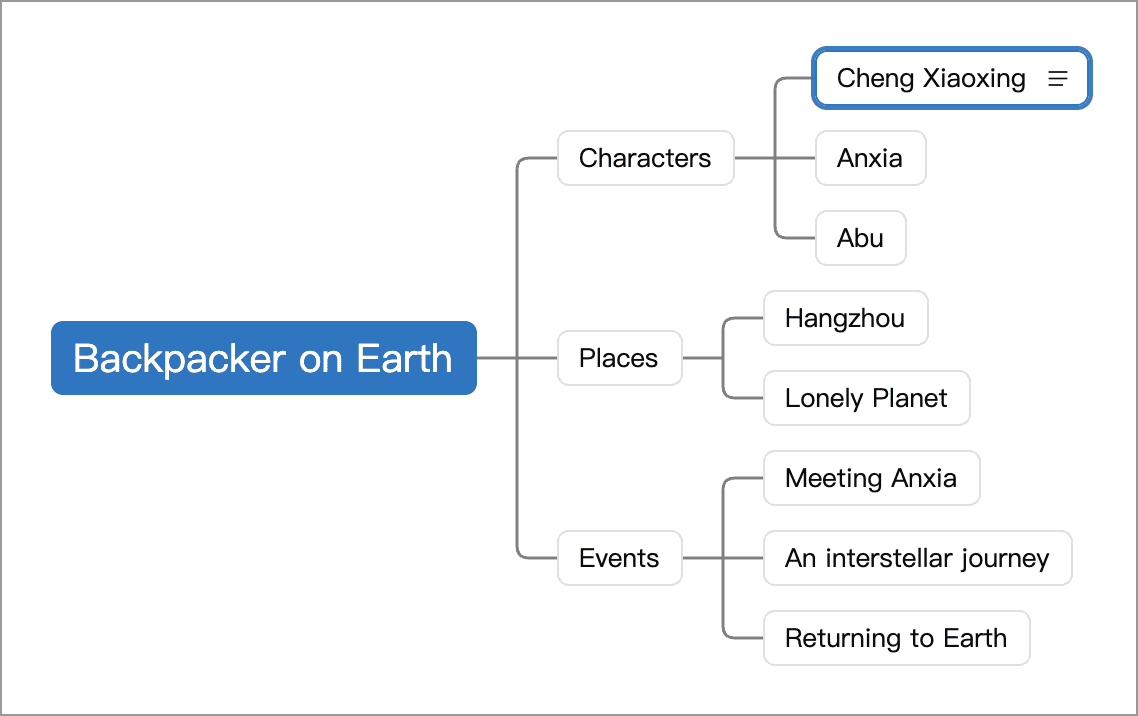
Try Planning a Story
- Create a mind map card on a whiteboard and click Edit on the card. A new map starts with a central topic and three child nodes.
- Double-click the central topic, or select it and press
F2, to name it after your story. PressEnterto finish editing. - Rename the three child nodes “Characters”, “Places”, and “Events” in the same way.
- Select “Characters” and press
Tabto add a character. After typing the name, pressEnteronce to finish editing, then again to add a sibling character. - Add details in node notes to keep titles concise.
- Choose a suitable layout, or switch to Outline Mode to work through the structure as a list.
Both modes edit the same content, so you can switch at any time. Consult the shortcut tables below as you become familiar with the workflow.
When you finish editing, click the inward-pointing arrows at the upper right of the card to leave the maximized view and return to the whiteboard.
Map Mode
You can switch between Map Mode and Outline Mode. Map Mode is the default, and the switch is in the upper-right corner, as shown below:

Layout
Map Mode supports multiple layouts, which you can switch between in the upper-left corner, as shown below:
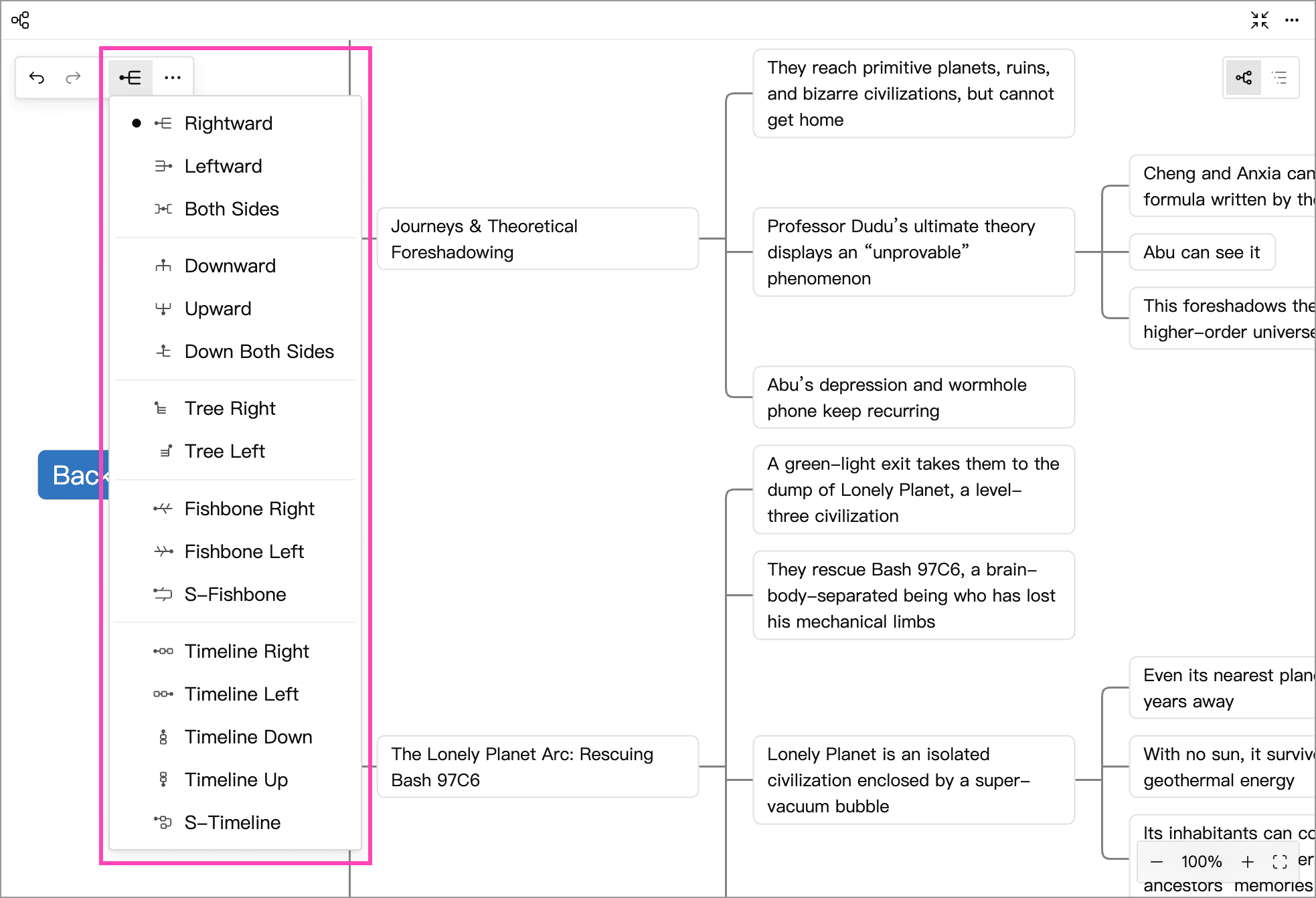
Left- and right-facing layouts suit character or topic groups; tree layouts suit hierarchies; timelines suit sequences of events. With an S-shaped timeline or fishbone layout, you can also adjust Items per Row in the layout menu. Changing the layout preserves node content and hierarchy.
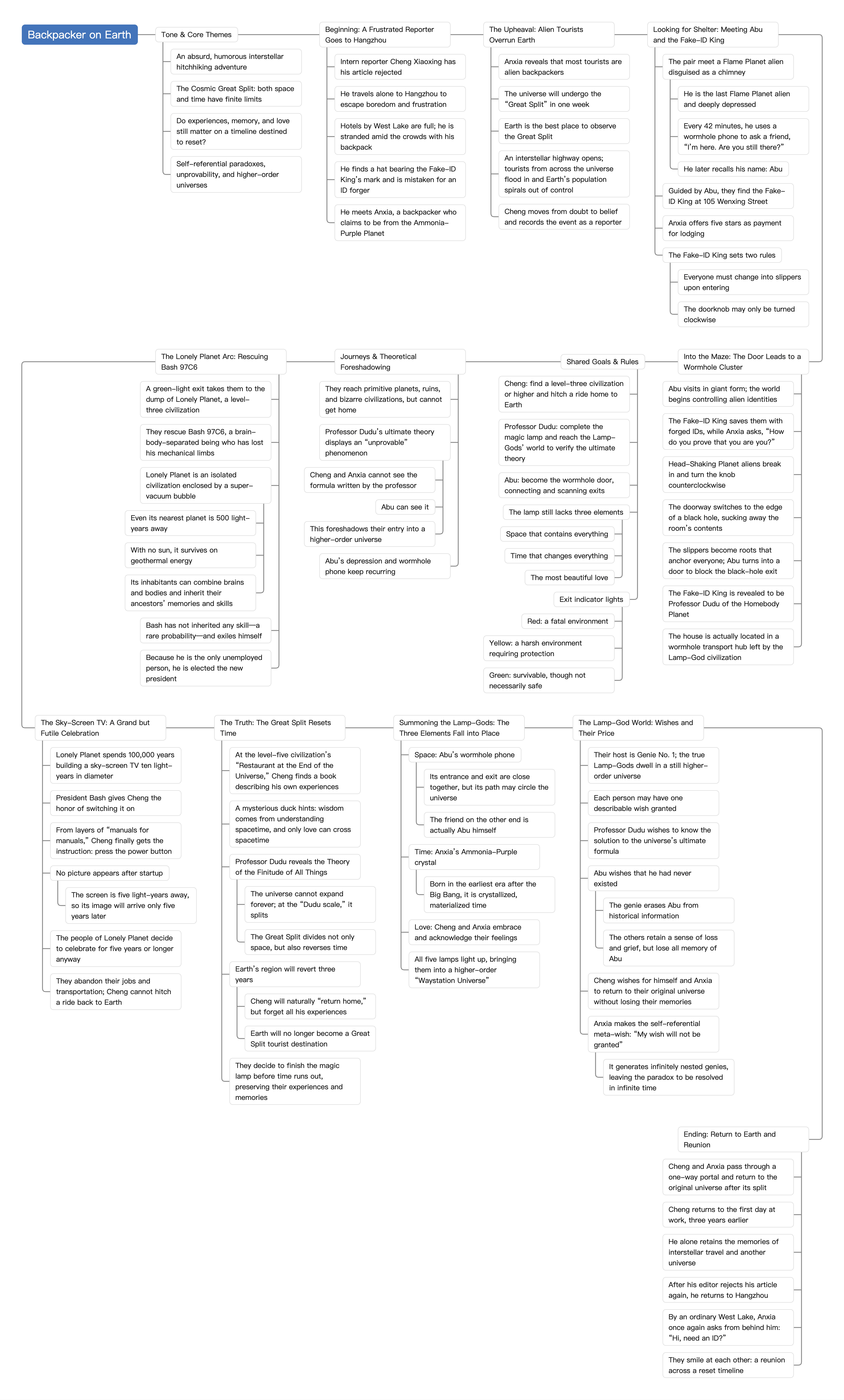
For example, the image below uses an S-shaped timeline to show a story flow:
Arrange Nodes and Navigate the Map
- Move nodes: Drag a node and follow the drop indicator to change its order or level. Its children move with it.
- Collapse branches: Click the collapse control beside a node, or choose Collapse from its context menu. Expand it again to see its children. The More menu at the upper left also lets you expand or collapse all branches, or expand to a particular level.
- Pan and zoom: Drag an empty area of the canvas to pan. Use the controls at the lower right to change the zoom or fit the map to the view.
Node Notes
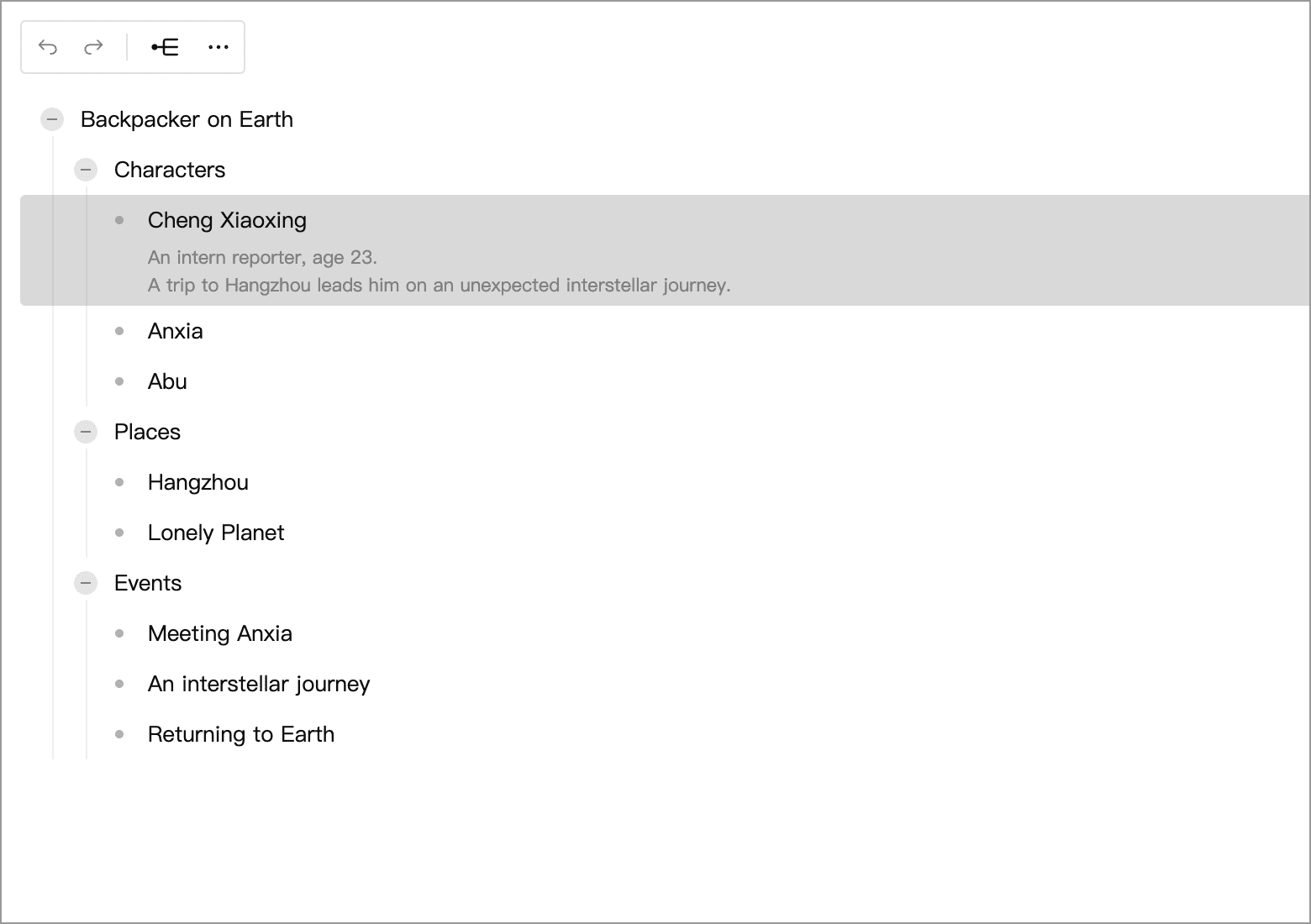
Keep node titles short and put longer explanations in notes. Right-click a node and choose Note to add background details or clues. Nodes with notes display a note icon; click it to reopen the note panel. Outline Mode displays notes beneath their titles.

Focus on a Branch
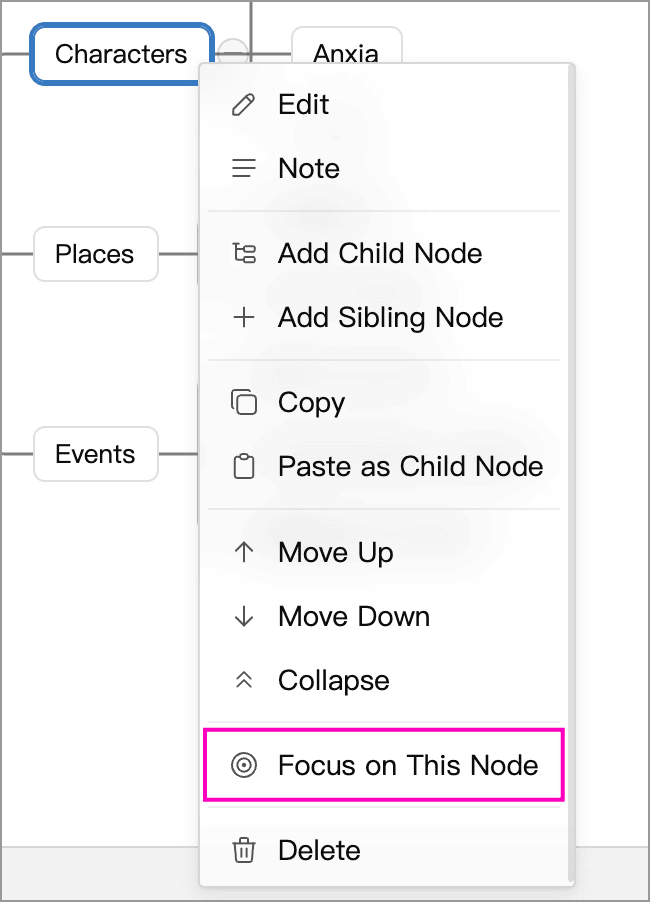
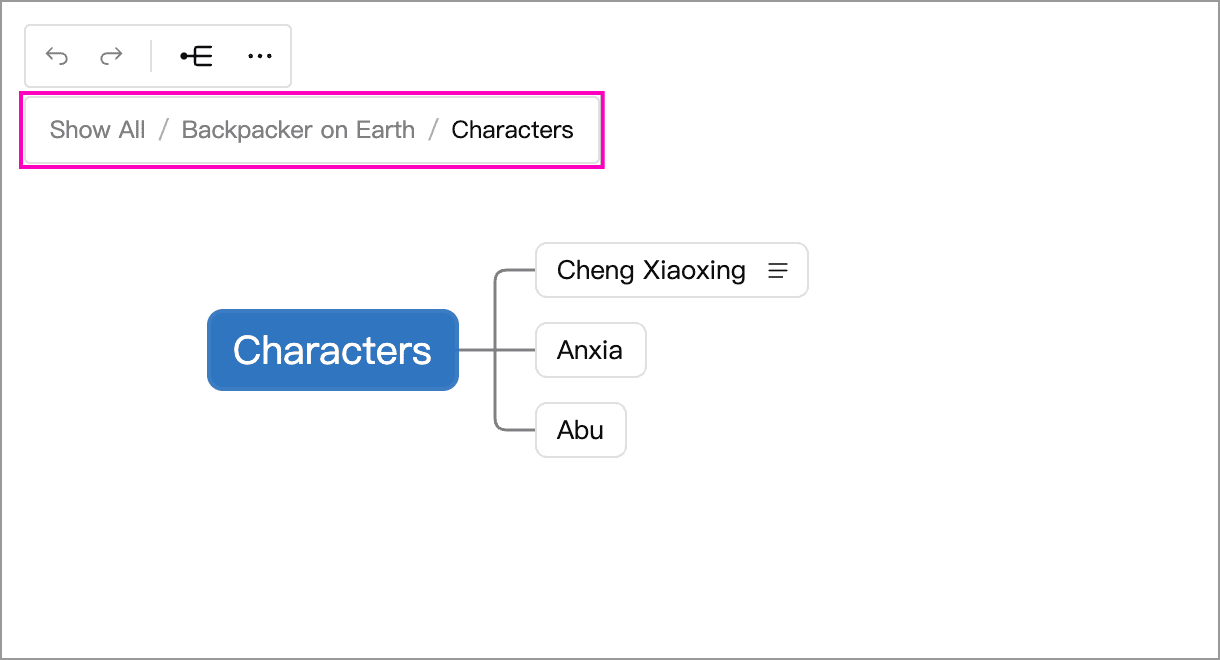
For a large map, choose Focus on This Node from a node’s right-click menu to view only that branch. Click an ancestor in the breadcrumb path at the top to focus on that branch, or click Show All to return to the full map. Focusing changes the view without deleting other nodes.
Outline Mode
Click Outline in the upper-right corner to edit nodes and notes as a hierarchical list. This is useful when concentrating on text. The button is shown below:
The resulting view is shown below. Outline Mode belongs to the mind map card; it is separate from a document’s Table of Contents and the Overview.
The modes handle Enter differently while editing a title: Map Mode finishes editing, while Outline Mode creates a sibling node. In both modes, Shift + Enter inserts a line break in the title.
Import and Export
In Map Mode, paste a Markdown list while not editing text to turn it into nodes. The content becomes children of the selected node, or new root nodes if nothing is selected. When a branch is focused and nothing is selected, it becomes children of the focused root. While editing a title or note, pasting inserts ordinary text instead.
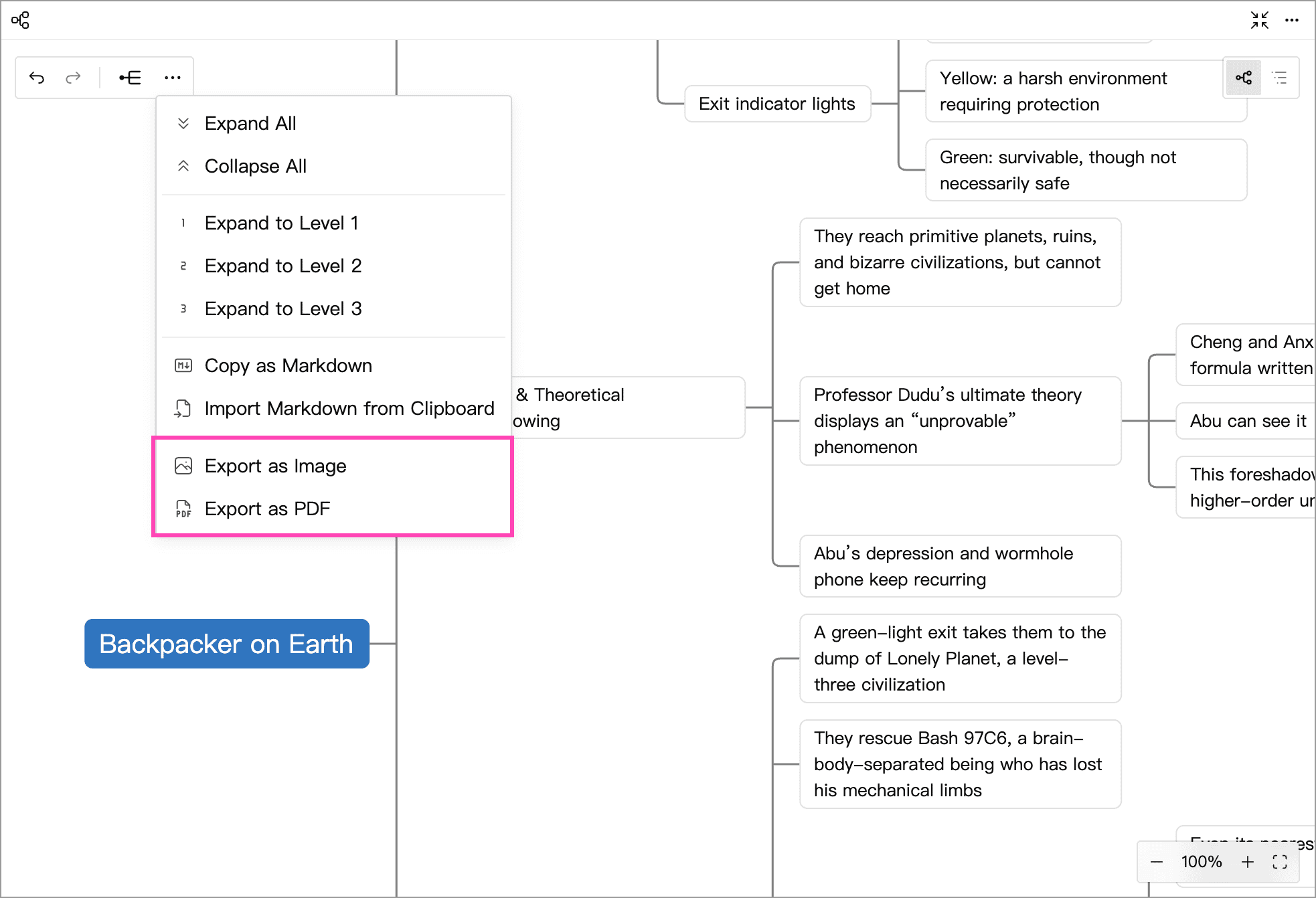
In both modes, the More menu at the upper left offers:
- Import Markdown from Clipboard: Append the Markdown outline from the clipboard as new root nodes, keeping existing content.
- Copy as Markdown: Copy the entire mind map, including node titles and notes, as a Markdown outline for use in other tools.
In the WonderPen desktop app, switch to Map Mode to access Export as Image and Export as PDF from this menu:
Keyboard Shortcut Reference
In the tables, Mod means ⌘ Command on macOS, or Ctrl on Windows and Linux. On macOS, Alt corresponds to ⌥ Option.
Map Mode Shortcuts
“Non-editing mode” means that the mind map canvas is focused, but no title or note is being edited.
Create and Edit
| Shortcut | Function | Available in |
|---|---|---|
Enter | Finish editing a title and keep the node selected | While editing a title |
Enter | Create and edit a sibling node | Non-editing mode |
Mod + Enter or Tab | Create and edit a child node | While editing a title; non-editing mode |
Shift + Enter | Insert a line break in a title | While editing a title |
Enter / Shift + Enter | Insert a line break in a note | While editing a note |
F2 / Space | Edit the current node's title | Non-editing mode |
Esc | Finish editing a title | While editing a title |
Esc | Close the note panel | While editing a note |
When editing a title, press Enter once to finish editing; press it again to create a sibling node. When no node is selected, Enter creates a root node. If a branch is focused and you select its root or leave all nodes unselected, Enter adds a child to that root instead.
Adjust Hierarchy and Order
| Shortcut | Function | Available in |
|---|---|---|
Mod + ] | Make the current node a child of its previous sibling | While editing a title; non-editing mode |
Mod + [ | Move the current node to the same level as its parent | While editing a title; non-editing mode |
Mod + Shift + ↑ / ↓ | Move the current node up / down | While editing a title or note; non-editing mode |
Alt + ↑ / ↓ | Move the current node up / down | Non-editing mode |
Duplicate, Paste, and Delete
| Shortcut | Function | Available in |
|---|---|---|
Mod + D | Duplicate the current node and its subtree after the current node | While editing a title or note; non-editing mode |
Mod + C | Copy the current node and its subtree to the clipboard | Non-editing mode |
Mod + V | Paste clipboard content as a child of the current node | Non-editing mode |
Mod + Shift + Backspace | Delete the current node and its subtree | While editing a title or note; non-editing mode |
Delete / Backspace | Delete the current node and its subtree | Non-editing mode |
Mod + D preserves notes and collapsed state without affecting the clipboard. When editing text, Mod + C / Mod + V perform standard text copy and paste.
When no node is selected, pasted content becomes new root nodes, or children of the focused root if a branch is focused. A confirmation prompt appears when deleting a node with children.
Collapse and Expand
The following shortcuts are available while editing a title or note and in non-editing mode.
| Shortcut | Function |
|---|---|
Mod + . or Alt + . | Collapse / expand the current branch |
Mod + Shift + . | Collapse / expand sibling branches with the same parent as the current node |
Mod + Alt + Shift + . | Collapse / expand all branches |
For batch operations, branches are collapsed when any branch in scope is expanded; otherwise, they are expanded. All branches include hidden branches and multiple root nodes.
Node Selection
| Shortcut / action | Function |
|---|---|
Shift + ↑ / ↓ | Extend / shrink a contiguous selection in visible tree order |
Mod + Click or Shift + Click | Add a node to the selection, or remove it |
Shift + drag in an empty area | Select nodes within a marquee |
Esc | Clear the selection and cancel an in-progress drag or marquee selection |
The keyboard operations above are available in non-editing mode. When editing text, Shift + ↑ / ↓ retain their native text-selection behavior.
Canvas Zoom
The following shortcuts are also available while editing text.
| Shortcut | Function |
|---|---|
Mod + Shift + = | Zoom in on the canvas |
Mod + Shift + - | Zoom out on the canvas |
Mod + Shift + 0 | Reset to 100% |
Mod + Shift + 9 or Mod + Shift + F | Zoom to fit |
You can also use the numeric keypad +, -, 0, and 9 for these actions while holding Mod + Shift.
Undo and Redo
| Shortcut | Function |
|---|---|
Mod + Z | Undo |
Mod + Shift + Z or Mod + Y | Redo |
When editing a title or note, undo and redo apply to text. In non-editing mode, they apply to mind map operations.
When multiple nodes are selected, shortcuts for operations on individual nodes, including creating, editing, adjusting hierarchy, moving, duplicating, and deleting, are temporarily unavailable. You can still collapse / expand all branches, zoom the canvas, and undo or redo.
Outline Mode Shortcuts
“Non-editing mode” means that the outline is focused, but no title or note is being edited.
Create and Edit
| Shortcut | Function | Available in |
|---|---|---|
Enter | Create and edit a sibling node | While editing a title; non-editing mode |
Mod + Enter | Create and edit a child node | While editing a title; non-editing mode |
Shift + Enter | Insert a line break in a title | While editing a title |
Enter / Shift + Enter | Insert a line break in a note | While editing a note |
Alt + Enter | Switch between title and note, moving the cursor to the end | While editing a title or note |
F2 / Space | Edit the current node's title | Non-editing mode |
Esc | Exit title editing or remove focus from a note | While editing a title or note |
Adjust Hierarchy and Order
| Shortcut | Function | Available in |
|---|---|---|
Tab | Make the current node a child of its previous sibling | While editing a title |
Shift + Tab | Move the current node to the same level as its parent | While editing a title |
Mod + Shift + ↑ / ↓ | Move the current node up / down | Editing mode; non-editing mode |
Alt + ↑ / ↓ | Move the current node up / down | Non-editing mode |
Duplicate and Delete
| Shortcut | Function | Available in |
|---|---|---|
Mod + D | Duplicate the current node and its subtree after the current node | While editing a title |
Mod + Shift + Backspace | Delete the current node and its subtree | Editing mode; non-editing mode |
Delete / Backspace | Delete the current node and its subtree | Non-editing mode |
Backspace | Delete an empty node | Editing mode, when both its title and note are empty |
Duplicating a node preserves its note and collapsed state without affecting the clipboard. A confirmation prompt appears when deleting a node with children. Spaces and line breaks count as content, so they do not make a node empty.
Collapse and Expand
| Shortcut | Function |
|---|---|
Mod + . or Alt + . | Collapse / expand the current branch |
Mod + Shift + . | Collapse / expand sibling branches with the same parent as the current node |
Mod + Alt + Shift + . | Collapse / expand all branches |
For batch operations, branches are collapsed when any branch in scope is expanded; otherwise, they are expanded. All branches include hidden branches and multiple root nodes.
Navigate and Select
The following shortcuts are available in non-editing mode:
| Shortcut | Function |
|---|---|
Shift + ↑ / ↓ | Extend / shrink a contiguous node selection |
Mod + Click | Add a node to the selection, or remove it |
Shift + Click | Select a range of nodes |
Esc | Clear the node selection |
When editing a title or note, the arrow keys move the text cursor first. At the beginning or end of text, press ← / →; on the first or last visual line, press ↑ / ↓ to move between inputs in this order: “title → note → next node's title.” Collapsed child nodes are skipped. Native text operations remain available when text is selected or a modifier key is held.
Undo and Redo
| Shortcut | Function |
|---|---|
Mod + Z | Undo |
Mod + Shift + Z or Mod + Y | Redo |
When editing a title or note, undo and redo apply to text. In non-editing mode, they apply to mind map operations.
When multiple nodes are selected, shortcuts for operations on individual nodes, including creating, editing, adjusting hierarchy, moving, duplicating, and deleting, are temporarily unavailable. You can still collapse / expand all branches and undo or redo.