
Find and Replace
Press Ctrl + F (⌘ + F on macOS) to open search. Two interfaces are available:
| Mode | Best for |
|---|---|
| Pop-Out Search | Finding and replacing text across multiple documents, with matches from the selected scope listed together |
| Docked Search | Finding and replacing text in the current document, with matches highlighted directly in the body text |
Switch Between Search Modes
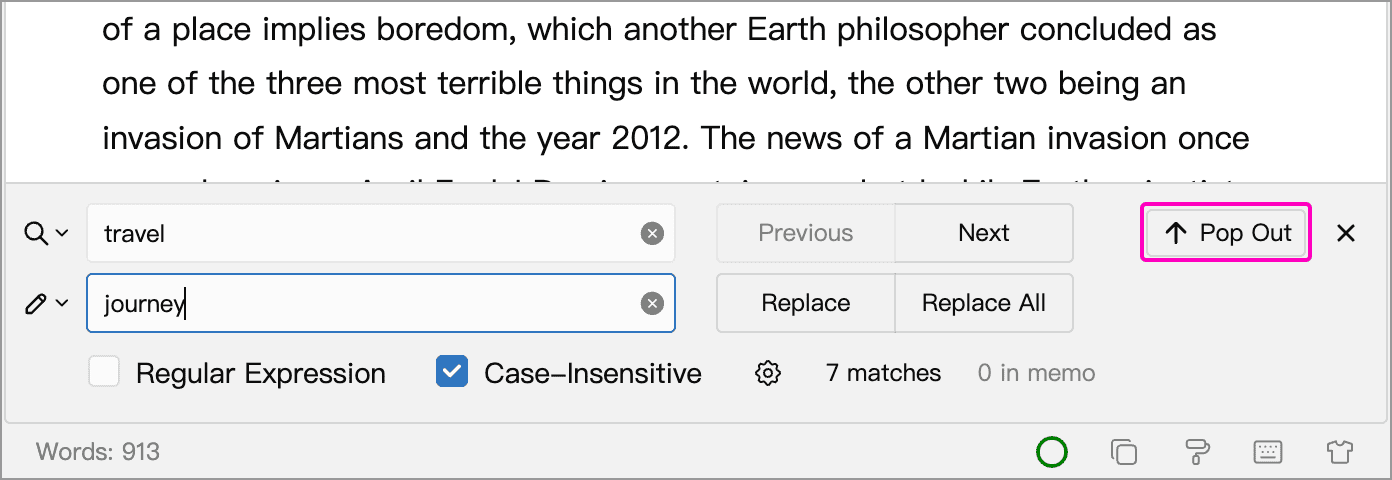
From docked to pop-out search: click Pop Out on the right of the search bar below the editor. Search opens in a separate window.
From pop-out to docked search: click Dock at the top right of the search window. The search bar returns to the bottom of the main-window editor.
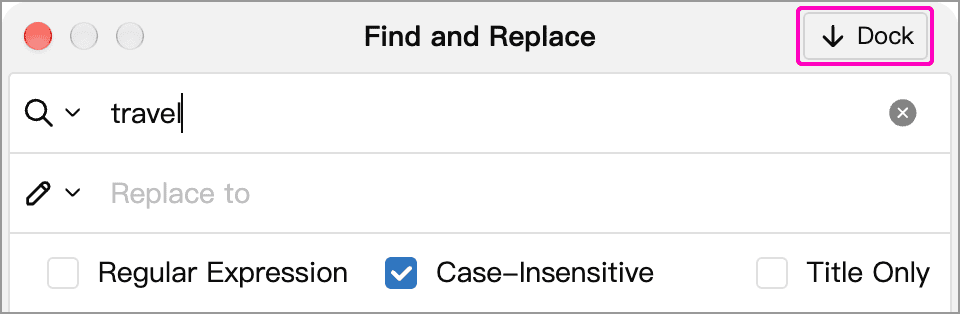
The app remembers your choice and uses it the next time you open search with the keyboard shortcut. Switching preserves the keyword, replacement text, regular-expression setting and case setting. The two modes have different search and replacement scopes, so check the results again after switching.
Pop-Out Search
Enter a keyword to see matching documents and context. Click a result to locate it, or use the arrows at the bottom to move between results.
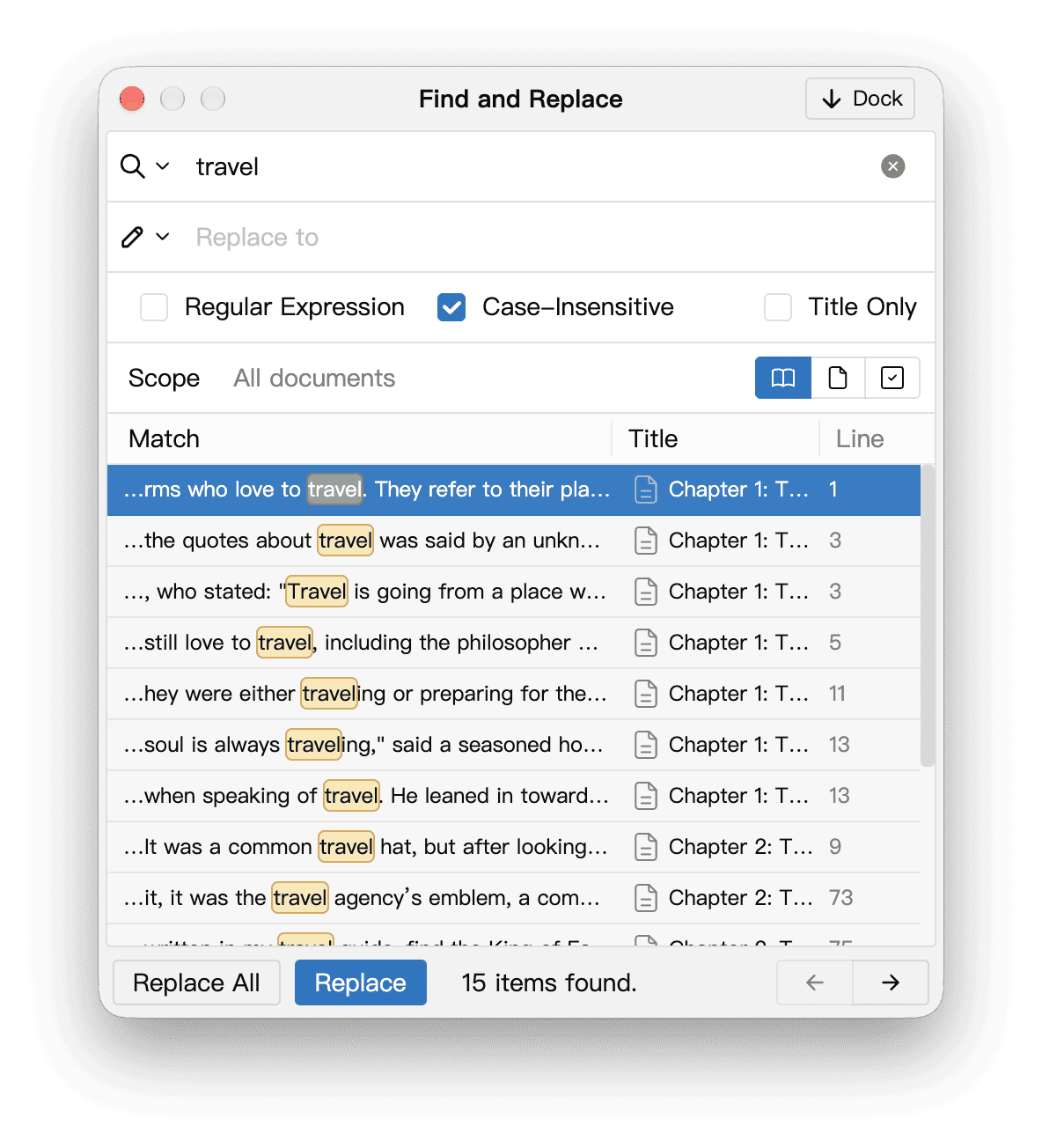
Enter the new text in Replace to, select a result and click Replace, or use Replace All for all editable matches in the current scope. An empty replacement deletes the matched text.
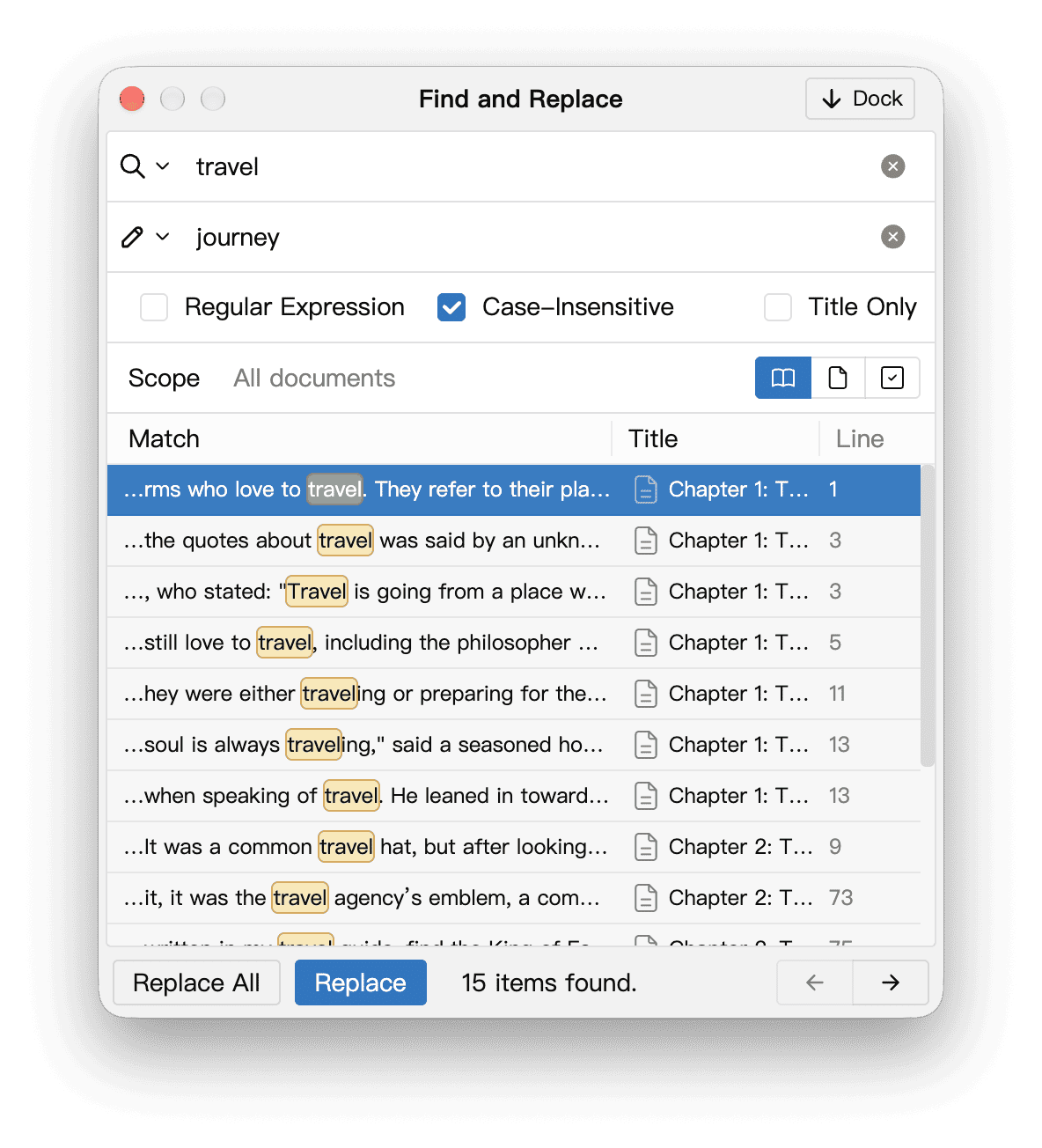
Check the scope and results before a bulk replacement. Consider creating a snapshot of important content first. If the app reports incomplete results or a failed replacement, search again to check what actually changed.
The dropdown controls beside the search and replacement inputs show previous entries for reuse.
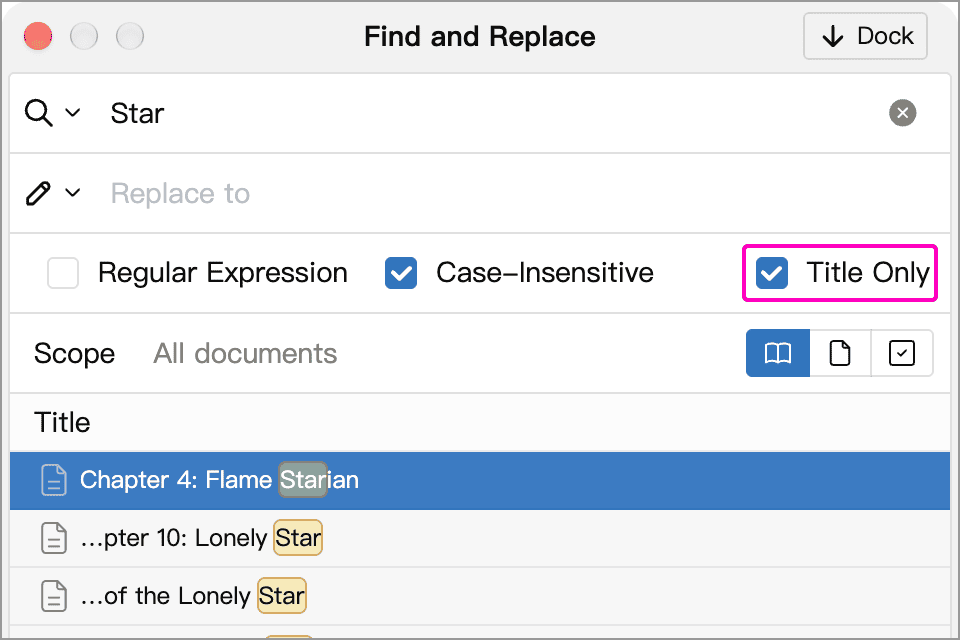
Search Titles Only
Enable Title Only to search and replace chapter names. With automatic numbering, searches also match displayed numbers. Generated numbers cannot be replaced directly; change the numbering rule or the document order instead.
Search Scope
The three icon buttons on the right of the Scope row determine which documents to search and replace in.

From left to right:
| Button | Search scope | Example use |
|---|---|---|
| All Documents (book icon) | All documents in the current Library | Find a character's name throughout a book or change a term consistently |
| Current Document (page icon) | The document or documents selected in the main-window document tree; the scope follows changes to the selection | Check only the chapter you are working on |
| Custom (checked box icon) | Documents you select from the list | Search or replace in a specific set of chapters |
To choose a custom scope, click the scope label in this row to open the document list, then select the documents you need. Changing the selection automatically activates Custom.
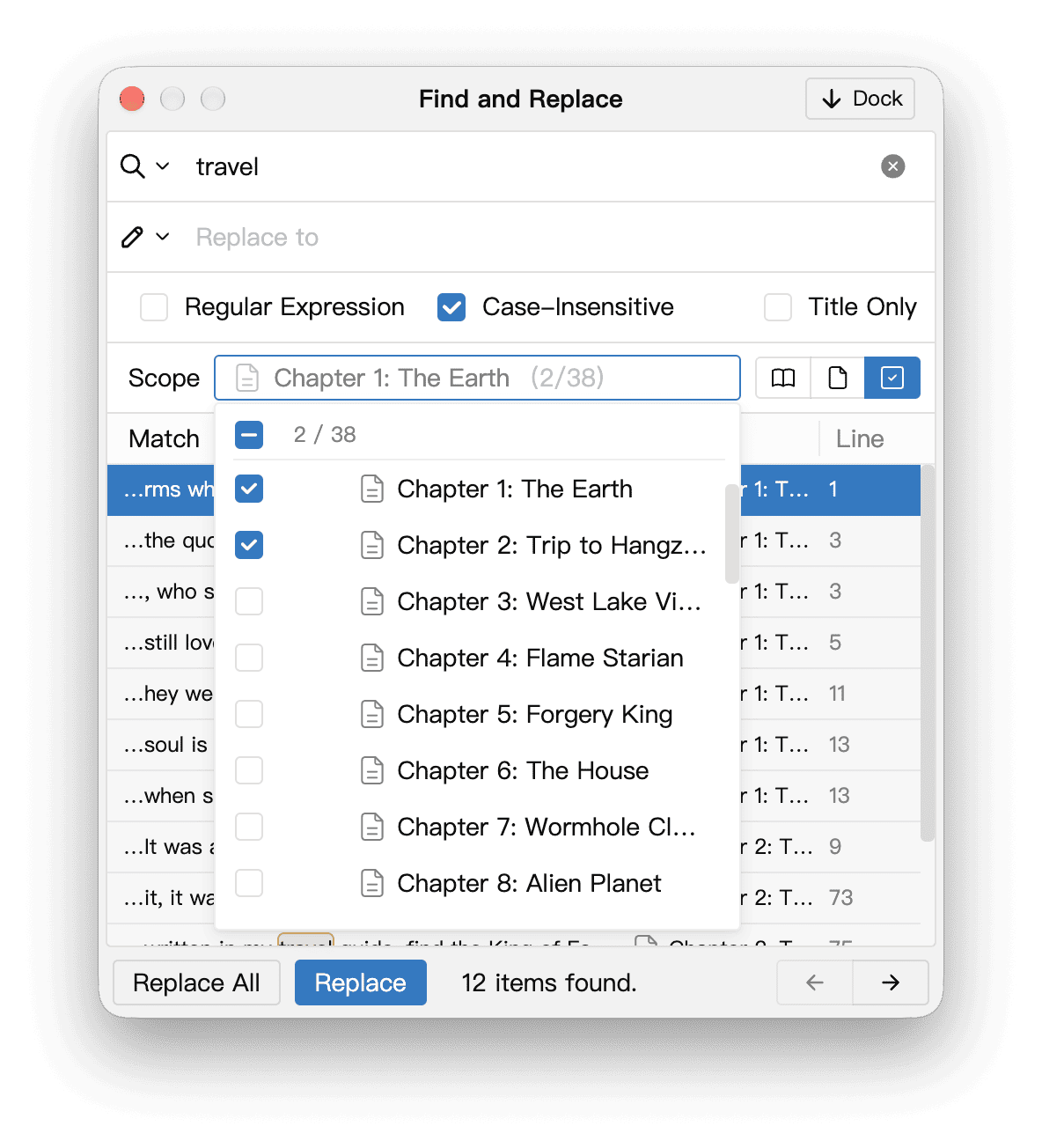
The active scope button is highlighted. Before using Replace All, check the scope label and matching results to confirm that all intended chapters are included and no unintended content will change.
Docked Search
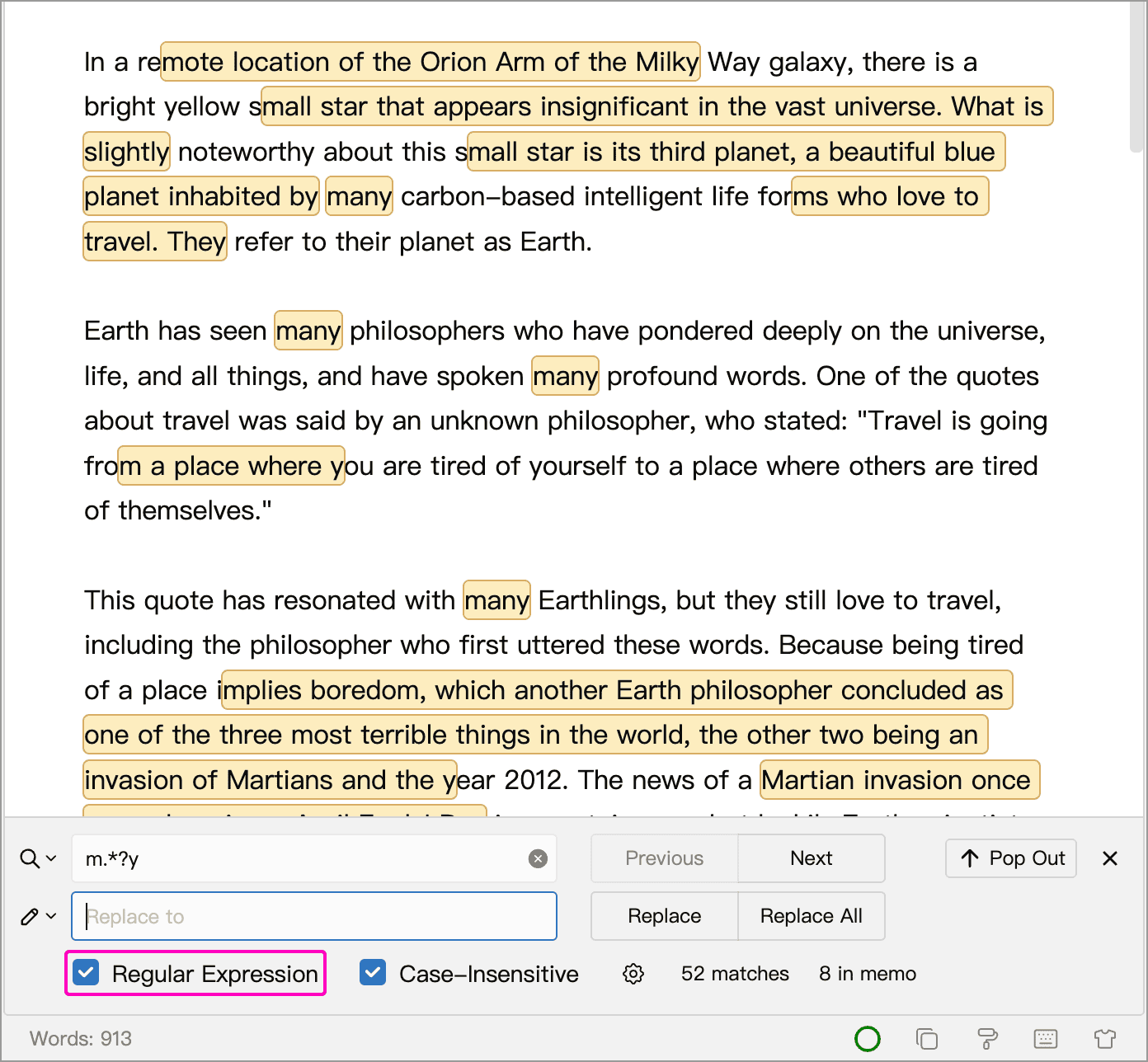
Docked search appears below the editor and highlights matches in the current document. Enter replacement text to replace matches individually or replace all matches in that document.
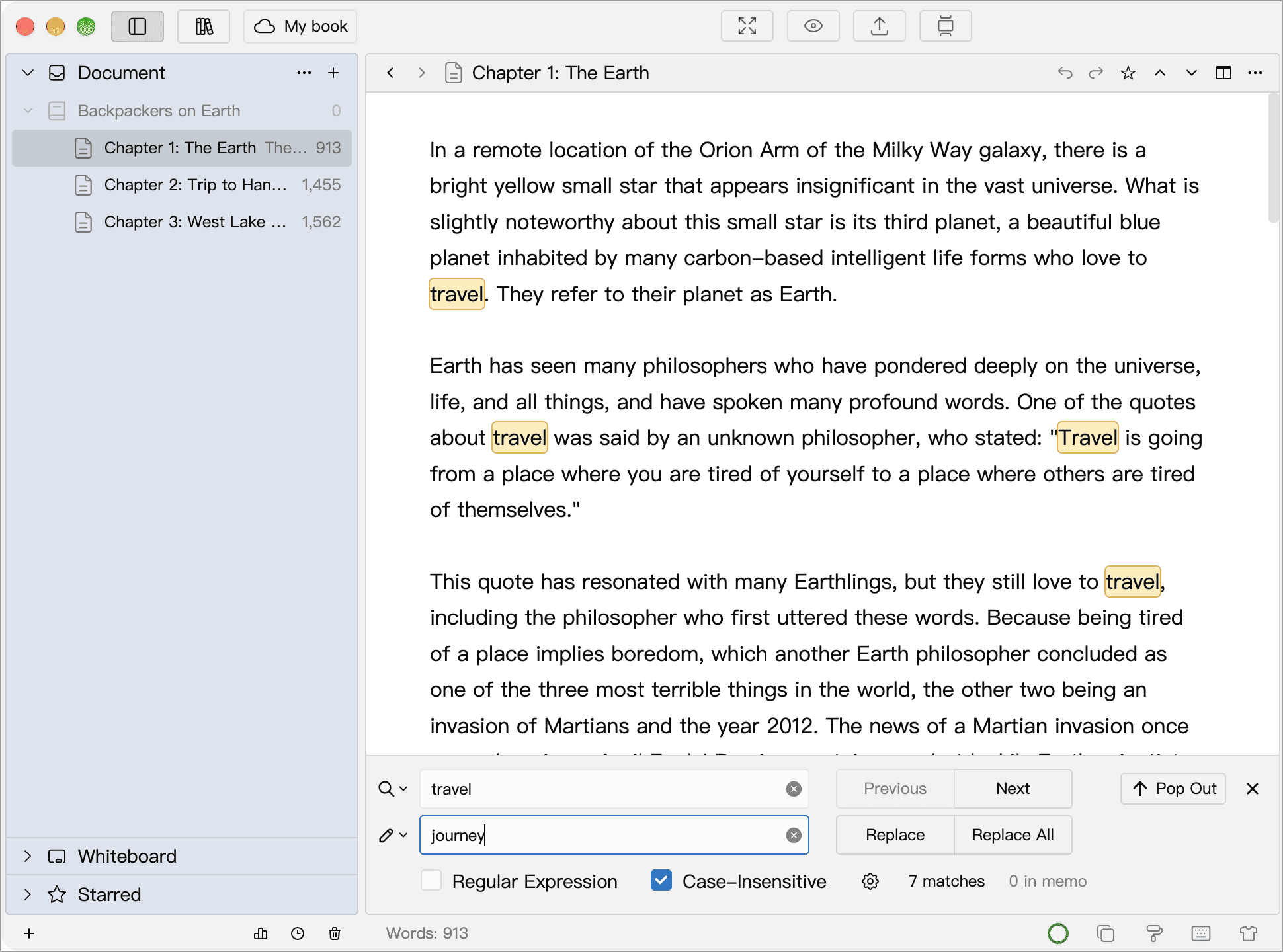
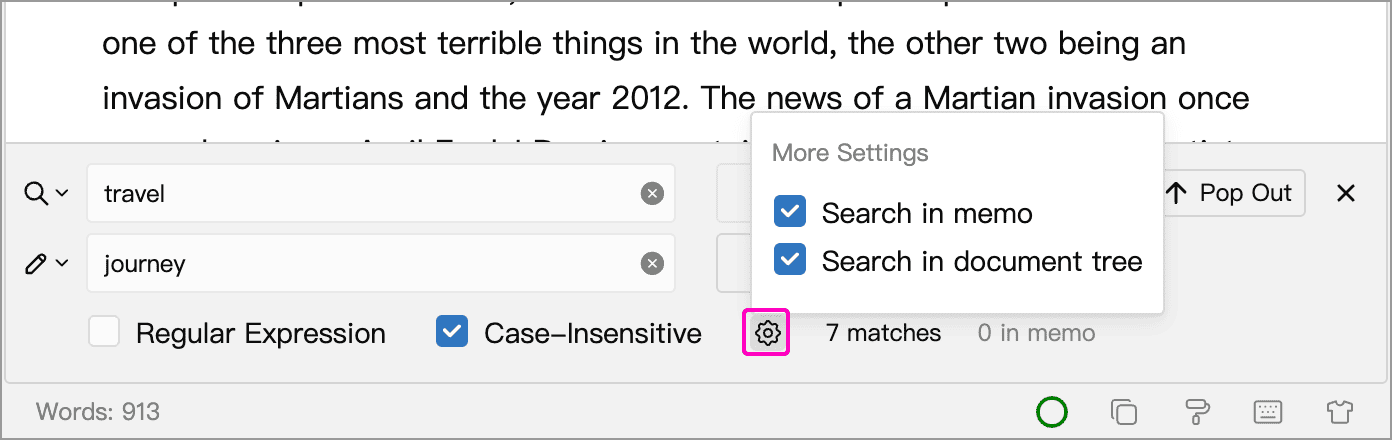
The gear beside Case-Insensitive controls whether to search memos and filter the document tree. A filtered tree preserves matching documents and their hierarchy so you can navigate between them. The docked Replace and Replace All buttons change only the current document’s body text, not its memo or other documents.
Regular Expression
Normal search matches the text you enter. Enable Regular Expression to find a pattern instead. Both interfaces support regular expressions and Case-Insensitive.
For example, m.*?y matches text such as “money” or “monkey”. The text between m and y can also include spaces and punctuation, so a match is not limited to a single word.
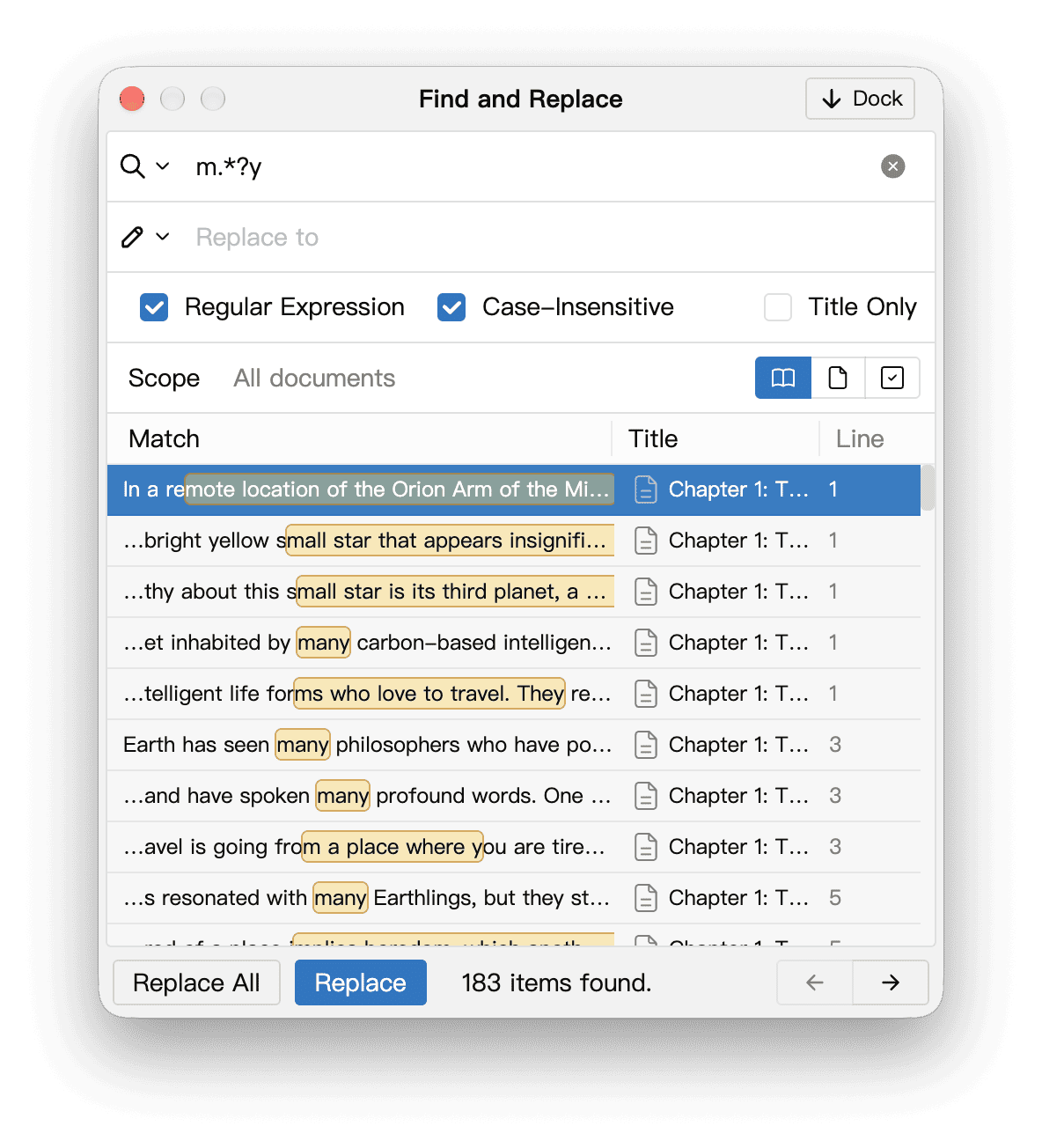
In docked search, enable Regular Expression below the search input to highlight matching text directly in the document:
Expressions use JavaScript syntax; do not add surrounding / delimiters:
| Expression | Finds |
|---|---|
m.*?y | The shortest text from m to y without crossing a line break |
\d+ | A sequence of digits |
\[\d+\] | A reference number such as [276] |
[ \t]{2,} | Two or more consecutive spaces or tabs |
Check matches before replacing with an unfamiliar pattern. If an expression is invalid, correct it before attempting a bulk replacement.