
Lock
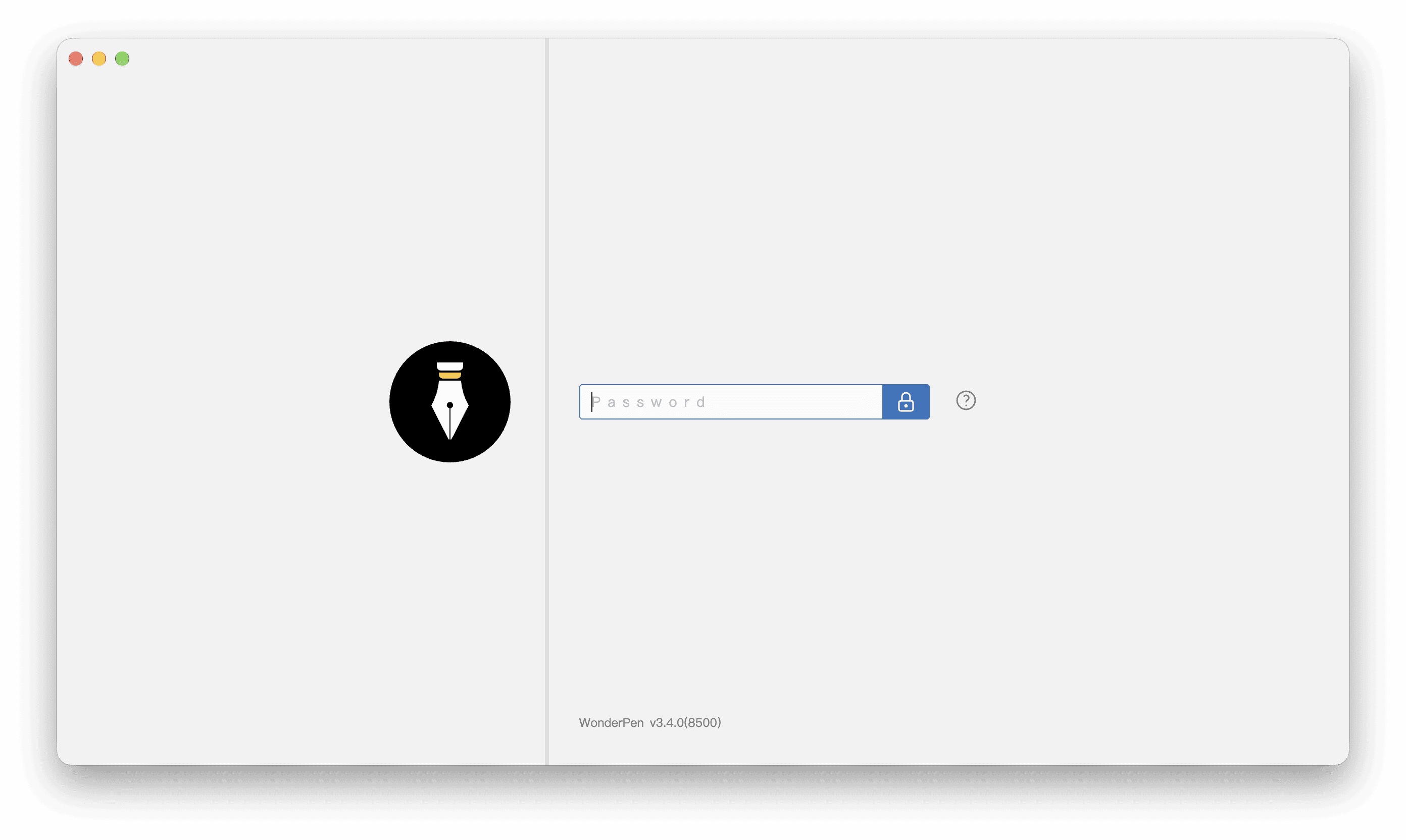
When locked, WonderPen displays a lock screen to help prevent others from viewing or editing your documents while you are away.
You can lock WonderPen manually at any time, or enable automatic locking so it displays the lock screen after you have been away from the app for a set period of time.
This locks the application interface. To prevent accidental edits to one document, use Lock a Document.
Set Automatic Locking and a Password
Open Settings → Advanced → Lock:
- Click Set Screen Password, enter the password you want to use to unlock the app, and confirm.
- To lock automatically, enable Lock the app interface automatically after losing focus for more than the following time and set the waiting time.
The password and automatic locking are separate settings. You can set a password and lock manually without enabling automatic locking.
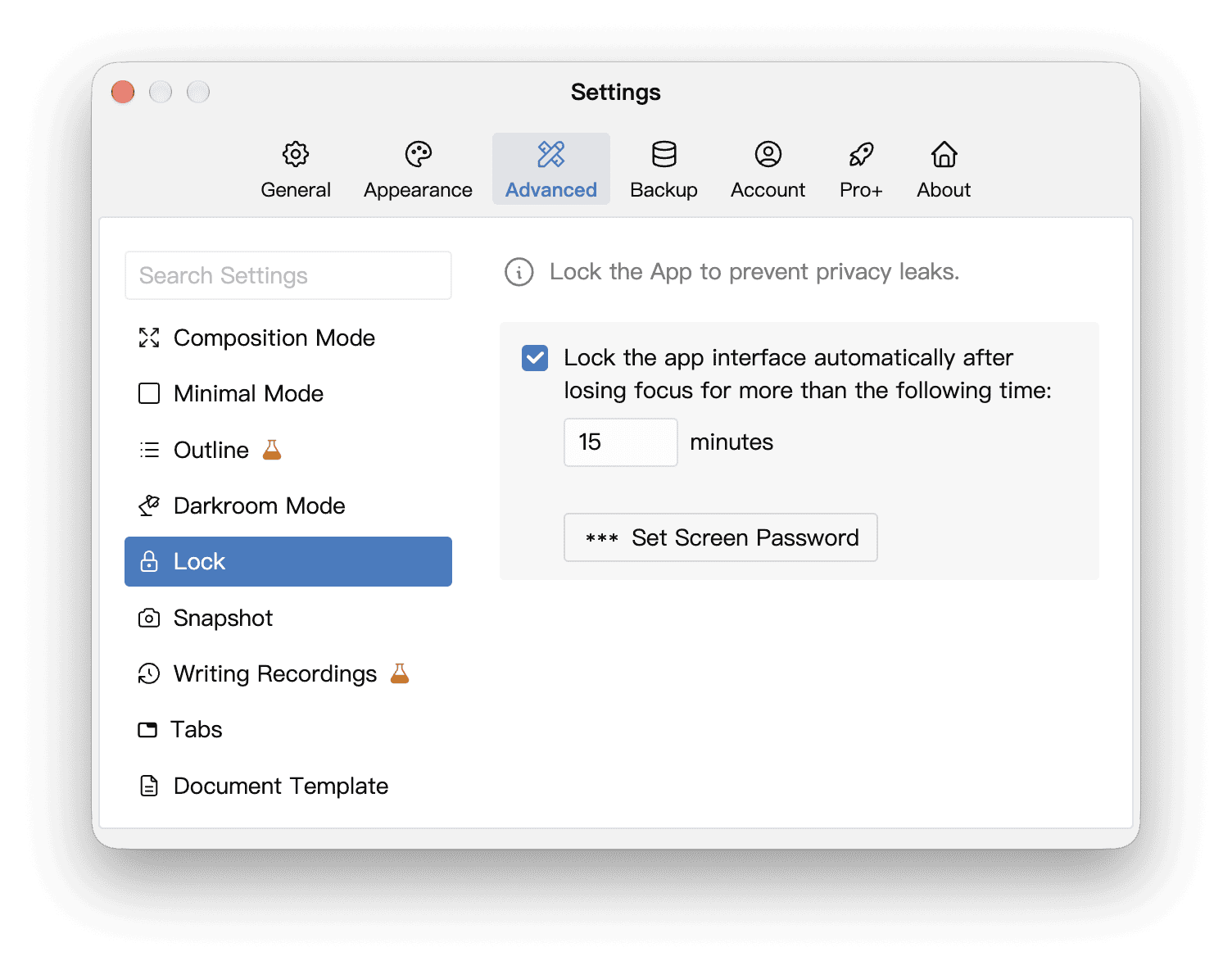
Automatic locking measures how long WonderPen has been out of focus, for example after switching to another app. Reading within WonderPen without typing does not trigger locking merely because there is no keyboard input. Switching between WonderPen’s own windows does not count as leaving the app. If you return before the waiting time is up, the timer starts again the next time you leave.
With automatic locking enabled, WonderPen also asks you to unlock it on startup. If it was locked when you quit, it starts locked the next time as well.
Lock and Unlock Manually
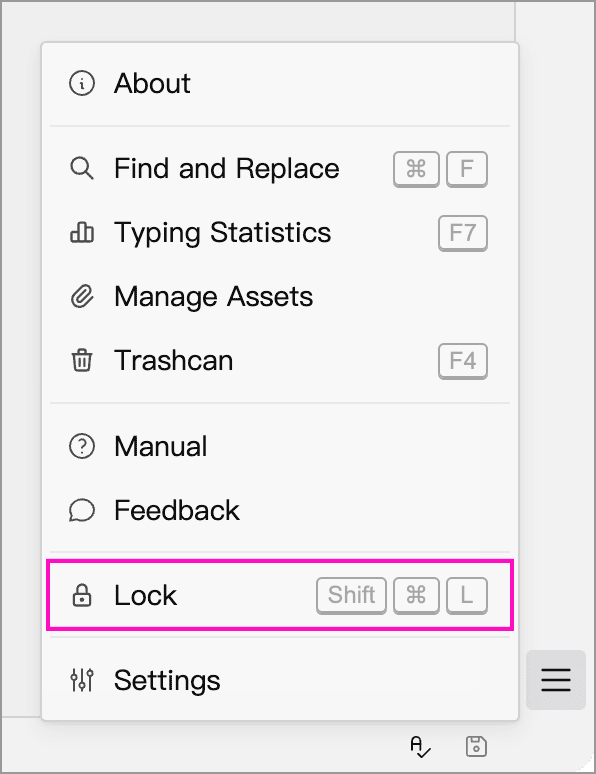
Choose Lock from the menu at the bottom right of the main window, or press Ctrl + Shift + L (⌘ + Shift + L on macOS), to lock immediately.
Enter your password and press Return or click the unlock button to return to the workspace.
Use an Empty Password
To remove the password, click Set Screen Password in the settings above, leave the input empty, and confirm. Then confirm the prompt about using an empty password.
With no password set, or with an empty password, manual and automatic locking still work. Click the unlock button or press Return without entering a password.
An empty password only hides the content temporarily; anyone can unlock the app. Set a password if you want to require one to unlock the app.
Locking Does Not Encrypt Files
Interface locking does not encrypt your Library, Assets, or backup files. To protect files on your computer, also use operating-system accounts, screen locking, and disk encryption as appropriate.