Directory Tree
Use the directory tree to organize your work. For example, put volumes and chapters under a parent document for a novel. Parent documents can contain their own text; they do not have to serve only as folders.
Use the Directory Tree
The directory tree appears in the Document panel, which is in the left sidebar by default. Click a title to open the document, or the arrow beside it to expand or collapse its children. To navigate headings within a single document, use the Table of Contents.

Create and Organize Documents
Click the plus button beside the Document panel title to create a document.

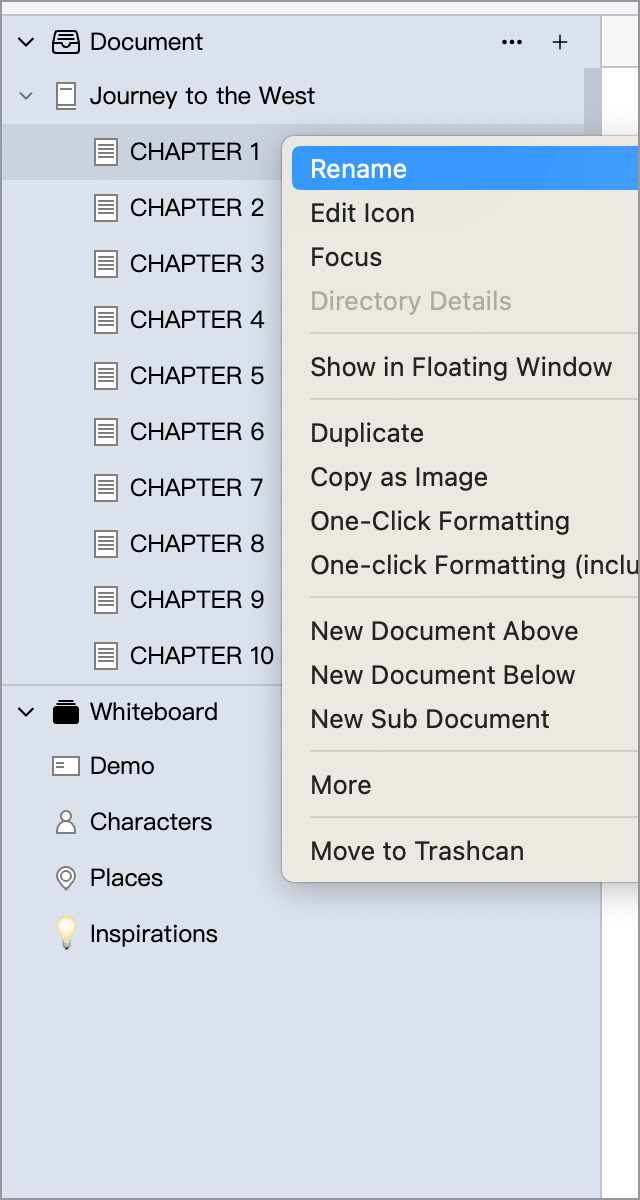
To choose where it appears, right-click an existing document and select:
- New Document Above or New Document Below to create a neighboring document at the same level.
- New Sub Document to create a child of the current document.
To start with predefined content, choose New from Template from the ellipsis menu beside the panel title. See Document Templates.
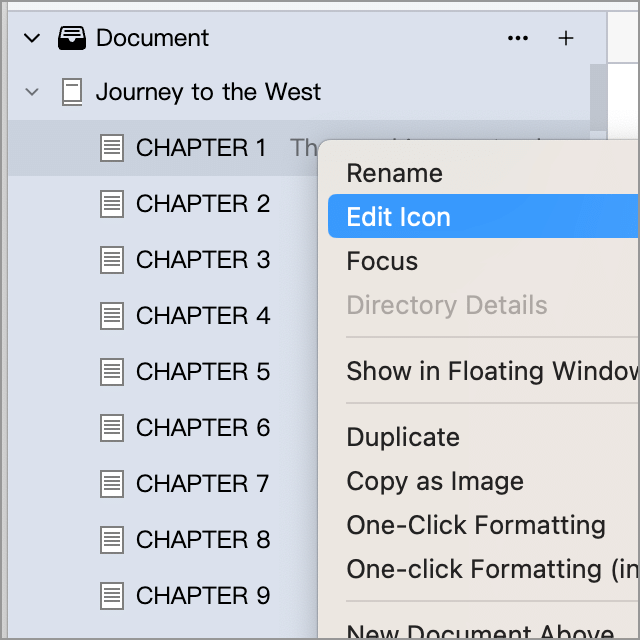
The context menu also provides renaming, duplication and moving commands. Demote Document, Promote Document and the commands to move documents up or down are in More by default. Demoting makes a document a child of the preceding sibling; promoting moves it to the same level as its parent. The menu is customizable; if yours differs from the screenshot, see Advanced Settings.

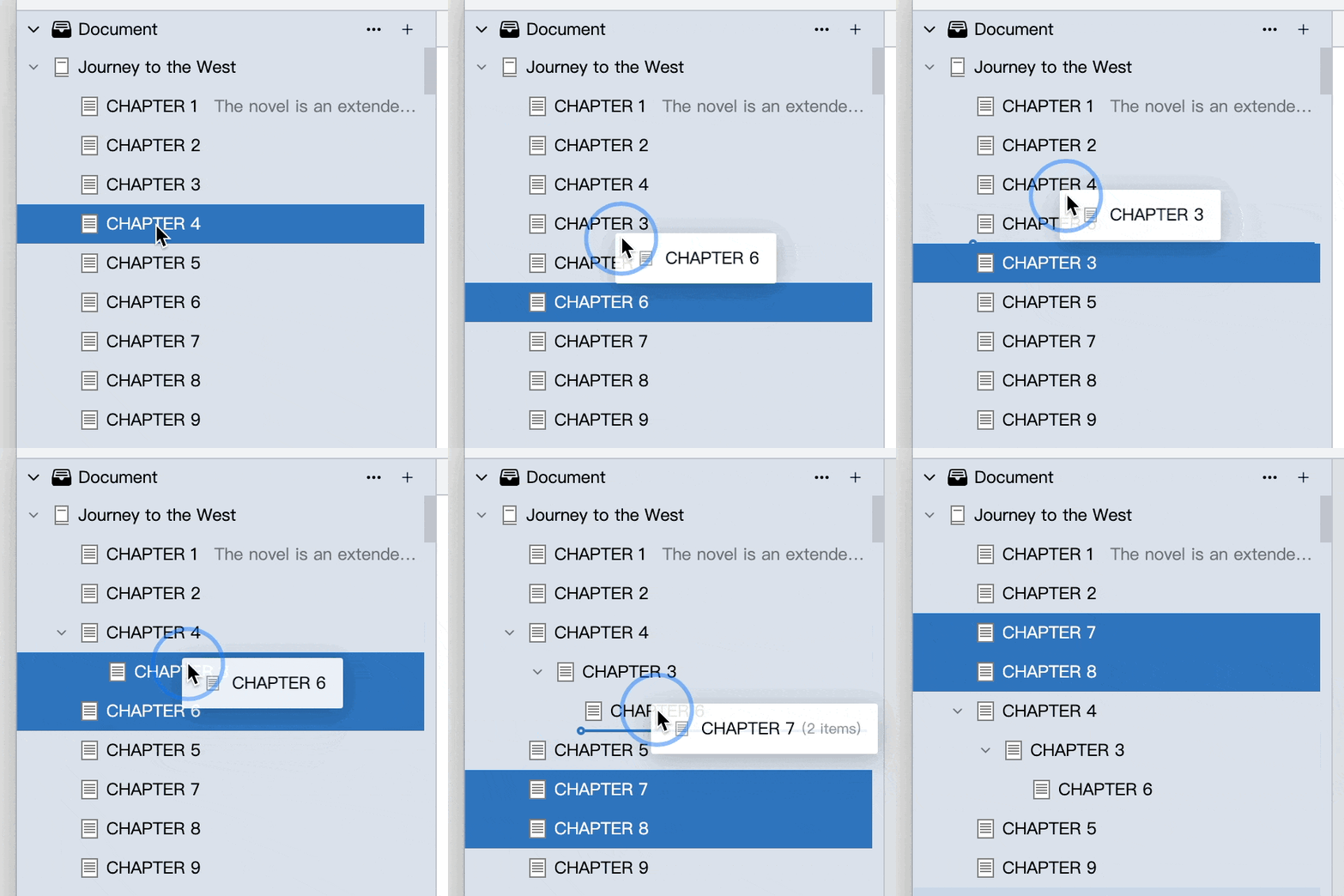
You can also drag documents to change their order or level, using the insertion indicator as a guide. Moving a parent document moves its children with it.

To update chapter numbers automatically when you insert, remove or move chapters, use numbering macros in their titles.
Select Multiple Documents
Hold Shift and click another document to select a range. Hold Ctrl (⌘ on macOS) and click to add or remove individual selections. Multiple selections are limited to siblings under the same parent. Use the context menu to move selected documents, change their icons, merge them or move them to the trashcan.

Open in a Floating Window or Tab
To refer to another chapter while writing, right-click a document and choose Show in Floating Window to open it in a separate window. See Floating Window for details.
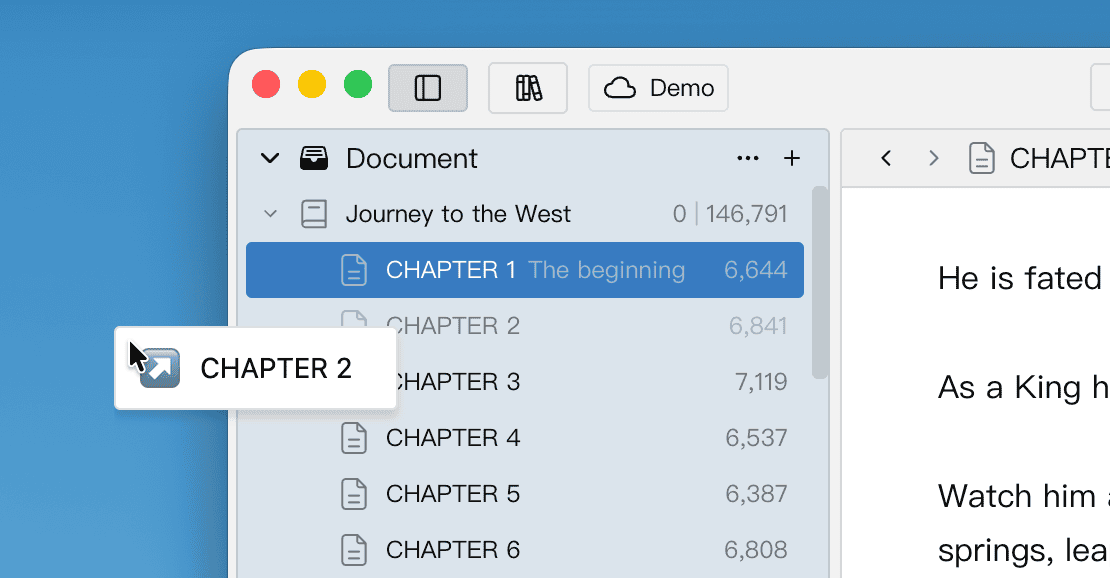
You can also drag a document outside the tree area and release it to open a floating window. With tabs enabled, dropping it on a tab bar opens a tab instead. These actions change where the document opens without moving it in the tree. Check the drop indicator to confirm whether you are opening a floating window or tab, or moving the document within the tree.

Focus
When the tree becomes long, right-click a document and choose Focus to show only that document and its descendants. You can also select multiple sibling documents before choosing Focus. Focusing only changes which documents are visible in the tree; it does not move them or change their hierarchy.

A focus indicator and an Unfocus button appear above the tree. Click Unfocus to return to the full structure.

Directory Details
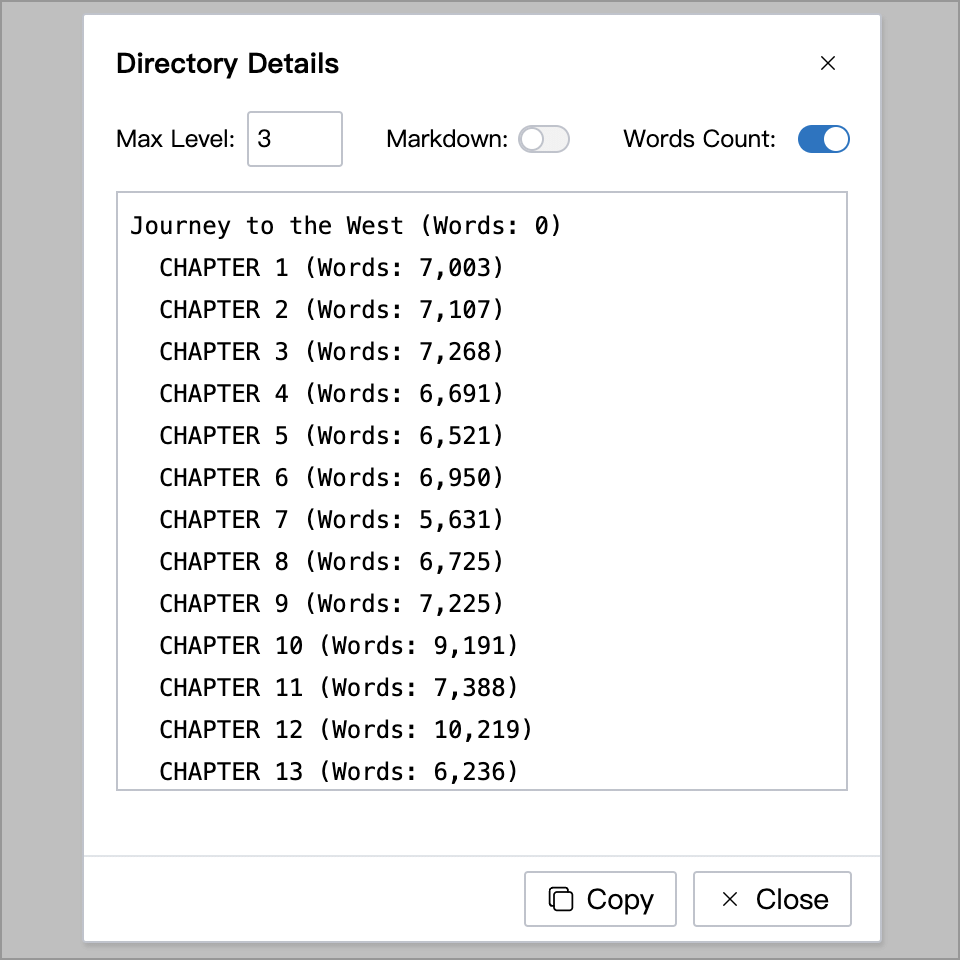
To share an outline with an editor or friend, right-click a document that has children and choose Directory Details.

The dialog lists the titles of the selected document and its descendants. Set the maximum depth, choose whether to include word counts or use Markdown list formatting, then click Copy. The copied outline contains titles, not document text.
The Max Level setting counts from the selected document: 0 shows only that document, 1 also includes its immediate children, 2 includes one more level, and so on.
With word counts enabled, hover over Word Count to choose a counting method. The total at the bottom includes only the listed documents; descendants hidden by the maximum depth setting are excluded.

Change Icons
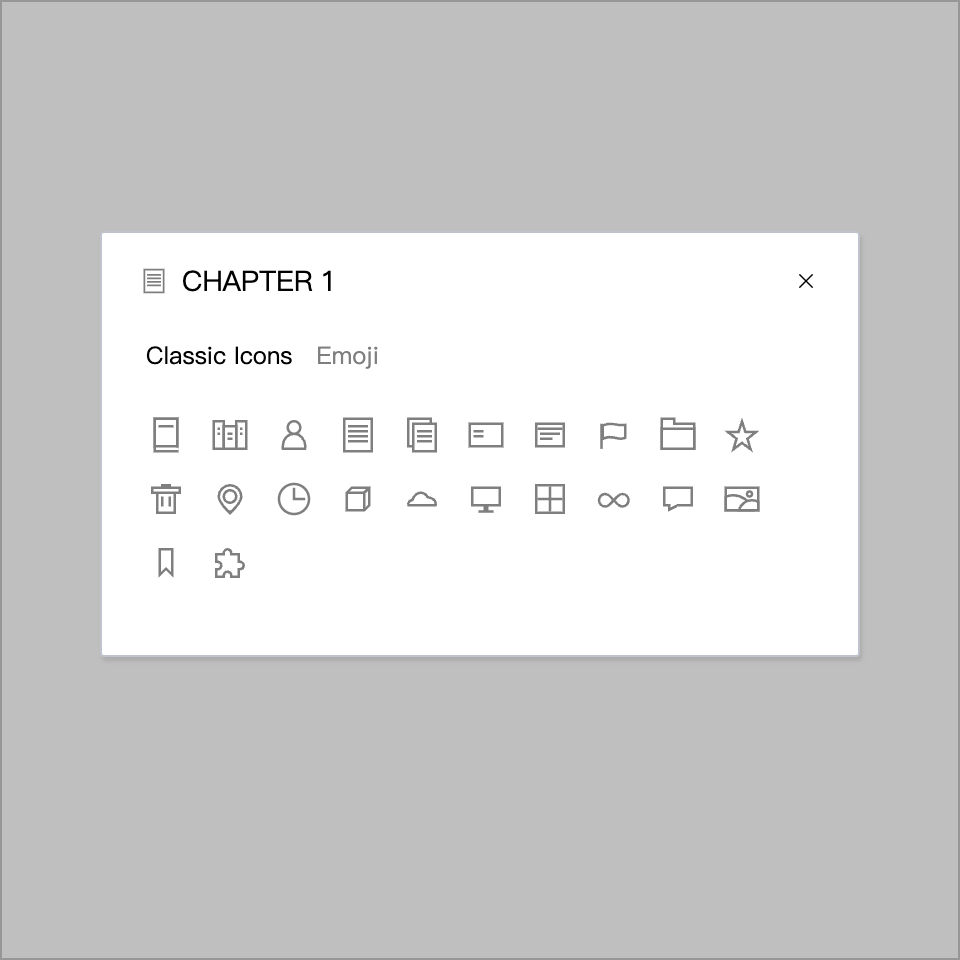
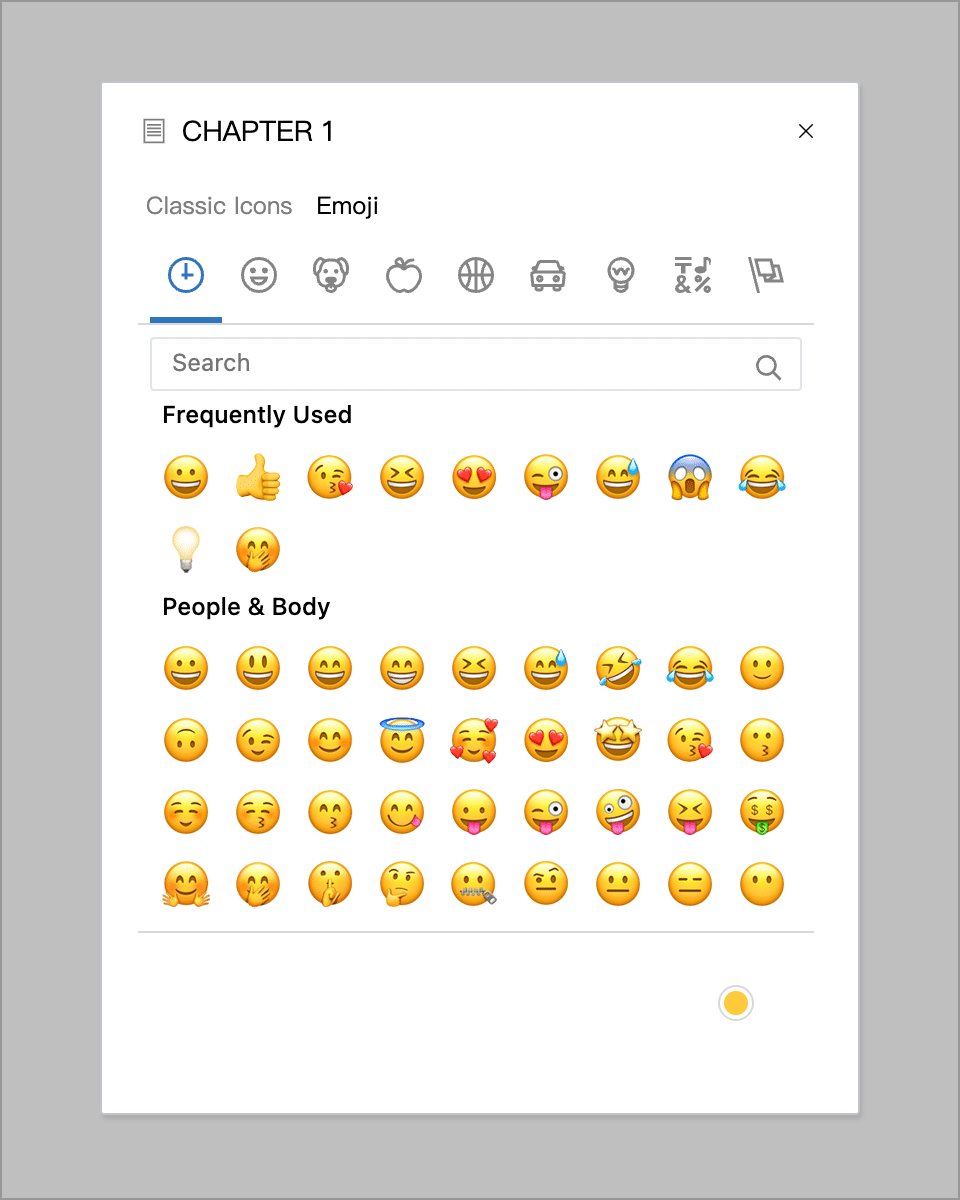
Right-click a document and choose Edit Icon. You can also click the document icon directly if this action is enabled in the directory tree settings. Icons help distinguish content; they do not change a document’s type or level.

Choose a classic icon or switch to Emoji:


Delete Documents
Select one or more documents in the tree and choose Move to Trashcan from the context menu. With keyboard focus in the tree, you can also press Ctrl + Delete (⌘ + Backspace on macOS). Moving a parent to the trashcan also moves its children.
To recover a deleted document, open Trashcan at the bottom of the sidebar. See Trashcan.

Show Word Count
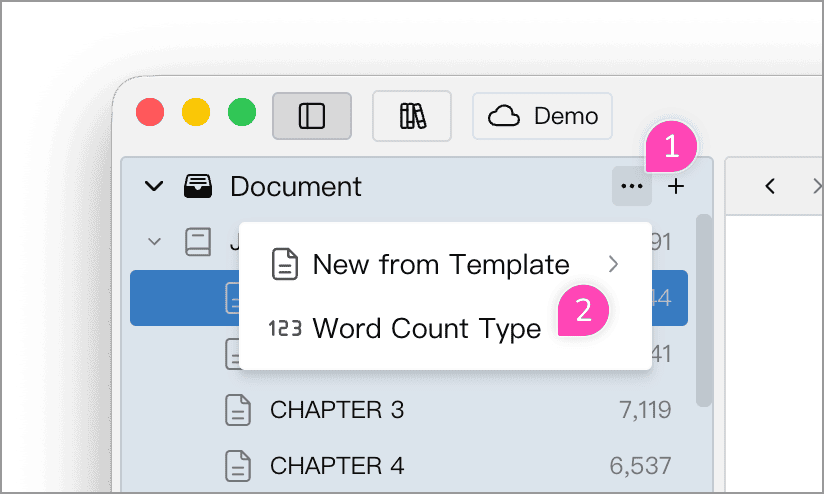
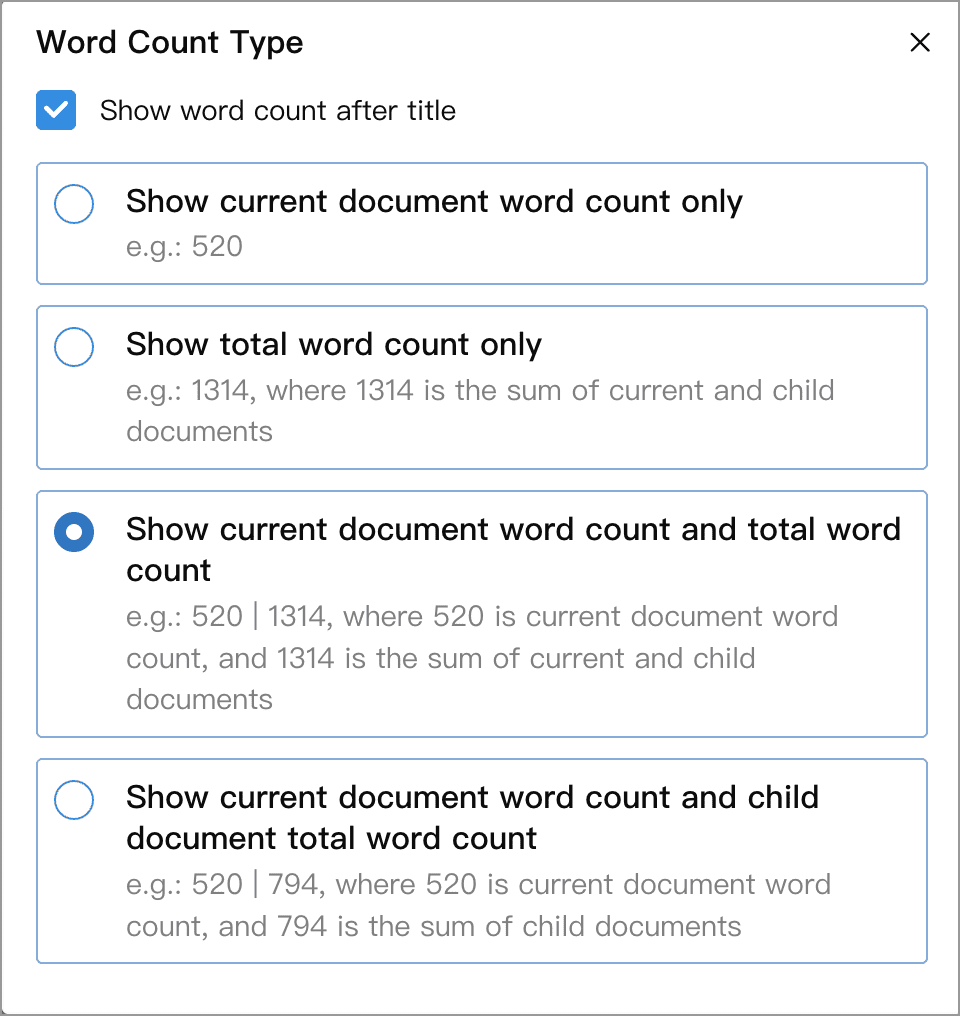
Click the ellipsis beside the Document panel title, then choose Word Count Type to control the counts beside document titles.


For example, suppose the current document contains 520 words and all its descendants contain 794 words combined. Descendants include both immediate children and documents nested further below them.
| Display mode | Example | Meaning |
|---|---|---|
| Current document only | 520 | The current document’s text only |
| Total only | 1,314 | The current document and all its descendants |
| Current document and total | 520 | 1,314 | Current document on the left; total including it on the right |
| Current document and descendants | 520 | 794 | Current document on the left; descendants only on the right |
If no counts appear beside titles, enable Show word count after title in Word Count Type. For documents without children, both two-number modes show only the current document’s count. See Word Count for counting methods.
Advanced Settings
In Settings → Advanced → Directory Tree, adjust row height, font size and indentation, and choose whether to show the first line of a memo or word counts beside titles. You can also choose whether double-clicking a title starts renaming, clicking an icon opens the icon picker, and collapsing a parent also collapses its descendants.

If temporary tabs and Double-Click in the Tree to Open a Normal Tab are enabled, double-clicking opens a normal tab instead of editing the title. Use Rename from the context menu in this case; see Temporary Tabs.
Use the configuration button beside Context Menu to reorder menu items, move less-used commands into More, or hide them. These settings change the menu layout without changing document content.