
Annotations
Annotations let you mark snippets in the body text that need attention and attach a short note. They are useful for recording revision ideas, foreshadowing, items pending confirmation, or temporary markers for content you want to revisit later.
Adding an annotation
Section titled “Adding an annotation”Select text in the editor, open the right-click menu, and choose Annotate to add or remove an annotation on the selected text.
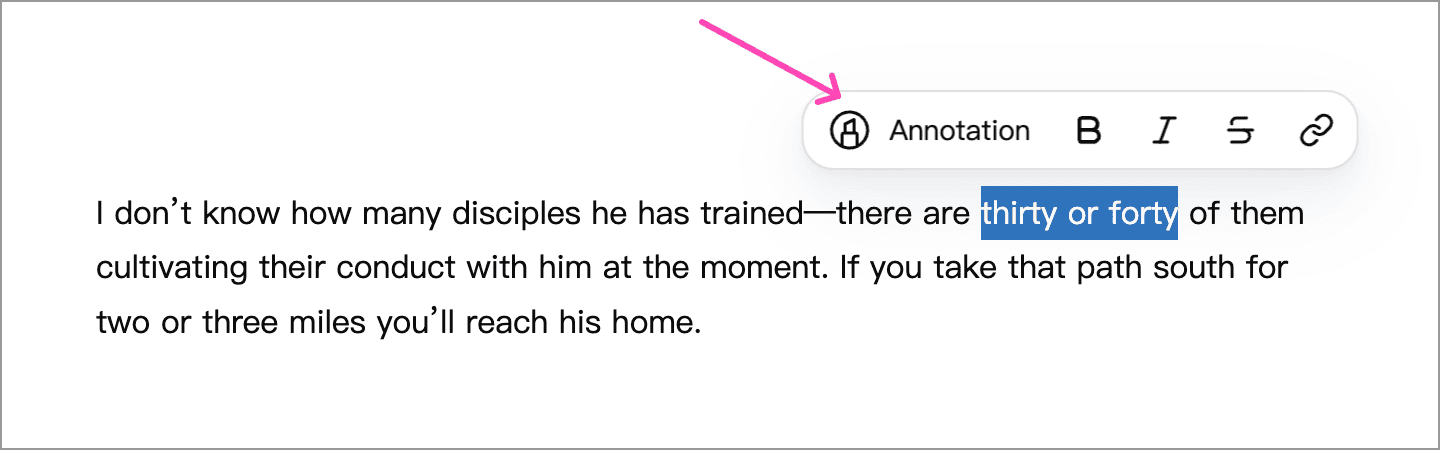
Once added, the Annotations panel on the right lists the related items. Click an entry in the list to jump to its location in the body text.
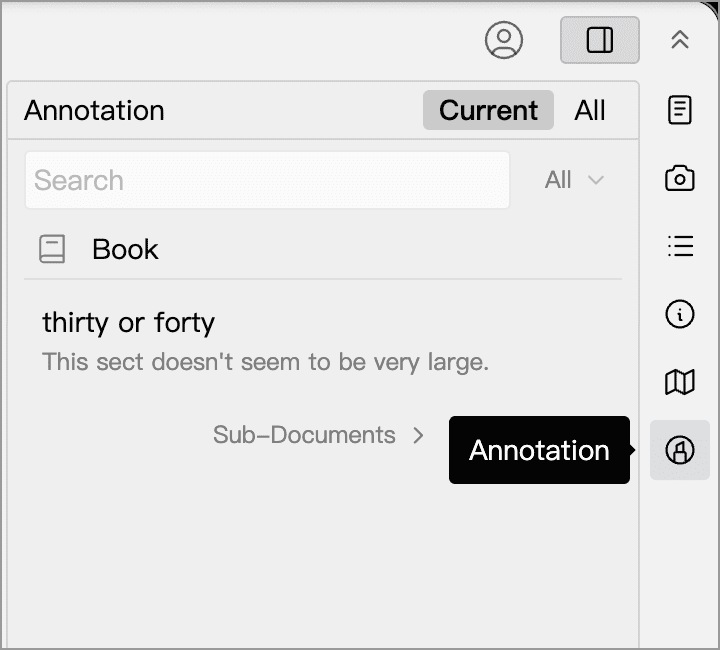
Annotation panel
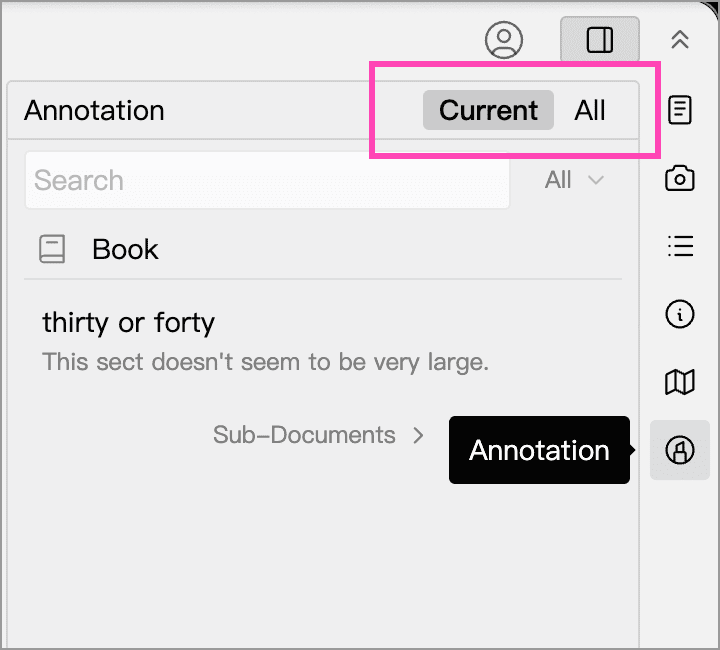
Section titled “Annotation panel”The annotation panel sits in the right sidebar. The top of the panel lets you switch between two scopes:
- This Chapter: shows annotations only from the currently selected document.
- All: shows every annotation in the current library.
You can use the search box to filter annotations by their text or note, and you can also filter by completion status to view only completed or uncompleted annotations.
Viewing child-document annotations
Section titled “Viewing child-document annotations”In This Chapter mode, if the current document has child documents, a Child Documents entry appears at the bottom of the annotation list. Click it to expand or collapse the annotations from the child documents.
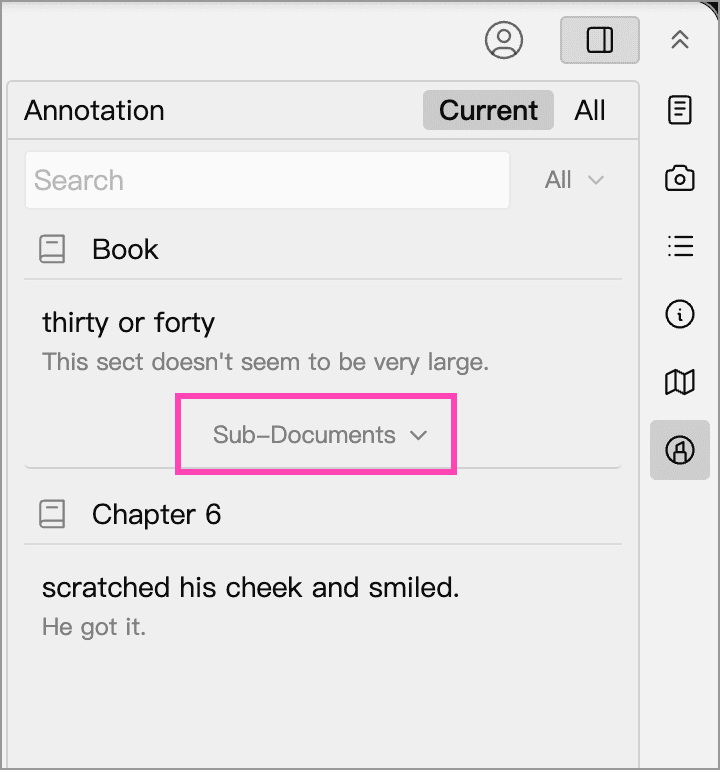
This is handy when organizing long-form work by chapter. For example, when you have a parent node like “Volume One” or “Chapter One” selected, you can quickly review unresolved annotations in the descendants alongside the chapter’s own annotations.