
Assets Management
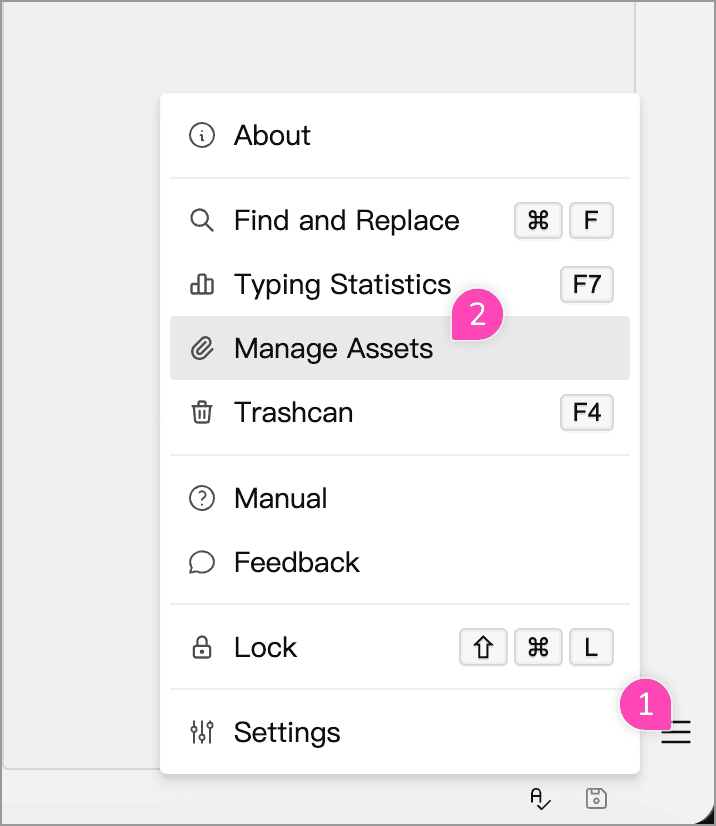
Assets in WonderPen are mostly resource files such as images inserted into documents and whiteboards. You can open the assets management window from the main menu’s Assets Management entry to view the assets in the current library.
Viewing assets
Section titled “Viewing assets”The assets management window shows asset thumbnails in a grid, with the asset count, total size, and other information at the top. For cloud-based libraries, the current assets quota usage is also shown.
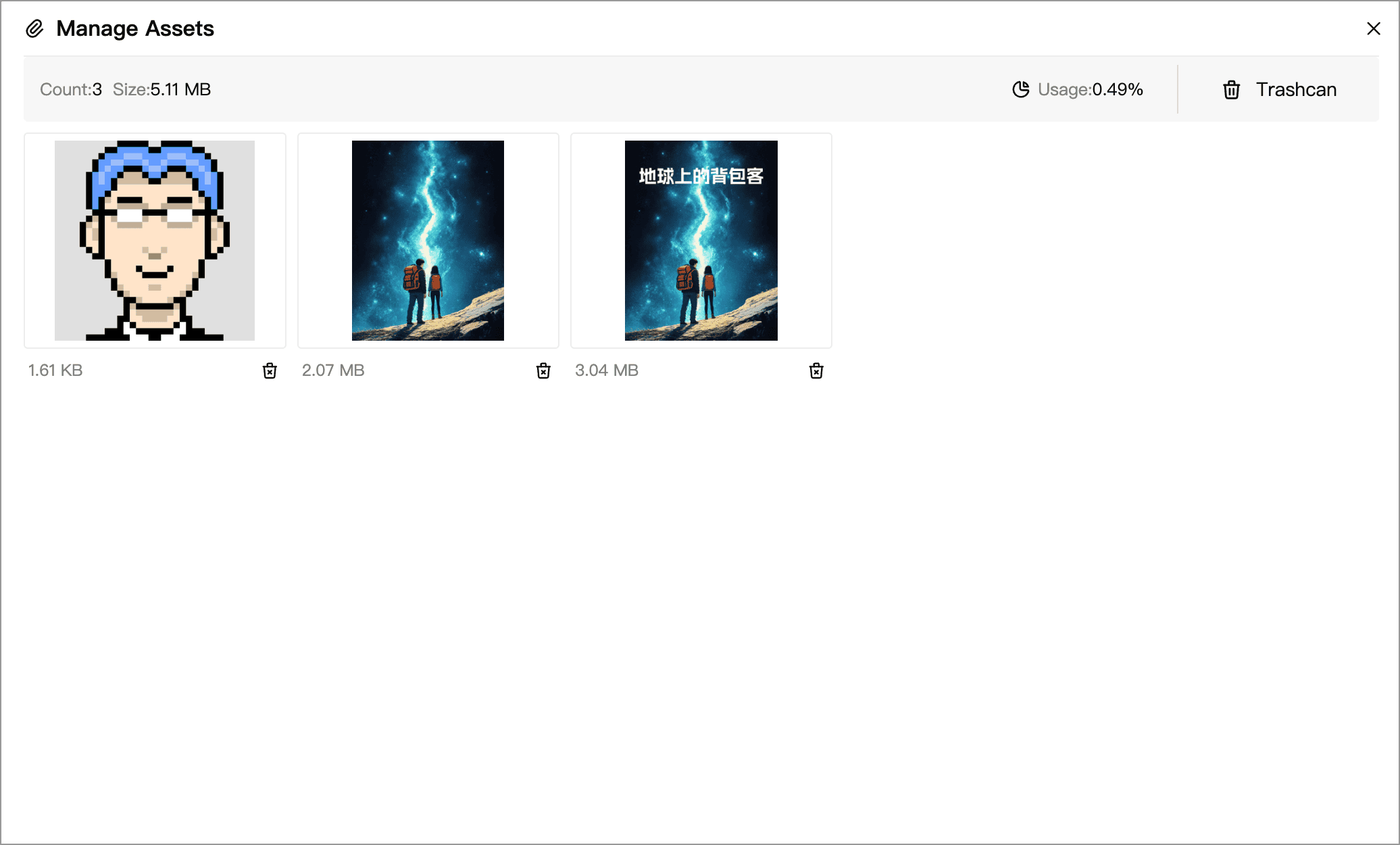
Click a thumbnail to open the preview. From the preview you can view the image and delete the asset. On desktop, you can also click Open Folder to locate the file in the system file manager.
For some Cloud Library assets, you may see the following statuses:
- Pending upload: the asset is saved on this device and waiting to sync to the cloud.
- Upload failed: the asset failed to sync to the cloud. You can usually retry once the network is back.
If the cloud assets quota is full, WonderPen will warn that new assets cannot be added or synced. In that case you can clean up assets you no longer need, or upgrade your account for more storage.
Delete and restore
Section titled “Delete and restore”When you delete an asset from the regular list, it is moved to the assets recycle bin first. After deletion, an undo prompt appears so you can quickly recover an accidental delete.
Click Recycle Bin in the upper-right corner of the assets management window to view deleted assets.
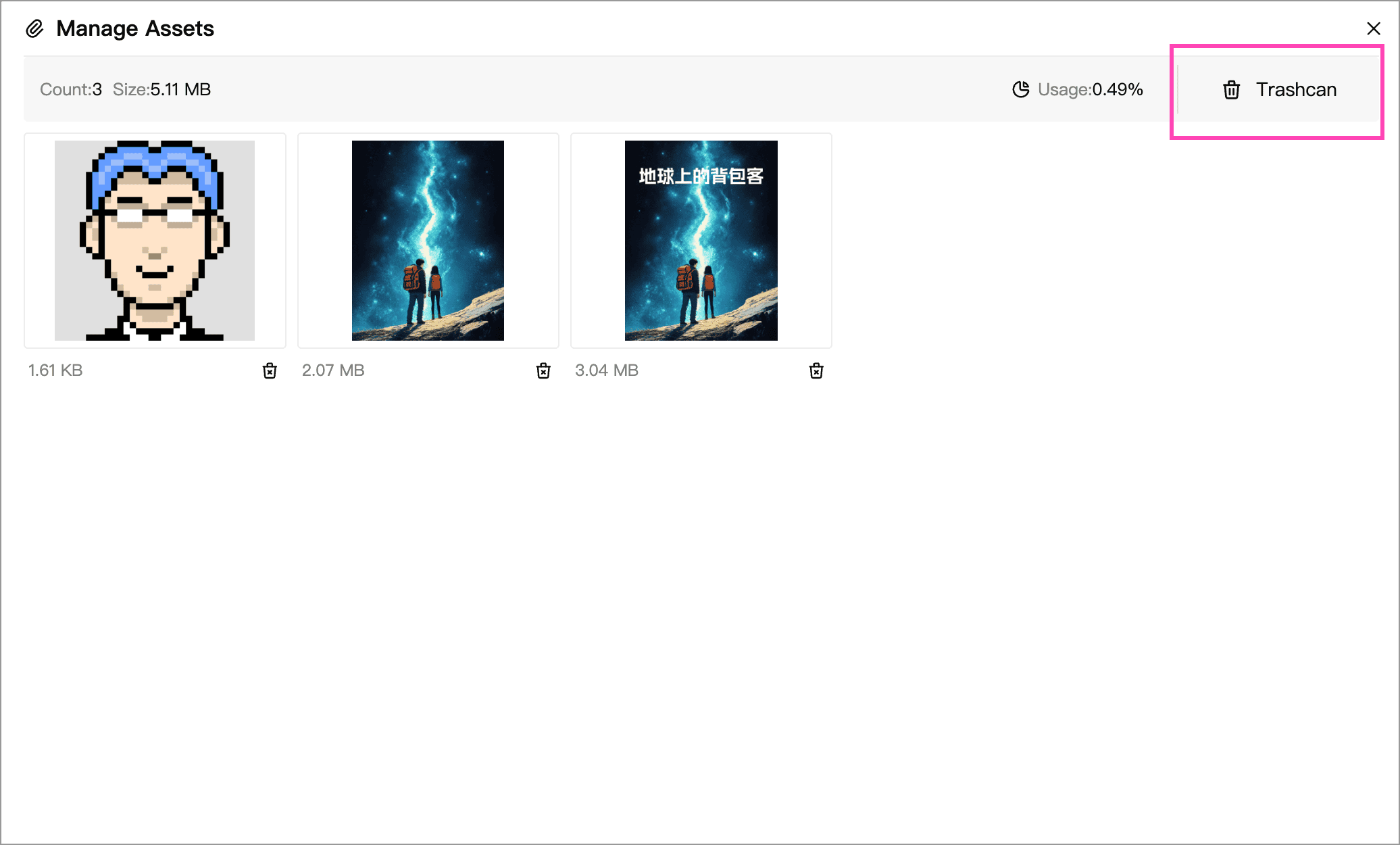
In the recycle bin, you can:
- Restore an asset
- Permanently delete a single asset
- Empty the entire assets recycle bin
Auto-cleanup
Section titled “Auto-cleanup”Assets in the recycle bin are automatically removed after 30 days. Items approaching the auto-cleanup time are highlighted with a more prominent style.
If you are tidying up cloud storage, it’s a good idea to check the assets recycle bin first to confirm whether anything can be permanently deleted.