
English
Start WonderPen from Command Prompt on Windows
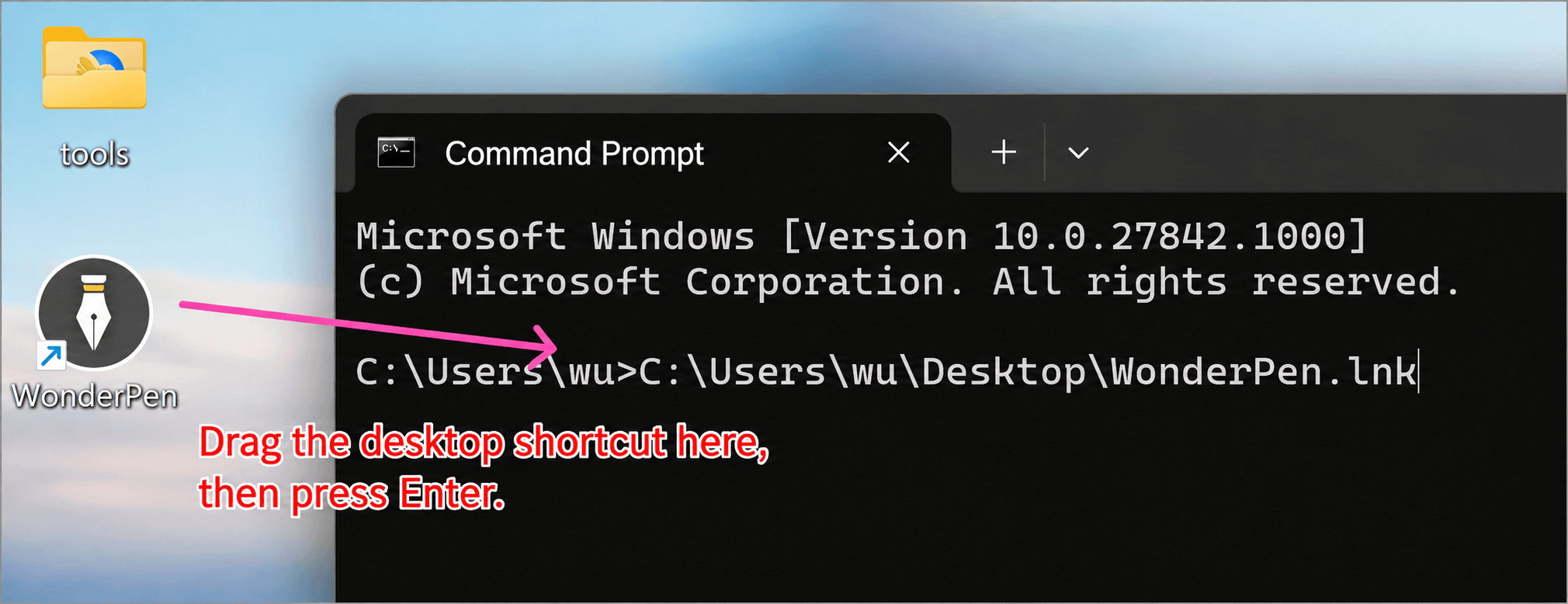
If double-clicking WonderPen opens no window, try starting it from Command Prompt. Any startup error it prints will remain visible even if WonderPen closes immediately. If WonderPen is already running, save your work and quit it completely first.
Drag the desktop shortcut into Command Prompt (recommended)
- Press
Win + R, typecmd, and press Enter to open a regular Command Prompt. Move the window so you can also see the WonderPen shortcut on your desktop. - Drag the WonderPen shortcut into the text area of Command Prompt and release it. The shortcut’s path appears after the
>prompt and usually ends inWonderPen.lnk. - Press Enter to launch WonderPen. Leave Command Prompt open to see any output.
Enter the launch command manually
If you have no desktop shortcut or dragging it does not insert a path, run WonderPen directly from its installation folder.
Find the application. Right-click the WonderPen desktop shortcut and choose Open file location. If you usually launch it from the Start menu, search for WonderPen there, right-click the result, and choose Open file location. If the folder still contains a shortcut, repeat the action on that shortcut until you see WonderPen with the file type Application (
WonderPen.exeif file extensions are visible).Open Command Prompt in that folder. In File Explorer, press
Alt + Dto select the address bar, typecmd, and press Enter. The path before the>prompt in the new window should be the folder you just opened. Use your regular Windows account.Start WonderPen. Type the following command and press Enter. The
.\prefix means the current folder.bat.\WonderPen.exe
Check the result
If the editor does not open, leave Command Prompt open for a few seconds and look for an error below the command. When contacting support, copy the full error or take a screenshot that includes both the command and its output. If nothing is printed, mention whether a WonderPen window appeared, even briefly.
If the output includes Unable to open nul device, follow the steps in Unable to open NUL device.