---
description: Restore deleted documents, whiteboards, and cards, understand permanent deletion, and find deletion-conflict copies and the separate Assets trashcan.
---
# Trashcan
When you delete a document, whiteboard or card in WonderPen, it is not removed right away but moved to the **trashcan** first. If you delete something by mistake, you can restore it until it is permanently deleted or the trashcan is emptied.
## Delete Content
- **Documents**: right-click a document in the directory tree and choose **Move to Trashcan**, or select it and press Ctrl + Delete (⌘ + Backspace on macOS). All of its child documents move to the trashcan with it.
- **Whiteboards**: right-click a whiteboard in the whiteboard list and choose **Move to Trashcan**.
- **Cards**: cards deleted from a card list or whiteboard also go to the trashcan.
## Open the Trashcan
You can open the trashcan in any of the following ways:
- Press F4
- Choose **View** → **Trashcan** from the menu
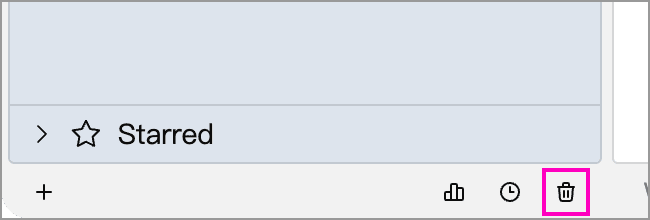
- Click the trashcan icon at the bottom of the left sidebar
The trashcan lists deleted documents, whiteboards, and cards in the current Library that have not been permanently removed. Click an item to preview its content and deletion time on the right. Assets have a separate trashcan, described below.

## Restore
Select the item you want to restore, then click **Restore** in the preview, or right-click the item in the list and choose **Restore**. Documents and whiteboards return to their original place in the tree, together with their child items. Cards deleted individually return to their original card list or whiteboard.
If the original location is no longer available:
- If a document or whiteboard's original parent no longer exists, WonderPen asks whether to restore it to the root of the corresponding tree.
- If a card's original whiteboard no longer exists, confirming the restore creates a new whiteboard at the root to hold the card.
- If the card list a card belonged to no longer exists, the card cannot be restored.
## Delete Permanently
Select an item in the trashcan and click **Delete** (or choose **Delete** from the context menu), then confirm to delete it permanently. If a document or whiteboard was moved to the trashcan together with its child items, permanent deletion also removes those child items.
Click **Empty the trashcan** and confirm to permanently delete all items in the current Library's regular trashcan. Deletion-conflict copies and the Assets trashcan, described below, are managed separately.
::: danger
Once permanently deleted, a document's content, snapshots and Writing Replay recordings are all removed and can no longer be recovered from the trashcan. If you later find you still need them, try restoring them from a [backup](./backup-and-restore.md) made before deletion.
:::
## Deletion Conflicts
When you use a Cloud Library, if a document (or whiteboard or card) is deleted on another device while this device still has unsynced changes to it, WonderPen keeps a copy of that content on this device so that your changes are not lost.
When this happens, a small dot appears on the trashcan icon at the bottom of the left sidebar.

Open the trashcan to see a notice at the top:

Click **View** in the notice to go to the **Deletion Conflicts** page, where you can:
- Preview the content of each copy;
- Click **Restore**: documents and whiteboards are restored as new items at the root of the corresponding tree, while for cards you can choose which card list to restore them to. Restored content syncs to the cloud as usual;
- Click **Delete Permanently** to remove copies you no longer need.
Deletion-conflict copies are stored only on the device where the conflict occurred and are removed automatically 30 days after they are saved. Restore any content you need on that device before the copies expire. Emptying the trashcan does not remove these copies. See also [Sync Conflicts](./doc-conflict.md#deletion-conflicts).
## Assets Trashcan
Images and other Assets in documents and whiteboards have a separate trashcan in the **Assets Management** window. Expired Assets are removed automatically; refer to the app for the retention period.
Restoring a document does not also restore Assets that were deleted separately. If images are still missing after you restore a document, check the Assets trashcan and restore the corresponding files. See [Assets Management](./assets-management.md) for instructions.